
Change the power mode or High performance power plan in Windows
The power mode decides whether Windows favours speed or battery life. Best performance can help with slow games and heavy apps; Best power efficiency saves battery.
- Time
- 1 minute
- Level
- Easy
Windows 11
Steps written for Windows 11 24H2, 25H2 and 26H2.
Open the power settings
Open Settings > System > Power & battery. On a PC without a battery the page is called Power.
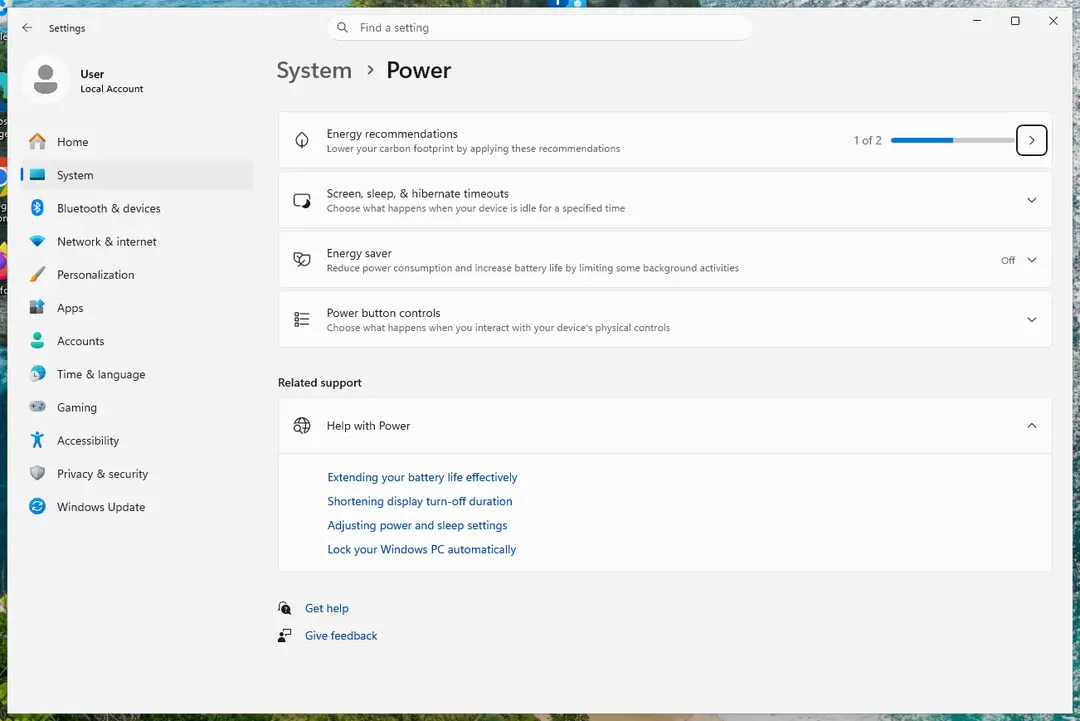
On this virtual machine the Power page has no Power mode setting: it depends on the hardware. Screenshot: Windows 11 26H2 Choose the power mode
Under Power mode, choose Best power efficiency, Balanced or Best performance. On a laptop you can set it separately for Plugged in and On battery.
If Power mode is missing, use a power plan
Microsoft notes that Power mode is not available on all PCs. Press Windows key + R, run the command below and select a plan such as High performance (it may be under Show additional plans).
powercfg.cpl
Windows 10
Steps written for Windows 10 22H2.
Microsoft ended support for Windows 10 on October 14, 2025.
Use the battery slider (laptops)
Select the Battery icon on the right side of the taskbar and move the slider toward better performance or better battery life.
Or open the power plans
Press Windows key + R, run the command below and select a plan such as High performance (it may be under Show additional plans).
powercfg.cpl
Switch the plan with a command
List the power plans and see which one is active (marked with an asterisk):
powercfg /list
Switch to High performance:
powercfg /setactive SCHEME_MIN
Back to Balanced:
powercfg /setactive SCHEME_BALANCED
If only Balanced is listed
Many current PCs offer only the Balanced plan. Use Power mode in Settings instead.
Used in 1 guide
Sources
- Microsoft Support: Change the power mode for your Windows PC (read Oct 3, 2026)
- Microsoft Support: Battery saving tips for Windows (read Oct 3, 2026)
- Microsoft Learn: Powercfg command-line options (read Oct 3, 2026)