
Run Startup Repair in Windows 11 (fix the Automatic Repair loop)
Startup Repair checks why Windows does not start (damaged boot files, boot configuration, drivers) and tries to fix it. In current Windows 11 it runs from the Quick machine recovery tile.
- Time
- 5 to 30 minutes
- Level
- Easy
- You need
- The password of an administrator account. If the drive is encrypted, the BitLocker recovery key.
Windows will not start
Steps written for Windows 11 and Windows 10, from the Windows Recovery Environment.
In Windows 11 26H2 the tile is called Quick machine recovery; its description says it was previously known as Startup Repair. In Windows 10 and older Windows 11 versions it is called Startup Repair.
Open the recovery environment
After repeated failed starts Windows opens it by itself (Automatic Repair: select Advanced options). If Windows still starts, open Settings > System > Recovery and select Restart now next to Advanced startup. From the sign-in screen, hold Shift and select Power > Restart.
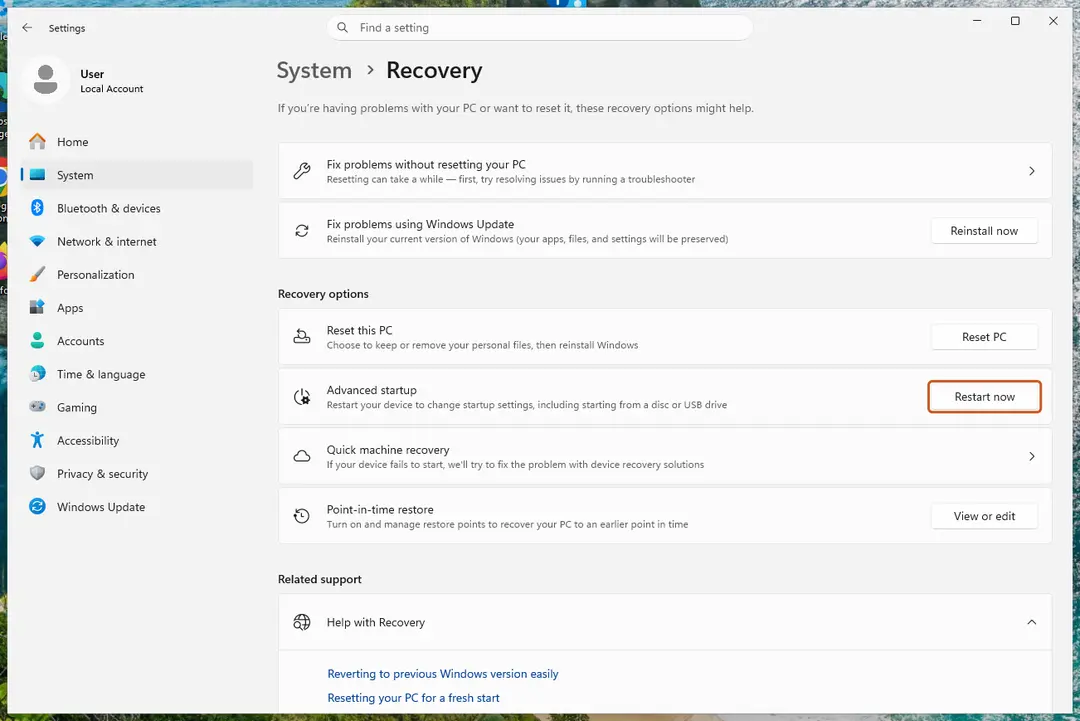
From a working desktop, Advanced startup opens the recovery environment. Screenshot: Windows 11 26H2 Select Troubleshoot
On Choose an option, select Troubleshoot.
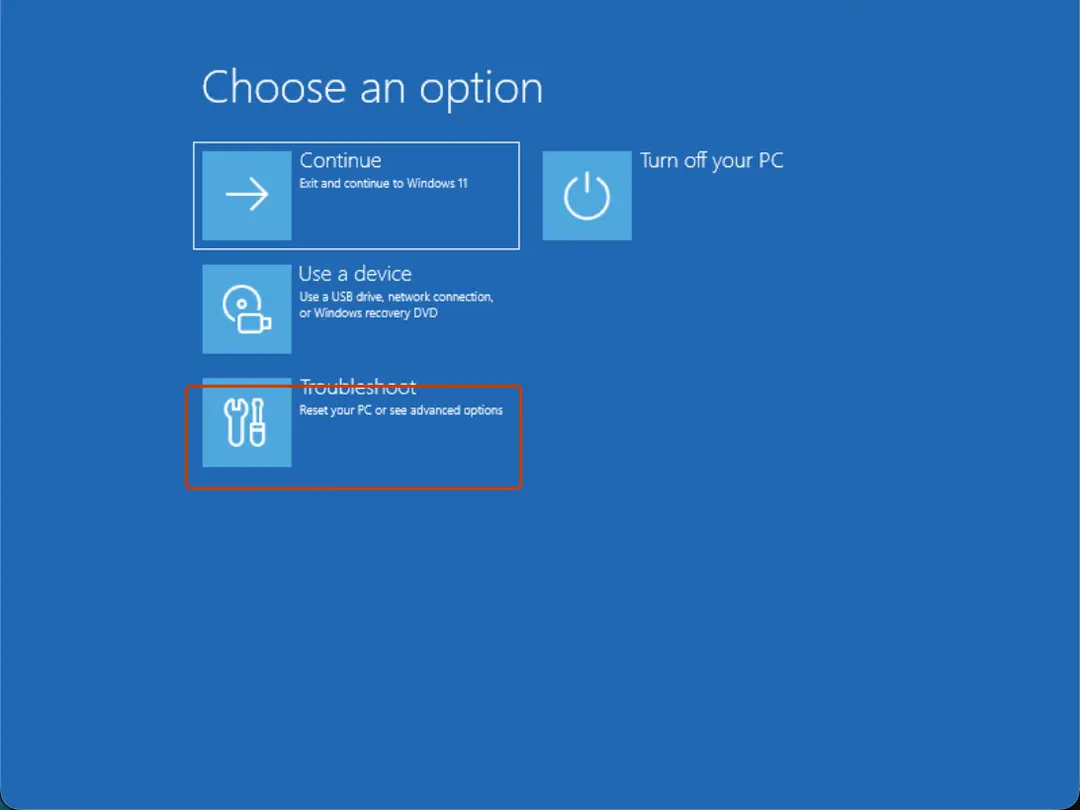
Choose an option: Troubleshoot. Screenshot: Windows 11 26H2 Open Advanced options
Select Advanced options.
Start the repair
Select Quick machine recovery (or Startup Repair on older versions).
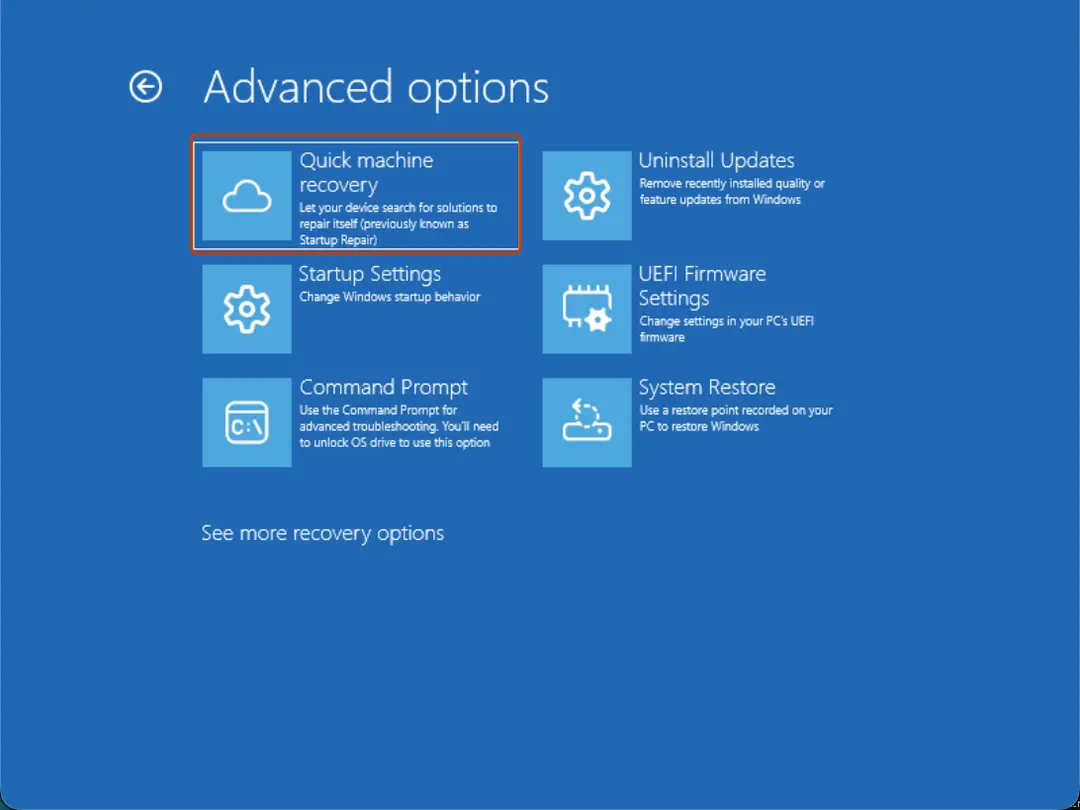
Quick machine recovery is the former Startup Repair tile. Screenshot: Windows 11 26H2 Sign in if asked
Choose an administrator account and type its password. If Windows asks for the BitLocker recovery key, enter it.
Wait for the result
The check can take a while. If it fixes the problem, the PC restarts into Windows. If it cannot, it says so and shows where its log file is; select Advanced options and continue below.
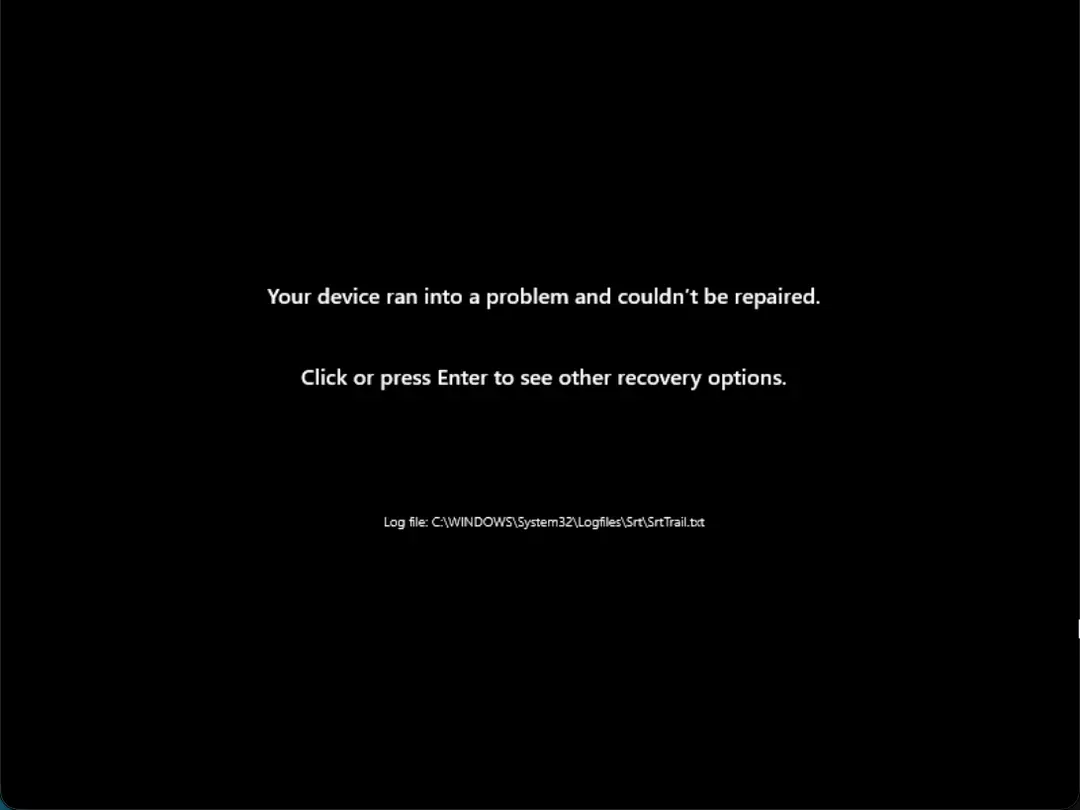
This message means the repair found nothing it could fix. Screenshot: Windows 11 26H2
If the PC stays in the Automatic Repair loop
Startup Repair fixes boot files, not every cause. From Advanced options, try these in order and test after each:
- Uninstall Updates, if the problem started after an update.
- System Restore to a point before the problem: Undo recent changes with System Restore.
- Startup Settings > Safe Mode, then remove a recent driver or app: Start Windows or a Mac in Safe Mode.
- Command Prompt for an offline system file scan (Run DISM and SFC to repair Windows system files) and a disk check (Check a disk for errors (chkdsk)).
- As a last step, reinstall Windows and keep your files: Reinstall Windows without losing files.
Read the repair log
The result screen names the log file, C:\WINDOWS\System32\Logfiles\Srt\SrtTrail.txt. In the recovery environment's Command Prompt the drive letter is often different; find it with dir D:\Windows (try C:, D:, E:), then open the file with notepad D:\Windows\System32\Logfiles\Srt\SrtTrail.txt. It lists each test the repair ran and its result.
What Quick machine recovery adds
On Windows 11 version 24H2 and later, Quick machine recovery builds on Startup Repair: when it is turned on and the PC has a network connection, it also looks on Windows Update for a fix Microsoft has published for a known, widespread startup problem. Its settings are in Settings > System > Recovery > Quick machine recovery.
If the recovery environment does not open
Start the PC from a Windows installation USB drive (made on another PC), select Next, then Repair your computer. It opens the same Choose an option screen.
Used in 1 guide
Sources
- Microsoft Support: Startup Repair (read Oct 3, 2026)
- Microsoft Support: Quick machine recovery in Windows (read Oct 3, 2026)
- Microsoft Support: Windows Recovery Environment (read Oct 3, 2026)
- Microsoft Support: Recovery options in Windows (read Oct 3, 2026)