
Use System Restore in Windows 11 and Windows 10
System Restore returns system files, the registry, drivers and installed programs to the state they were in when a restore point was made. Your personal files are not affected.
- Time
- 15 to 45 minutes, including restarts
- Level
- Easy
- You need
- An administrator account and at least one restore point. From the recovery environment on an encrypted PC: your BitLocker recovery key.
Before you start
- Programs and drivers installed after the restore point will be removed; programs removed after it may come back. Note what you installed recently.
- Save your work: Windows restarts during the restore.
Windows 11 and 10
Steps written for Windows 11 and Windows 10 (the steps are the same).
Open System Restore
Press Windows+R, type the command below and press Enter. You can also open Control Panel > Recovery > Open System Restore. If a first page opens, select Next.
rstrui.exeChoose a restore point
Select a restore point from a time before the problem started. The Description often names the event, such as a driver or app install. If the one you need is missing, select Show more restore points (shown only when there are more).
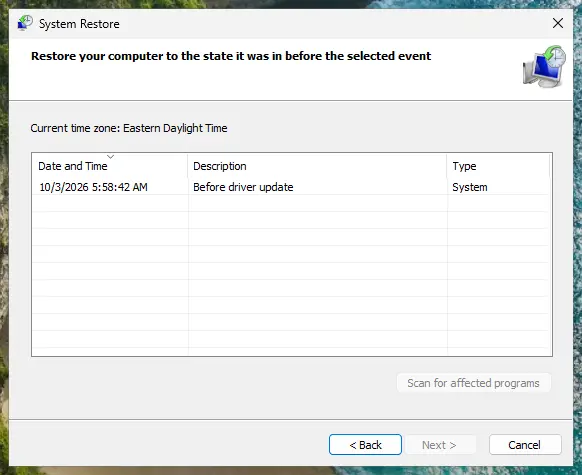
Pick a restore point from before the problem started. Screenshot: Windows 11 26H2 See what will change
Select Scan for affected programs. The upper list shows programs and drivers that will be removed; the lower list shows those that might come back and may need to be reinstalled. Select Close.
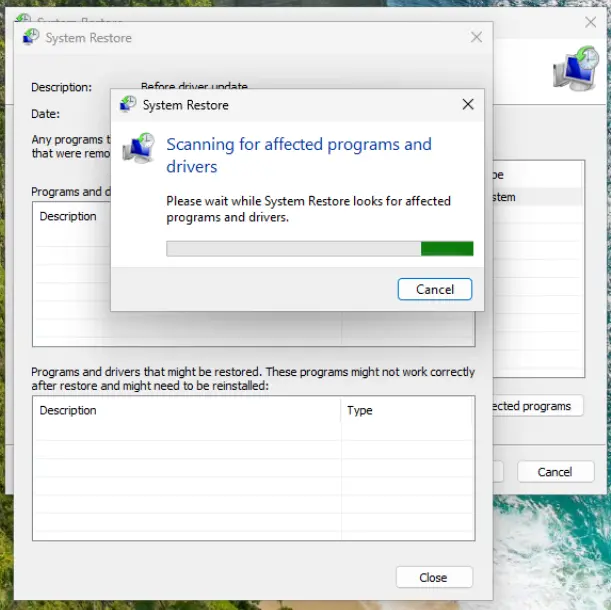
The scan lists programs and drivers the restore removes or brings back. Screenshot: Windows 11 26H2 Start the restore
Select Next, check the summary and select Finish. Windows restarts and applies the restore point. Do not turn the PC off.
Check the result
After sign-in Windows reports whether the restore succeeded. Check whether the problem is gone.
Windows will not start
Steps written for Windows 11 and Windows 10, from the Windows Recovery Environment.
When Windows keeps failing to start, it usually opens the recovery environment by itself. Otherwise use step 1.
Open the recovery environment
On the sign-in screen or in the Start menu, select Power, hold Shift and select Restart. For other ways, see Start Windows or a Mac in Safe Mode.
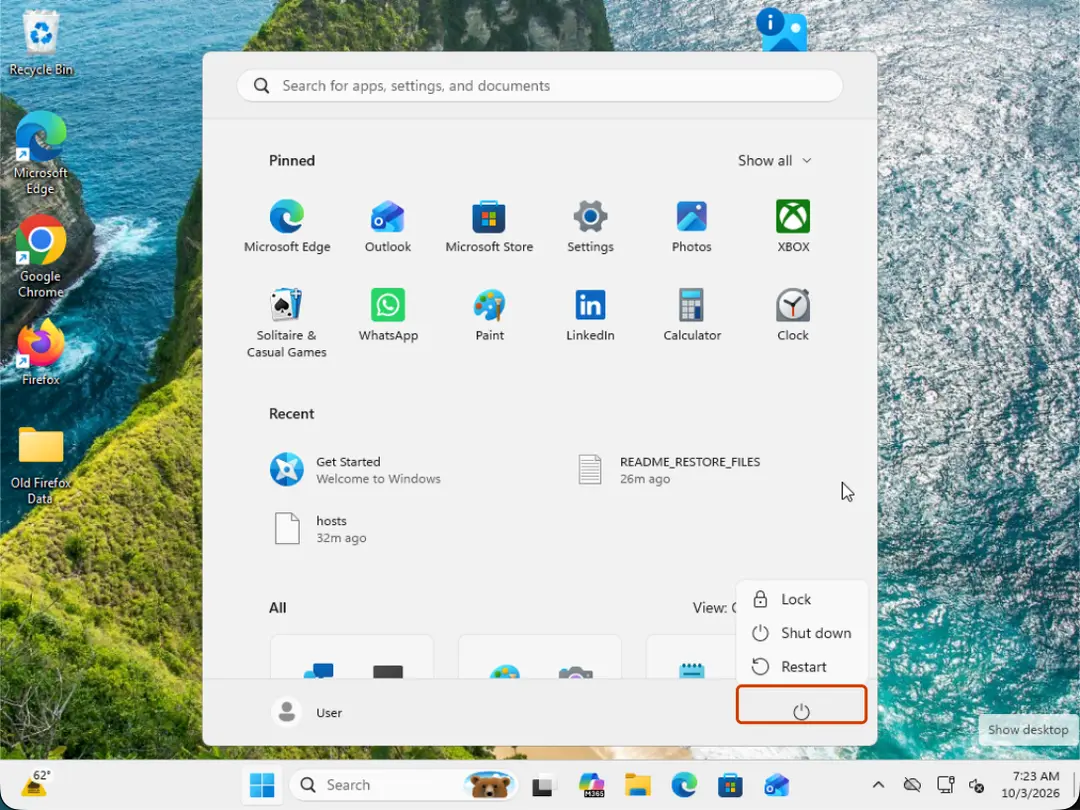
Hold Shift while you select Restart. Screenshot: Windows 11 26H2 Go to Advanced options
Select Troubleshoot > Advanced options.
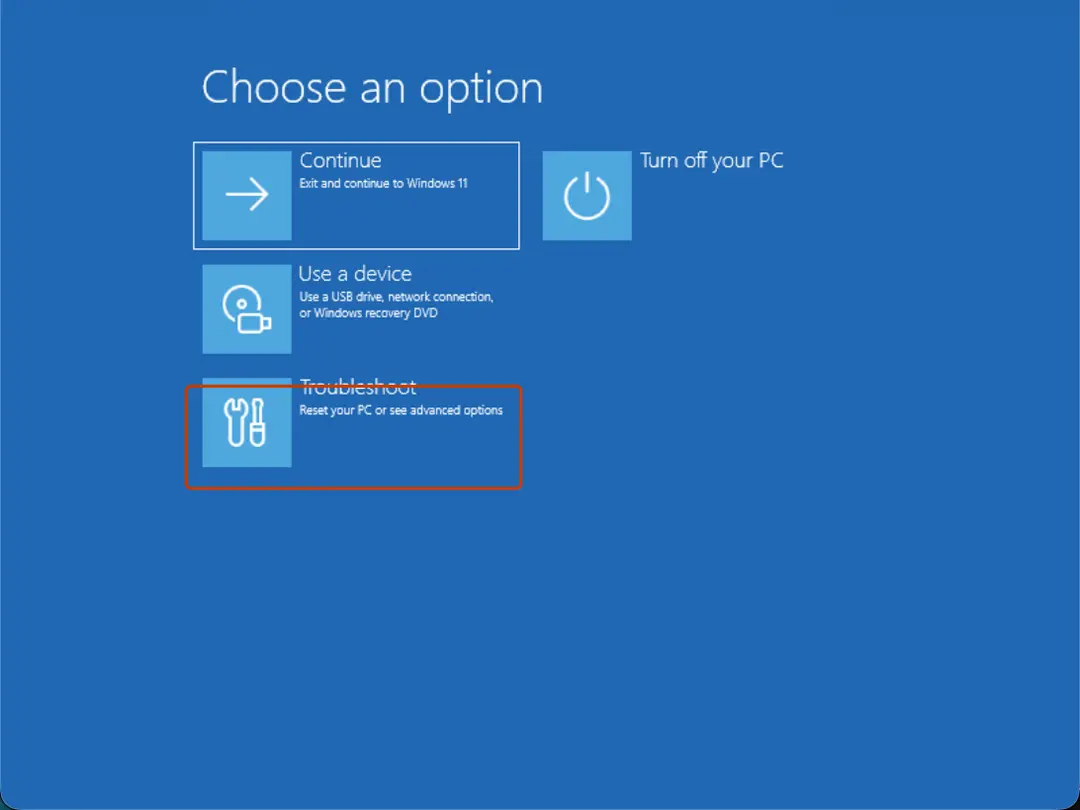
Choose an option: Troubleshoot. Screenshot: Windows 11 26H2 Select System Restore
Select System Restore. If the drive is encrypted, enter your BitLocker recovery key when asked.
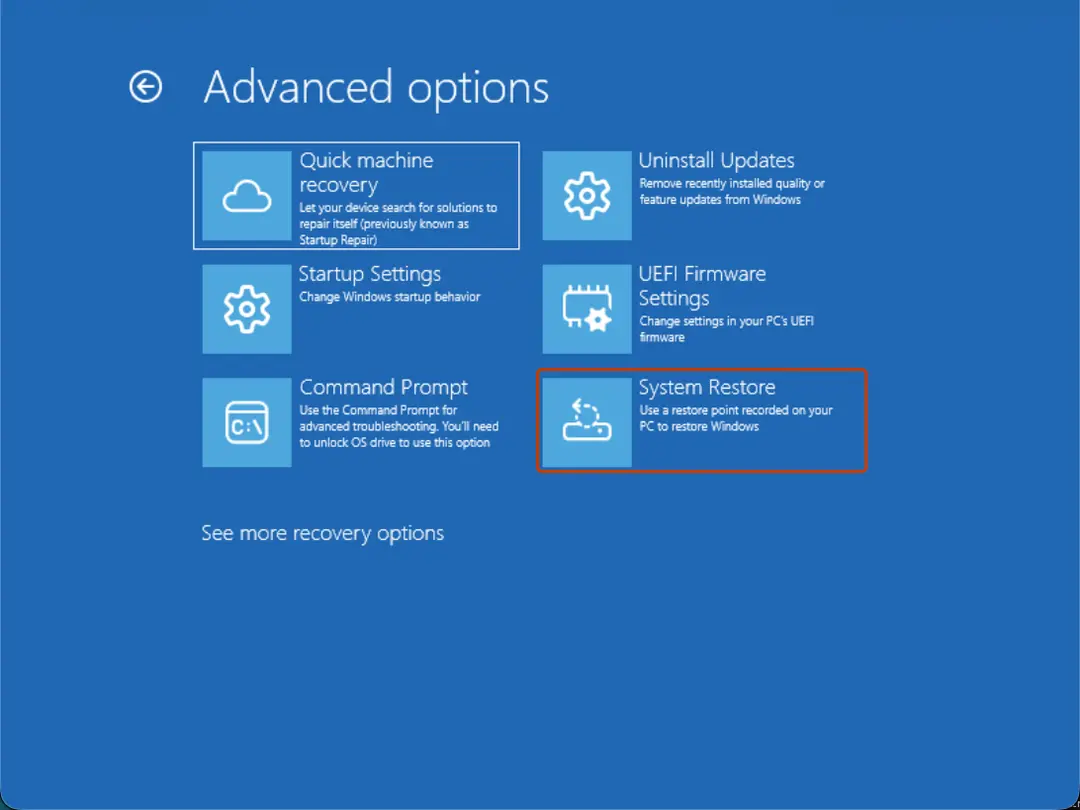
Advanced options: System Restore. Screenshot: Windows 11 26H2 Choose a restore point and finish
Select a restore point from before the problem, optionally Scan for affected programs, then select Next and Finish.
Restart
When the restore is done, select Restart.
Create a restore point
Steps written for Windows 11 and Windows 10.
Microsoft does not turn System Protection on by default. Turn it on and make a restore point before you change drivers, the registry or system settings.
Open System Protection
Select Start, type Create a restore point and open the result. This opens System Properties on the System Protection tab.
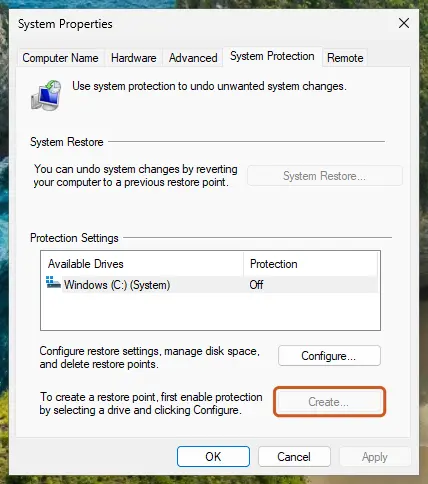
While protection is Off for the drive, Create is unavailable. Screenshot: Windows 11 26H2 Turn on protection if it is Off
Select the Windows drive, select Configure, choose Turn on system protection, set the disk space with the slider and select Apply.
Create the restore point
Back on the tab, select Create, type a description (for example the change you are about to make) and select Create.
If there are no restore points
System Restore can only use restore points that exist. If the list is empty, System Protection was off; turn it on for next time (the Create a restore point tab). To fix the current problem, use the other repair methods in your guide, such as Run DISM and SFC to repair Windows system files, or reinstall Windows while keeping your files: Reinstall Windows without losing files.
If System Restore fails
- Try a different, older restore point.
- Run it from the recovery environment (the Windows will not start tab), where Windows and your programs are not running.
Used in guides
Sources
- Microsoft Support: System Restore (read Oct 3, 2026)
- Microsoft Support: System Protection (read Oct 3, 2026)
- Microsoft Support: Windows Recovery Environment (read Oct 3, 2026)