
How to stop apps from opening on startup
Apps that start when you sign in slow down startup and use memory in the background. Turning them off does not uninstall anything: you can still open them yourself, and turn them back on at any time.
- Time
- A few minutes
- Level
- Easy
- You need
- Nothing. Some entries can be changed only from an administrator account.
Before you start
- Keep your antivirus and anything you use every day (cloud sync, password manager) turned on.
- If you do not know what an entry is, leave it on and look up the name first.
Windows 11
Steps written for Windows 11 24H2, 25H2 and 26H2.
Open the Startup settings
Select Start > Settings > Apps > Startup.
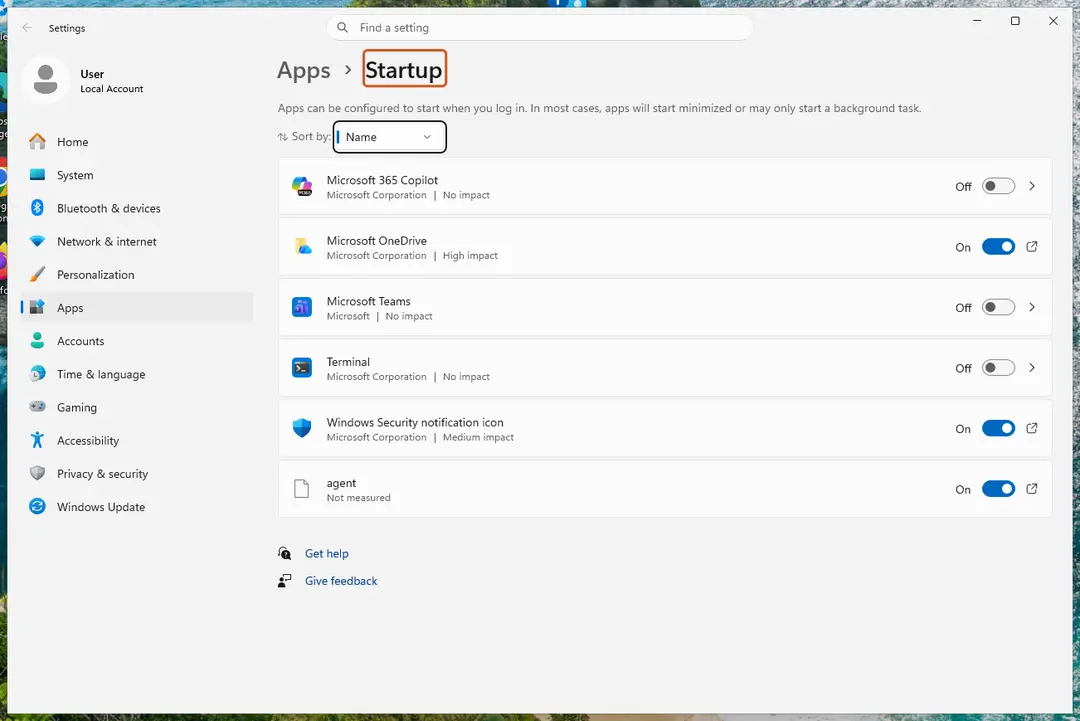
Each app has its own switch and its startup impact. Screenshot: Windows 11 26H2 Turn apps off
Set the switch of each app you do not need at sign-in to Off. Use Sort by to put the apps with the highest impact first.
Or use Task Manager
Right-click Start, select Task Manager, then Startup apps. Select an app and select Disable. Task Manager shows the same list with more detail, such as the publisher.
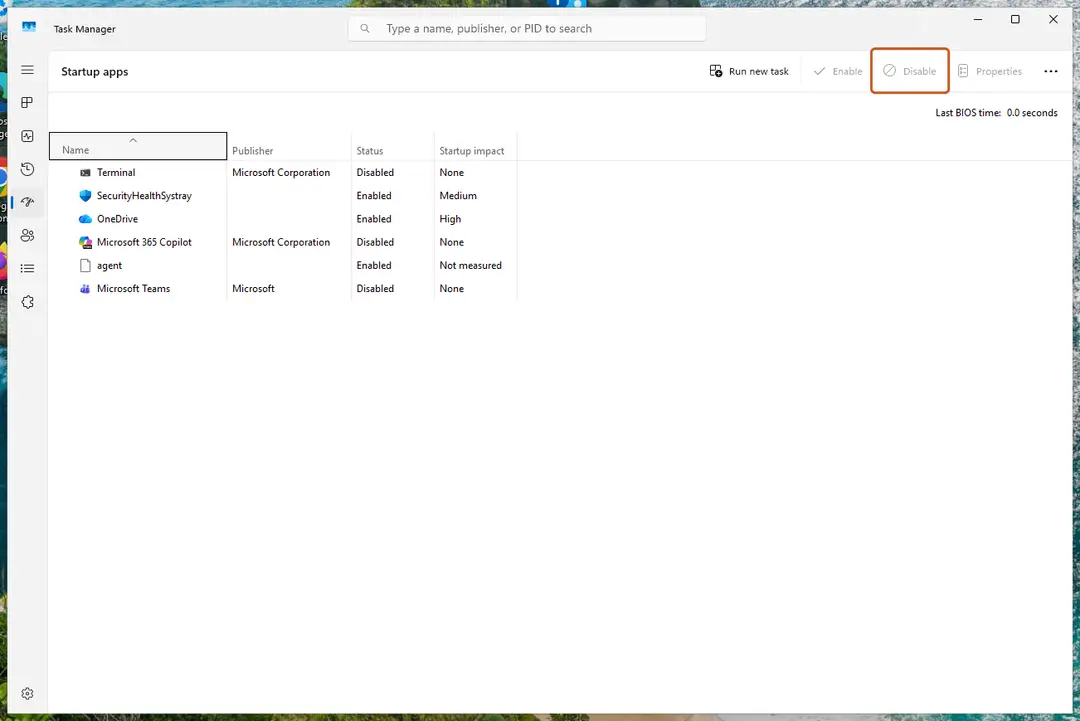
Select an app, then Disable. Screenshot: Windows 11 26H2 Restart to check
Restart the PC. The apps you turned off no longer open by themselves.
Windows 10
Steps written for Windows 10 22H2.
Microsoft ended support for Windows 10 on October 14, 2025. Startup apps are managed the same way as before.
Open the Startup settings
Select Start > Settings > Apps > Startup.
Turn apps off
Set the switch of each app you do not need at sign-in to Off.
Or use Task Manager
Press Ctrl + Shift + Esc. If Task Manager opens small, select More details. Open the Startup tab, select an app and select Disable.
Restart to check
Restart the PC. The apps you turned off no longer open by themselves.
What the startup impact means
| Impact | Meaning (Microsoft) |
|---|---|
| High | More than 1 second of CPU time or more than 3 MB of disk reads at startup. |
| Medium | Between 300 milliseconds and 1 second of CPU time, or between 292 KB and 3 MB of disk reads. |
| Low | Less than 300 milliseconds of CPU time and less than 292 KB of disk reads. |
| Not measured | No data yet; the app is turned on. |
| None | The app is turned off. |
If an app is not in the list
Apps that are not registered with Windows can start from the Startup folder. Right-click Start, select Run, type shell:startup (your account) or shell:common startup (all accounts) and press Enter. Delete the app's shortcut from that folder; the app itself stays installed.
If an entry reads We couldn't find this app, the program was removed or sits on a drive that is not connected. Reinstall it, or remove the leftover entry.
If an app keeps coming back
Some apps turn their own startup back on. Look for an option such as start with Windows or open at login in the app's own settings and turn it off there. If you do not need the app at all, uninstall it: Uninstall a program or app in Windows. If you never installed it, check it for unwanted software: Remove a browser extension On 2-Spyware.
Used in 1 guide
Sources
- Microsoft Support: Configure startup applications in Windows (read Oct 3, 2026)