
Disable Fast Startup in Windows 11 and 10
With Fast Startup on, Shut down saves the Windows kernel and drivers to the hibernation file instead of closing them. Turning it off makes every shutdown a full one.
- Time
- 2 minutes
- Level
- Easy
- You need
- An administrator account.
Windows 11 and 10
Steps written for Windows 11 and Windows 10 (the steps are the same).
Open Power Options
Press Windows key + R, type the command below and select OK.
powercfg.cplOpen the power button settings
In the left pane, select Choose what the power buttons do.
Unlock the settings
Select Change settings that are currently unavailable, then Yes when Windows asks for permission.
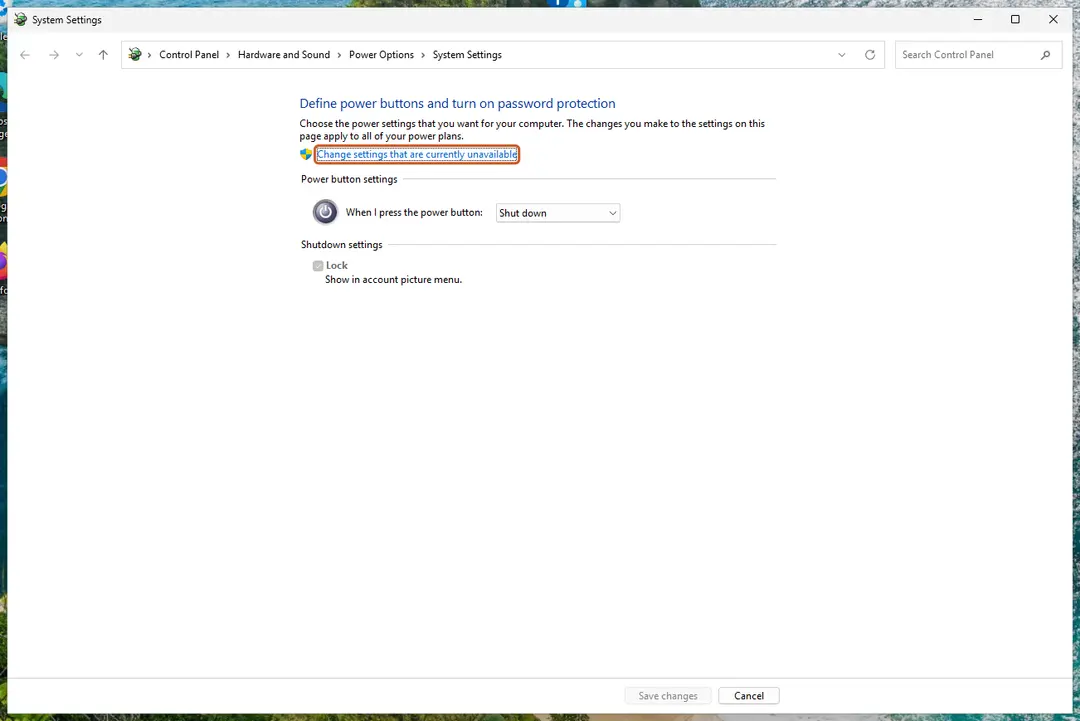
Until you select this link, the shutdown settings are greyed out. Screenshot: Windows 11 26H2 Clear the Fast Startup box
Under Shutdown settings, clear Turn on fast startup (recommended).
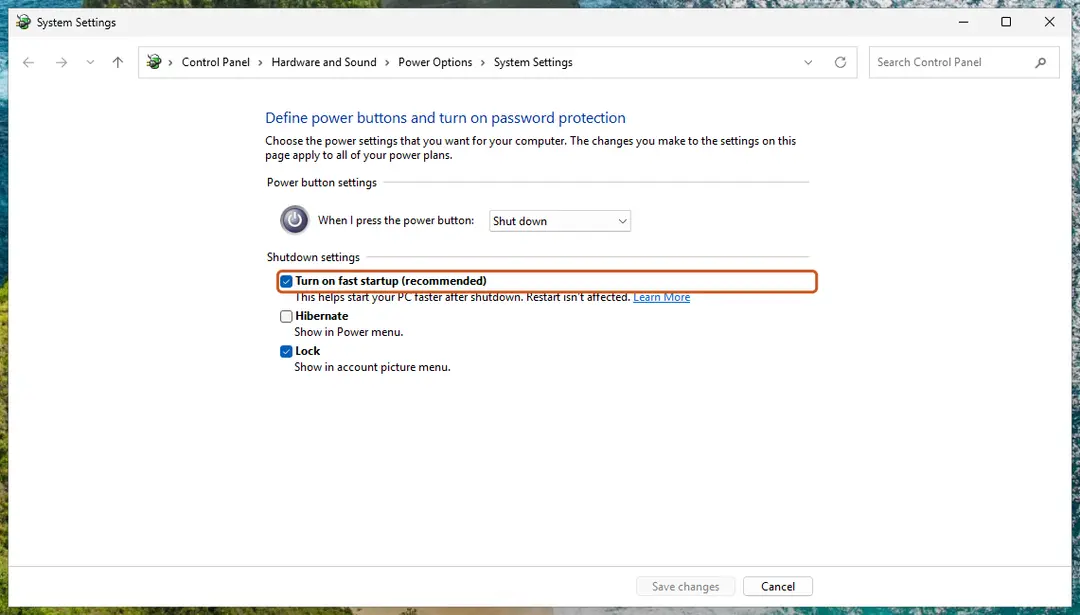
Clear this box to turn Fast Startup off. Screenshot: Windows 11 26H2 Save
Select Save changes.
Shut down once
Shut down the PC and start it again. From now on every shutdown is a full one.
When turning it off helps
Because a Fast Startup shutdown keeps the kernel and drivers in the hibernation file, a driver or update problem can survive a shutdown. Restart is not affected: it always starts Windows fully. Turning Fast Startup off helps when a guide says a problem goes away after Restart but not after Shut down, when a driver or update needs a clean start, or when another operating system on the same PC needs to use the Windows drive.
One full shutdown without changing the setting
Open Terminal or Command Prompt and run:
shutdown /s /t 0
Without the /hybrid option this is a full shutdown.
If the Fast Startup box is missing
Fast Startup needs hibernation. If hibernation is turned off, the box is not shown and Fast Startup is already off. To bring it back, run this in Terminal opened as administrator, then repeat the steps:
powercfg /hibernate on
Turn it back on
Repeat the steps and select Turn on fast startup (recommended) again.
Used in guides
Sources
- Microsoft Learn: Delivering a great startup and shutdown experience (Fast startup) (read Oct 3, 2026)
- Microsoft Learn: Distinguishing fast startup from wake-from-hibernation (read Oct 3, 2026)
- Microsoft Learn: Powercfg command-line options (read Oct 3, 2026)
- Microsoft Learn: shutdown command reference (read Oct 3, 2026)