
Windows File Recovery: recover permanently deleted files with winfr
Windows File Recovery is Microsoft's free command-line app for files that are no longer in the Recycle Bin. It searches the drive for deleted data and copies what it finds to a different drive. It works only while the space has not been overwritten.
- Time
- From minutes to hours, depending on the drive and the mode
- Level
- Intermediate
- You need
- An administrator account and a second drive (a USB stick or external drive) to save the recovered files to: the source and destination must be different.
Before you start
- Stop using the PC as much as you can. Anything Windows writes can overwrite the deleted data.
- Check the Recycle Bin, your backups and OneDrive first: Recover deleted files (Recycle Bin, backups, OneDrive). Do not install the app on the drive you recover from if you have another choice.
- Note the full path of the lost file or folder, for example
\Users\<username>\Documents\.
Windows 11 and 10
Steps written for Windows 11 and Windows 10 (the steps are the same).
Install Windows File Recovery
Open Windows File Recovery in the Microsoft Store (publisher: Microsoft Corporation) and select Get.
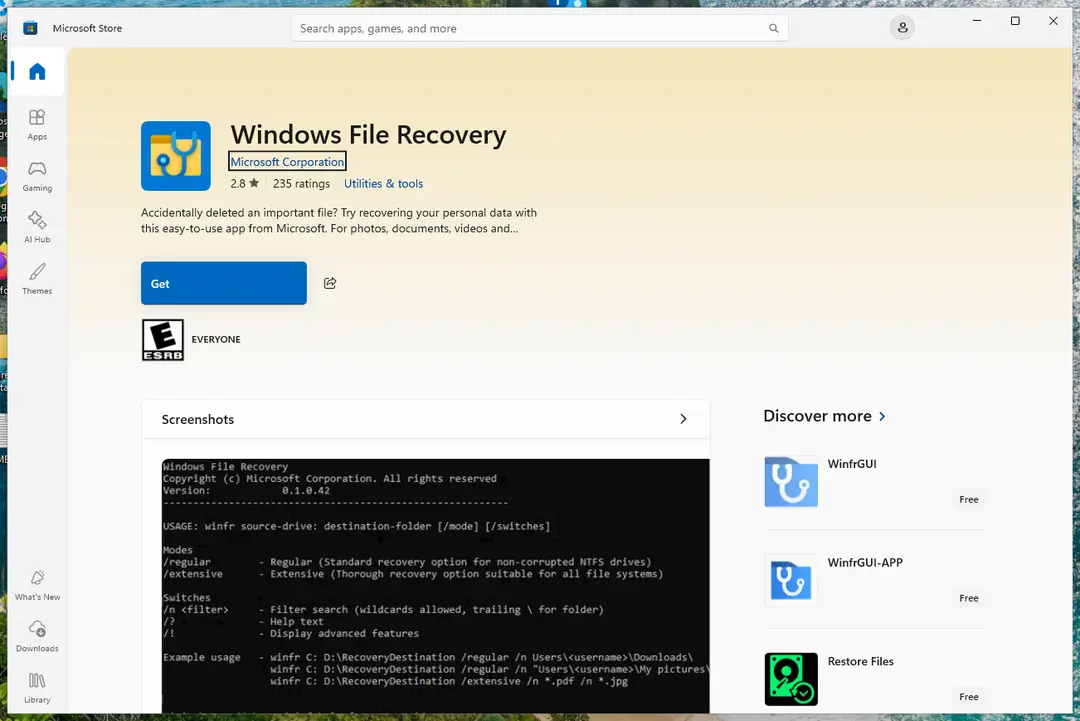
Install the app from Microsoft Corporation. Screenshot: Windows 11 26H2 Open it as administrator
Press the Windows key, type Windows File Recovery and select it. Select Yes when Windows asks for permission. A Command Prompt window opens.
Run a regular-mode search
Type the command below with your own drive letters and path, and press Enter. C: is where the file was, E: is the drive that receives the copies. End a folder path with a backslash; put a path with spaces in quotes. For many files of one type use a wildcard such as
/n *.docx.winfr C: E: /regular /n \Users\<username>\Documents\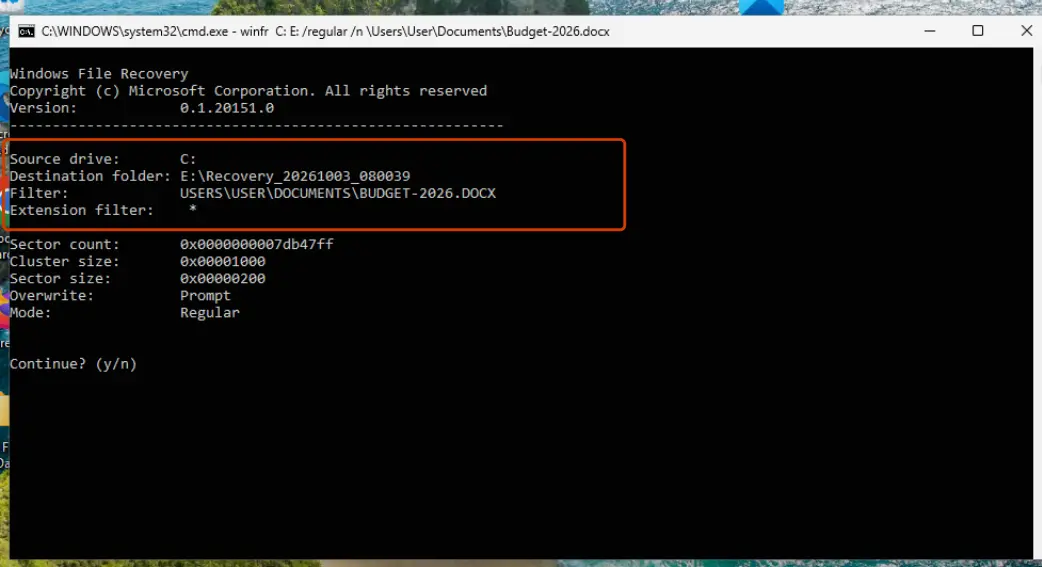
Check the source, destination and filter before you continue. Screenshot: Windows 11 26H2 Confirm
Check the source drive, destination folder and filter in the summary, then type y and press Enter. To stop the search, press Ctrl + C.
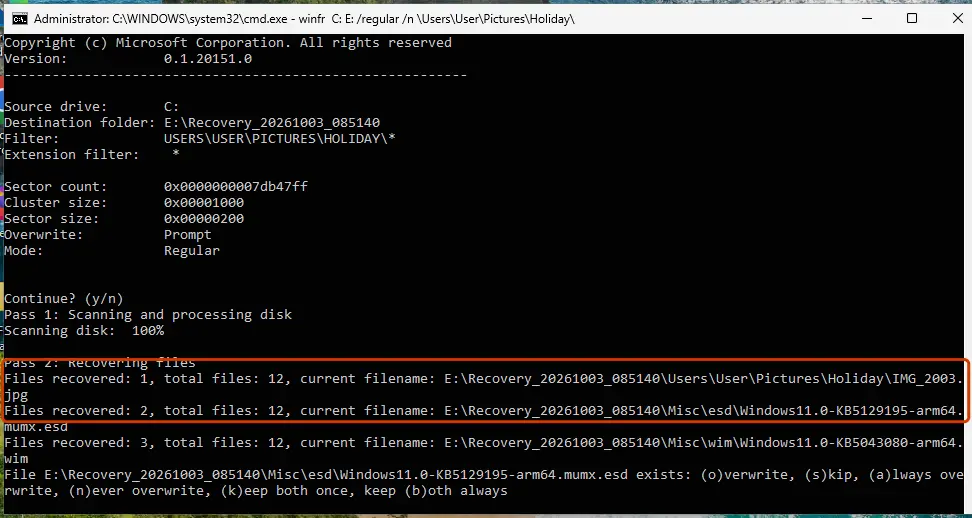
Regular mode found a deleted photo and copied it to the Recovery folder on the other drive; it may also pick up unrelated deleted files. If asked about a file that already exists, choose an option and the run continues. Screenshot: Windows 11 26H2 Read the result
When the scan reaches 100%, winfr says how many files it recovered. If it reports that no recoverable files were found with this mode, try extensive mode (next step).
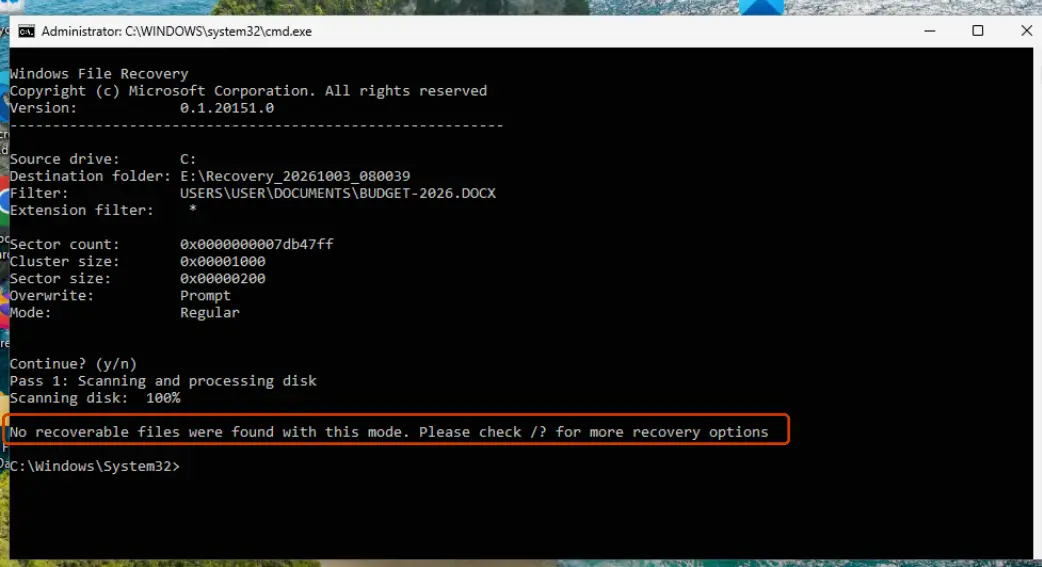
No files found: try extensive mode. Screenshot: Windows 11 26H2 Try extensive mode
Extensive mode reads the whole drive and is slower. Use it for files deleted a while ago, after formatting, for a damaged drive, and always for SD cards and USB sticks (FAT and exFAT).
winfr C: E: /extensive /n \Users\<username>\Documents\Open the recovered files
On the destination drive, open the folder Recovery_ followed by the date and time. Check each file before you copy it back: recovered files can be incomplete.
Which mode to use
| Drive | What happened | Mode |
|---|---|---|
| NTFS (PC drives, most external drives) | Deleted recently | Regular |
| NTFS | Deleted a while ago, after formatting, or the drive is damaged | Extensive |
| FAT or exFAT (SD cards, many USB sticks) | Any | Extensive |
To see a drive's file system, right-click it in File Explorer and select Properties.
If nothing is recovered
- On an SSD the freed space is often cleared soon after deletion, and then no tool can bring the file back.
- Very small files are stored inside the drive's file table rather than in separate space. In our test on Windows 11 26H2 neither regular nor extensive mode recovered such a tiny text file.
- Check the path in your command: a wrong user name or a missing backslash means winfr searched the wrong place.
- If the file was in a folder that File History or another backup covered, restore it from there: Restore an earlier version of a file or folder.
For files encrypted by ransomware, recovery tools usually find only damaged copies: see Ransomware: first steps, finding a decryptor and recovering files On 2-Spyware.
Common messages
| Message | What to do |
|---|---|
| Source and Destination cannot refer to the same physical partition | Save to another drive, such as a USB stick. Do not create a new partition on the source drive. |
| Destination disk is full | Free up space on the destination, then choose Resume, Skip file or Abort. |
Used in 2 guides
Sources
- Microsoft Support: Windows File Recovery (read Oct 3, 2026)
- Microsoft Store: Windows File Recovery (read Oct 3, 2026)