
Run the Windows Update troubleshooter
The Windows Update troubleshooter checks the services and files that Windows Update needs and repairs common problems on its own. On Windows 11 it runs in the Get Help app.
- Time
- A few minutes
- Level
- Easy
- You need
- An internet connection. An administrator account for some repairs.
Before you start
- Write down the error code Windows Update shows, if any (for example 0x80070002). It helps if the troubleshooter does not fix the problem.
- Restart the PC once and try the update again: a pending restart blocks many updates.
Windows 11
Steps written for Windows 11 (screenshots: 26H2).
Open Troubleshoot settings
Select Start > Settings > System > Troubleshoot.
Open the list of troubleshooters
Select Other troubleshooters.
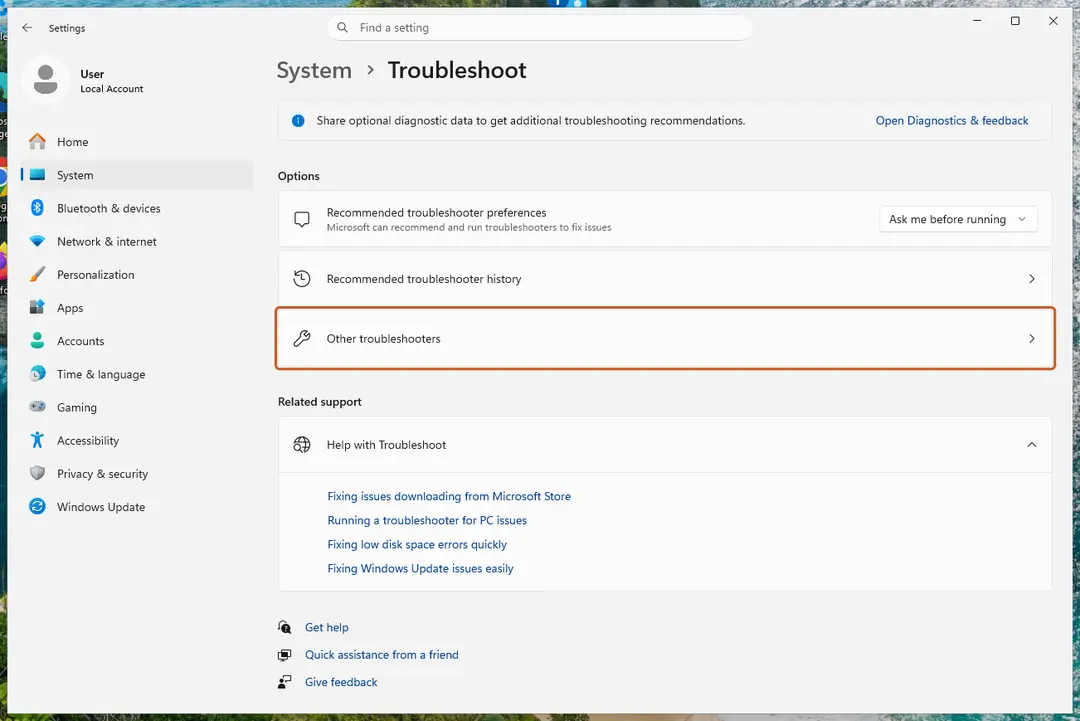
Settings, System, Troubleshoot: select Other troubleshooters. Screenshot: Windows 11 26H2 Run the Windows Update troubleshooter
Under Most frequent, select Run next to Windows Update. The Get Help app opens and starts the checks.
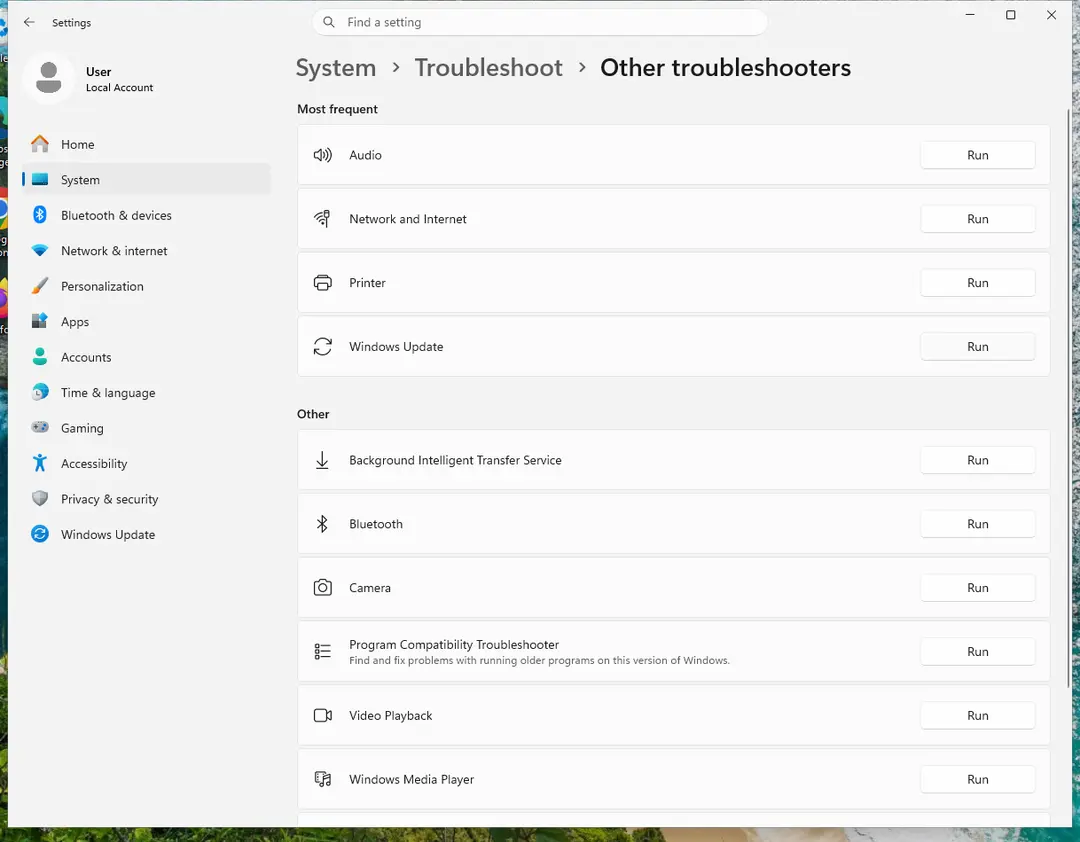
Windows Update is in the Most frequent group; select Run on its row. Screenshot: Windows 11 26H2 Read the result
Wait until Get Help finishes. If it found and fixed a problem, it says so and asks whether this solved the problem. Answer the question so it can offer the next step.
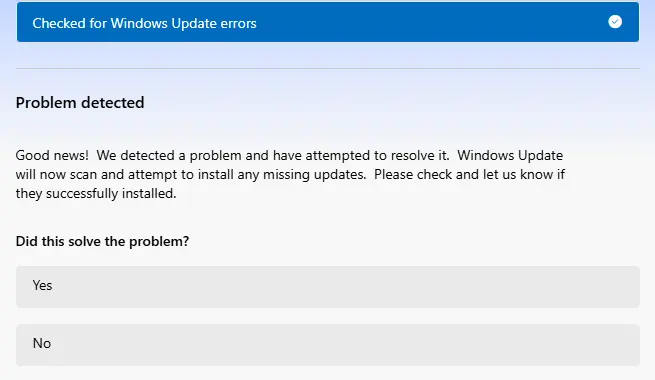
Get Help reports what it found and asks if the problem is solved. Screenshot: Windows 11 26H2 Restart the PC
Restart when the troubleshooter finishes, even if it does not ask you to.
Check for updates again
Select Start > Settings > Windows Update > Check for updates, and install the updates it finds.
Windows 10
Steps written for Windows 10 22H2.
Microsoft ended support for Windows 10 on October 14, 2025. The troubleshooter still runs the same way.
Open the extra troubleshooters
Select Start > Settings > Update & Security > Troubleshoot > Additional troubleshooters.
Run the Windows Update troubleshooter
Under Get up and running, select Windows Update > Run the troubleshooter, and follow its steps.
Restart the PC
Restart when the troubleshooter finishes.
Check for updates again
Select Start > Settings > Update & Security > Windows Update > Check for updates, and install the updates it finds.
If Run does nothing or shows an error
Open the Get Help app from Start, type windows update troubleshooter in its search box and follow the steps it shows. This is the same troubleshooter, started directly.
What common error codes point to
Microsoft lists these causes for the most frequent Windows Update errors:
- 0x8007000d: damaged Windows Update files or update cache. Try Reset Windows Update components.
- 0x800705b4: the update took too long or was interrupted.
- 0x800f0922: not enough disk space, or a problem with .NET Framework or other components. See Free up disk space and delete temporary files.
- 0x80070057 or 0x80080005: damaged files, permission problems or wrong system settings. Try Run DISM and SFC to repair Windows system files.
- 0xC1900101: an incompatible driver. See Update, roll back or reinstall a driver.
- 0x80070002: the update failed to install.
If updates still fail
- Repair system files: Run DISM and SFC to repair Windows system files.
- Clear the update cache and restart the update services: Reset Windows Update components.
- Download and install the failing update by hand: Install an update from the Microsoft Update Catalog.
Used in 1 guide
Sources
- Microsoft Support: Windows Update Troubleshooter (read Oct 3, 2026)
- Microsoft Support: Troubleshoot problems updating Windows (read Oct 3, 2026)
- Microsoft Support: Windows troubleshooters (Get Help) (read Oct 3, 2026)