
Clear the cache and cookies in Chrome, Edge and Firefox
The cache keeps copies of pages and images so sites load faster; cookies keep you signed in. Clearing them fixes pages that look broken, load old content or refuse to sign you in. Deleting cookies signs you out of most sites.
- Time
- A minute
- Level
- Easy
Before you start
- Clearing cookies signs you out of most websites. Make sure you know your passwords, or keep cookies checked off and clear only the cache.
- For one page only, try a hard reload first: press Ctrl + F5 in Chrome, Edge or Firefox on Windows. It reloads the page without using the cache.
Chrome
Steps written for Chrome for Windows (screenshot: Windows 11 26H2).
Open Delete browsing data
Press Ctrl + Shift + Delete. Or select More (the three dots at the top right) > Delete browsing data.
Choose how far back to delete
Select a time range at the top, such as Last hour. To clear everything, open More next to the ranges and choose All time.
Choose what to delete
Check Cached images and files. Check Cookies and other site data too if a site will not sign you in. Uncheck anything you want to keep.
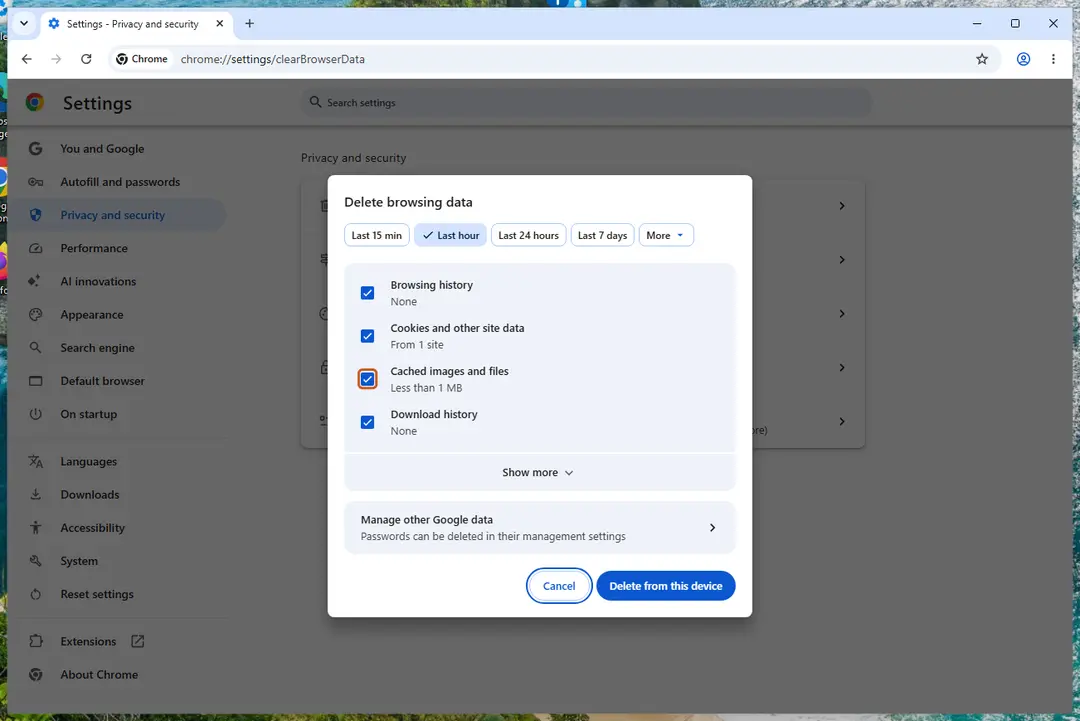
Chrome: Delete browsing data, with the time ranges at the top. Screenshot: Windows 11 26H2 Delete the data
Select Delete from this device.
Edge
Steps written for Microsoft Edge for Windows (screenshot: Windows 11 26H2).
Open Delete browsing data
Press Ctrl + Shift + Delete. Or select Settings and more (the three dots) > Settings > Privacy, search, and services > Clear browsing data, then Choose what to clear.
Choose how far back to delete
Pick a range in the Time range list.
Choose what to delete
Check Cached images and files, and Cookies and other site data if you also want to clear cookies. Uncheck what you want to keep, such as passwords.
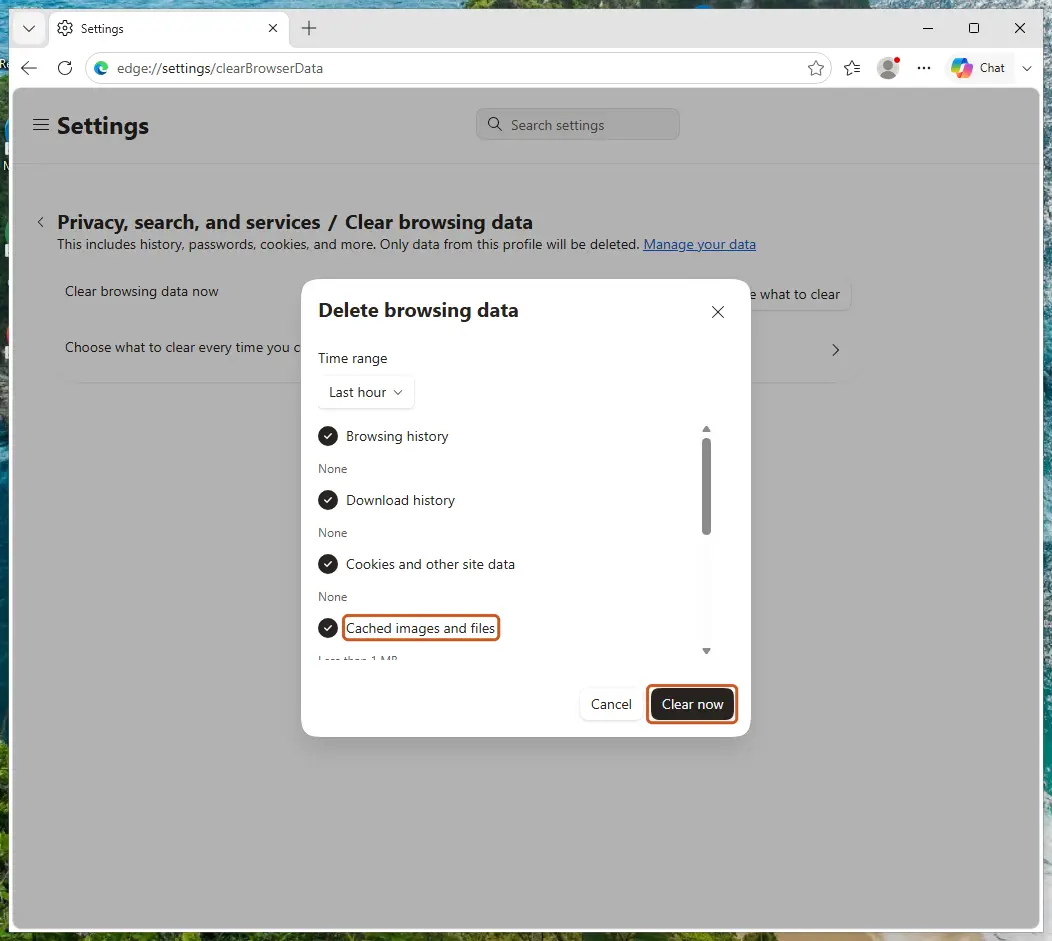
Edge: check Cached images and files, then Clear now. Screenshot: Windows 11 26H2 Delete the data
Select Clear now.
Firefox
Steps written for Firefox for Windows (screenshot: Windows 11 26H2).
Open Clear browsing data and cookies
Press Ctrl + Shift + Delete. Or open the menu (three lines) > Settings > Privacy & Security and select the clear button in the section for cookies and browsing data.
Choose how far back to delete
Next to When:, choose a range. Choose Everything to clear the whole cache.
Choose what to delete
Check Temporary cached files and pages. Check Cookies and site data too if a site will not sign you in. Uncheck the rest if you want to keep it.
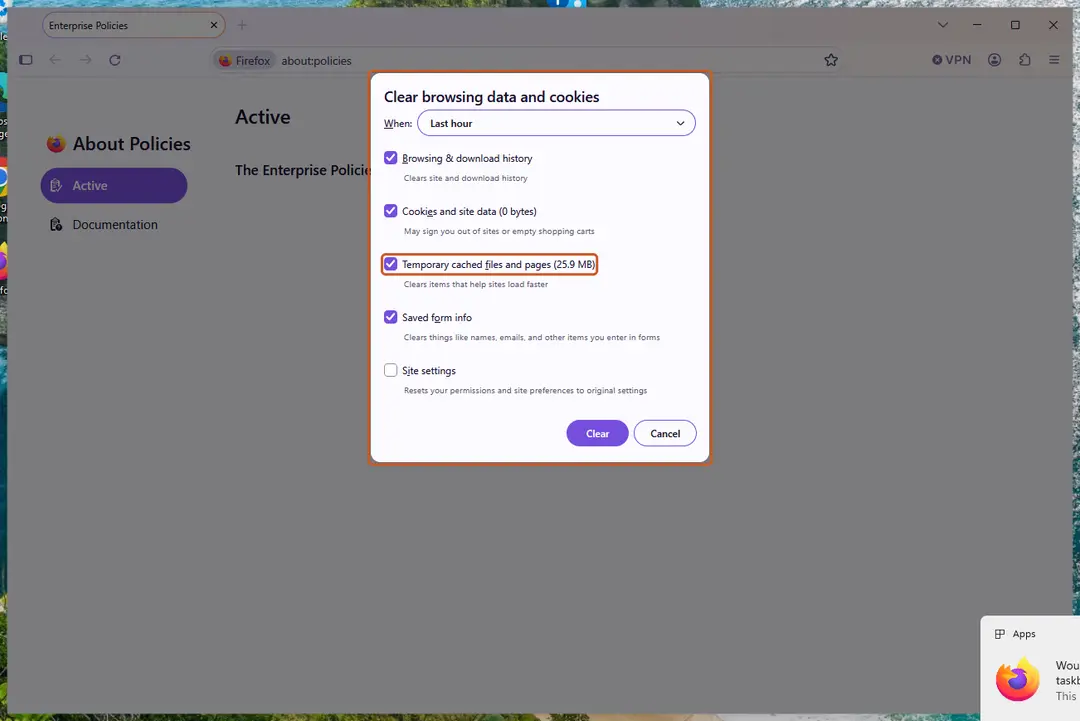
Firefox: Temporary cached files and pages is the cache. Screenshot: Windows 11 26H2 Delete the data
Click Clear.
If the site still does not work
- Close every window of the browser and open it again.
- Open the site in a private window. If it works there, an extension is the likely cause: Remove a browser extension On 2-Spyware.
- If the browser opens pages you did not ask for or its search engine changed, follow Reset a browser and fix a hijacked search engine On 2-Spyware.
Clear the data every time you close the browser
- Edge: on the same Clear browsing data page, open Choose what to clear every time you close the browser and turn on the items you want.
- Firefox: in Settings > Privacy & Security, in the History section choose to use custom settings for history, check Clear history when Firefox closes, then pick the items under Settings….
Used in 1 guide
Sources
- Google Help: Clear cache & cookies (computer) (read Oct 3, 2026)
- Microsoft Support: View and delete browser history in Microsoft Edge (read Oct 3, 2026)
- Mozilla Support: How to clear the Firefox cache (read Oct 3, 2026)