
Create a local account in Windows 11 (add a new user)
A new user account starts with a clean profile. If the problem does not appear there, it is caused by something in your own profile, not by Windows itself.
- Time
- About 5 minutes
- Level
- Easy
- You need
- An administrator account.
Windows 11
Steps written for Windows 11 24H2, 25H2 and 26H2.
Open Other users
Open Settings > Accounts > Other users. You can also press Windows key + R and run the command below.
ms-settings:otherusersAdd an account
Next to Add other user, select Add account.
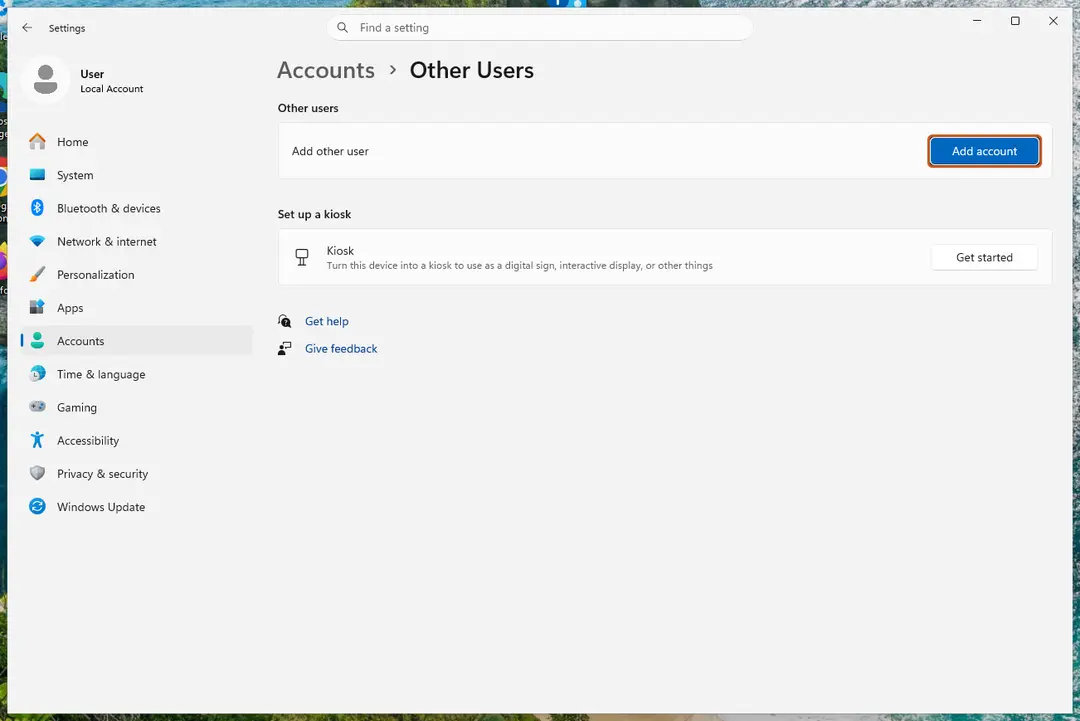
Add account is next to Add other user. Screenshot: Windows 11 26H2 Skip the Microsoft account
Select I don't have this person's sign-in information.
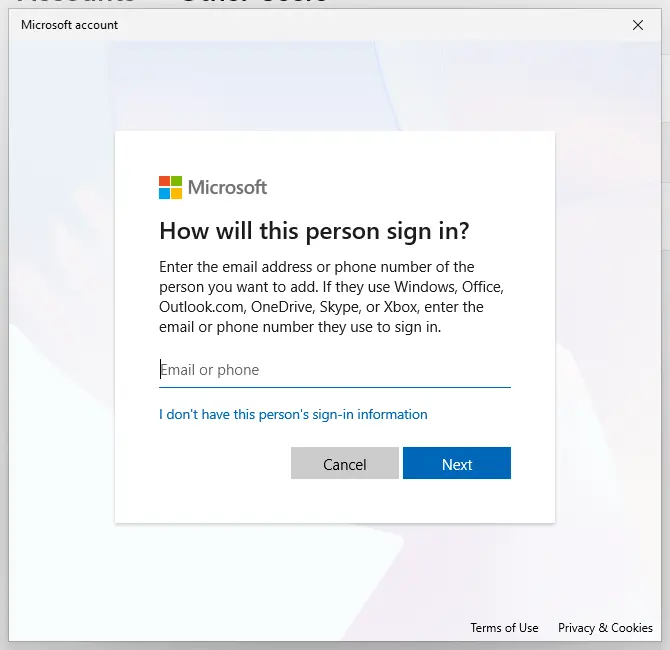
The link for a local account is under the email box. Screenshot: Windows 11 26H2 Choose a local account
Select Add a user without a Microsoft account.
Name the account
Type a user name and, if you want one, a password. If you set a password, Windows also asks for answers to security questions. Select Next.
Make it an administrator (optional)
Back in Other users, select the new account, then Change account type next to Account options. Choose Administrator and select OK. For testing a problem, a standard account is usually enough.
Sign in to the new account
Open Start, select your account picture and choose the new account. The first sign-in takes a few minutes while Windows sets up the profile.
Windows 10
Steps written for Windows 10 22H2.
Microsoft ended support for Windows 10 on October 14, 2025. Adding an account works as before.
Open Family & other users
Select Start > Settings > Accounts > Family & other users.
Add someone
Under Other users, select Add someone else to this PC.
Skip the Microsoft account
Select I don't have this person's sign-in information, then Add a user without a Microsoft account.
Name the account
Type a user name and, if you want one, a password and security answers. Select Next.
Sign in to the new account
Open Start, select your account picture and choose the new account.
What the test tells you
If the problem does not appear in the new account, its cause is in your old profile (settings, a startup app or a damaged profile). You can keep using the new account and copy your files from C:\Users\<old name>. If the problem also appears in the new account, the cause is system-wide: go back to the next method in your guide.
Create the account with a command
In Terminal opened as administrator, this creates a local account and asks for its password (replace TestUser):
net user TestUser * /add
To make it an administrator:
net localgroup Administrators TestUser /add
Remove the test account
Sign in with your own account, open Settings > Accounts > Other users, select the account and select Remove next to Account and data. This deletes the account's files on this PC.
Used in guides
Sources
- Microsoft Support: Manage user accounts in Windows (read Oct 3, 2026)
- Microsoft Learn: net user command reference (read Oct 3, 2026)