
Turn off Windows Defender real-time protection temporarily
Some installs and repairs fail while the antivirus scans every file. Windows lets you switch off Microsoft Defender's real-time protection for a short time; it turns itself back on.
- Time
- 1 minute
- Level
- Easy
- You need
- An administrator account.
Before you start
- Turn protection off only for a task you trust, such as installing a program from its official website. Do not open unknown files or browse while it is off.
- If one file or folder is being blocked, an exclusion is safer than turning protection off (see below).
Windows 11 and 10
Steps written for Windows 11 and Windows 10 (the steps are the same).
Open Windows Security
Select Start, type Windows Security and open the app.
Open the protection settings
Select Virus & threat protection, then under Virus & threat protection settings select Manage settings.
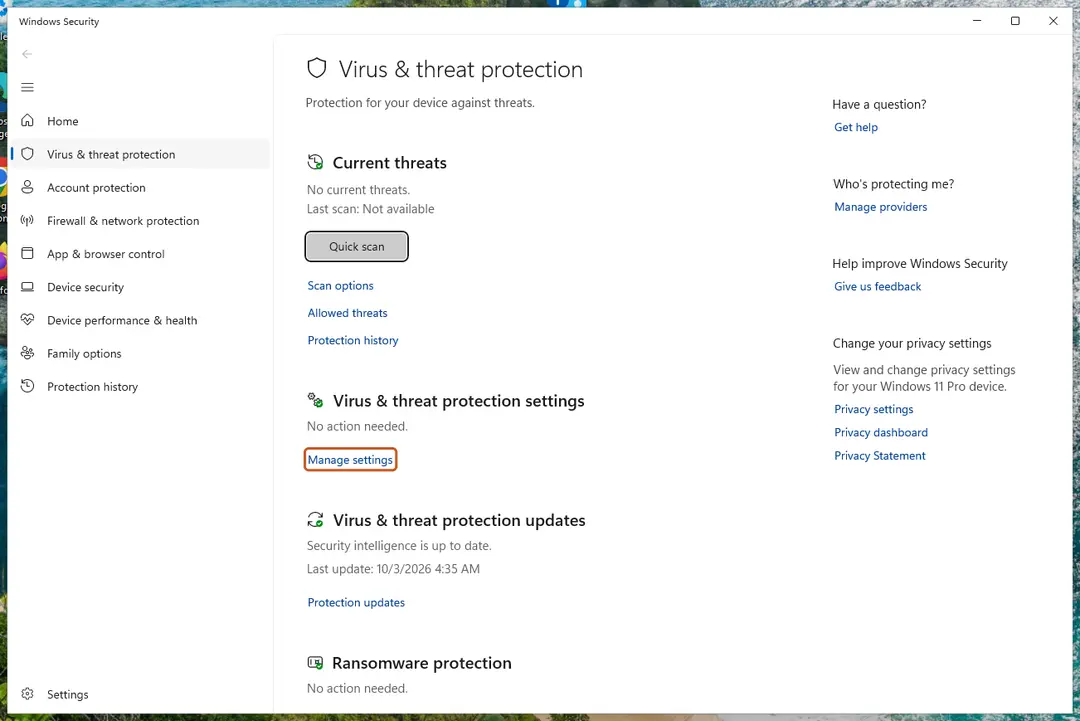
Virus & threat protection > Manage settings. Screenshot: Windows 11 26H2 Switch off Real-time protection
Set Real-time protection to Off and select Yes when Windows asks for permission.
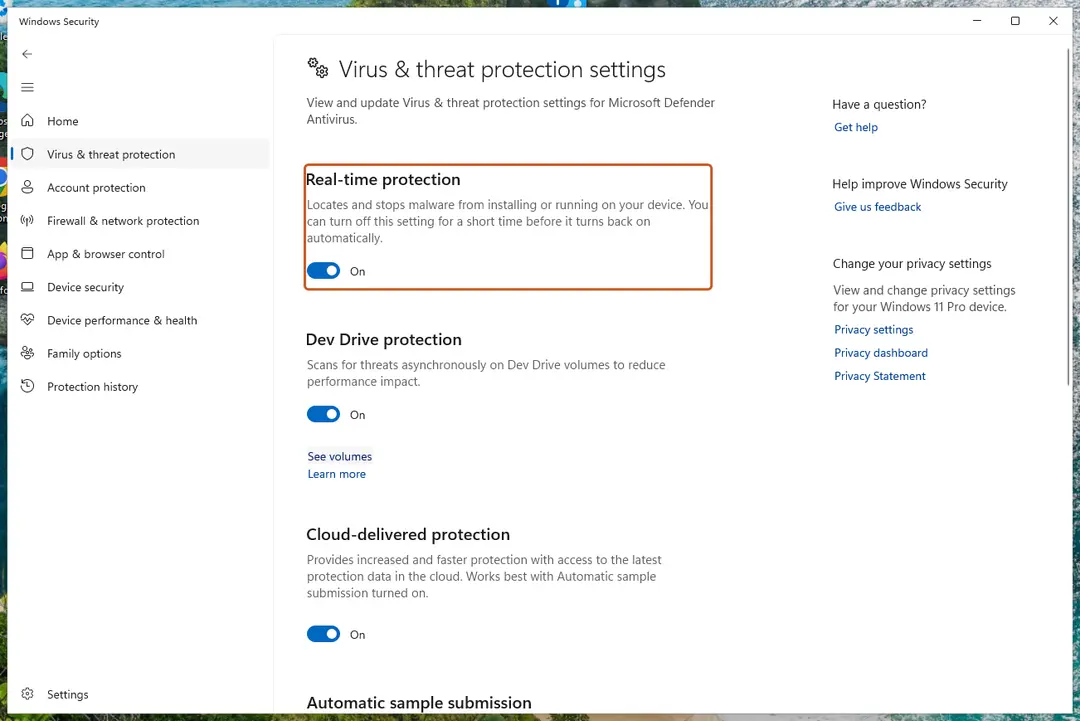
The Real-time protection switch; it turns back on automatically after a short time. Screenshot: Windows 11 26H2 Do the task right away
Run the install or repair your guide describes now. Real-time protection turns back on by itself after a short while.
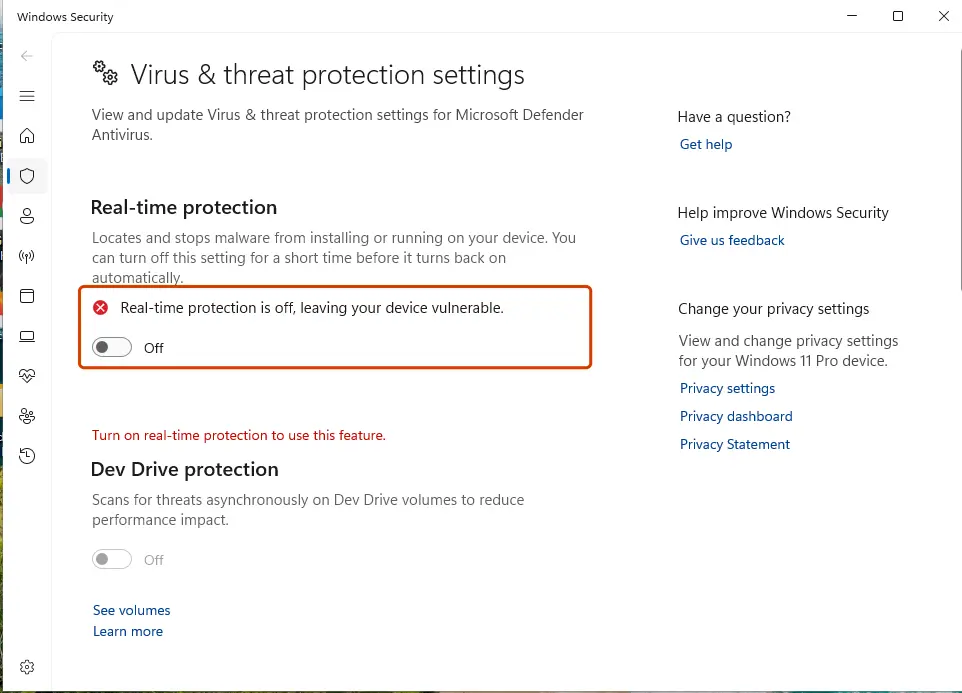
With the switch Off, Windows Security warns that the device is vulnerable until protection is back on. Screenshot: Windows 11 26H2 Turn it back on
When the task is done, set Real-time protection back to On instead of waiting.
If the switch will not stay off
- Tamper protection: Microsoft says that if tamper protection is on, you need to turn it off first (same page, further down). Turn it back on afterwards.
- Work or school PC: the IT department may control this setting.
- Another antivirus is installed: Microsoft Defender turns itself off when a compatible third-party antivirus is active. Pause that program instead, using its vendor's instructions.
Safer: exclude one file or folder
If Defender keeps blocking one trusted program or folder, add an exclusion instead: on the same Virus & threat protection settings page, under Exclusions, select Add or remove exclusions and choose File, Folder, File type or Process. Excluded items are not scanned in real time, so add only what you trust, and remove the exclusion when you no longer need it.
What is off and what is not
While real-time protection is off, files you open or download are not scanned. Scheduled scans still run. The firewall is a separate setting and stays on.
Used in 1 guide
Sources
- Microsoft Support: Virus and threat protection in the Windows Security app (read Oct 3, 2026)