
Uninstall a program or app in Windows
Windows has three places that uninstall the same programs: the Start menu, Settings and Control Panel. If one does not list the app, use another. Apps built into Windows cannot all be removed.
- Time
- A few minutes
- Level
- Easy
- You need
- An administrator account for programs installed for all users.
Before you start
- Close the program first, including its icon next to the clock.
- If you only want to fix a misbehaving program, try its Repair option first: many programs offer it next to Uninstall.
Windows 11
Steps written for Windows 11 24H2 and 25H2.
Uninstall from the Start menu
Select Start > All apps and find the app. Right-click it (or press and hold) and select Uninstall.
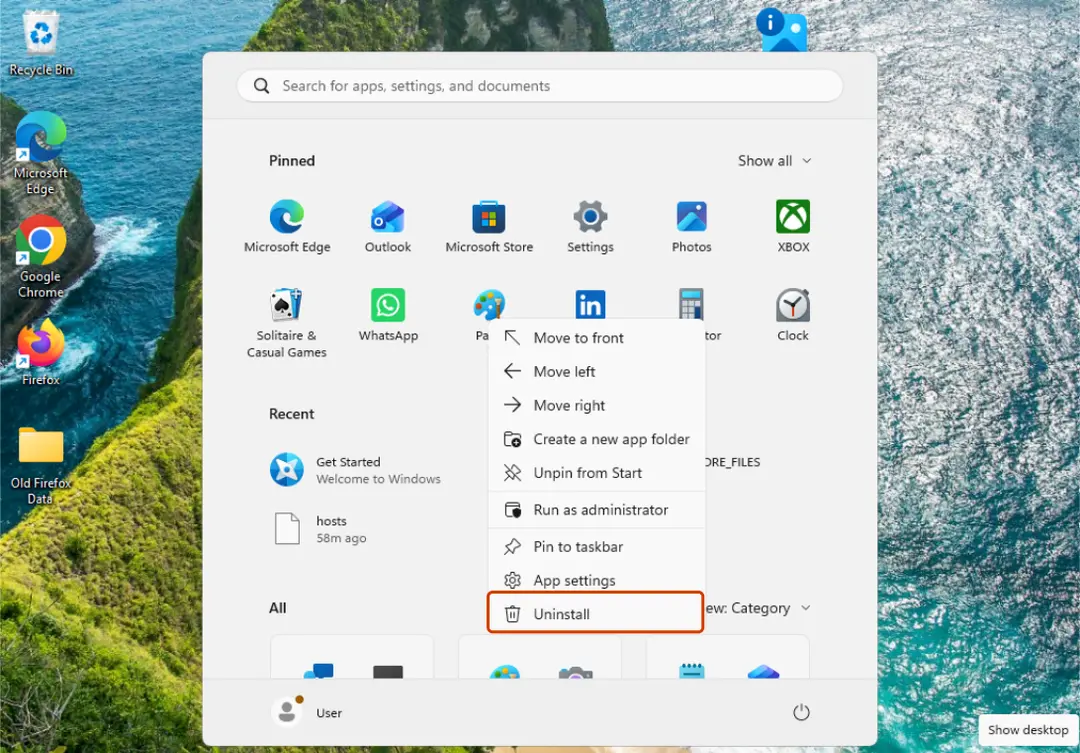
Right-click the app in Start, then Uninstall. Screenshot: Windows 11 26H2 Or uninstall in Settings
Select Start > Settings > Apps > Installed apps. Find the app, select More (the three dots) > Uninstall, and confirm.
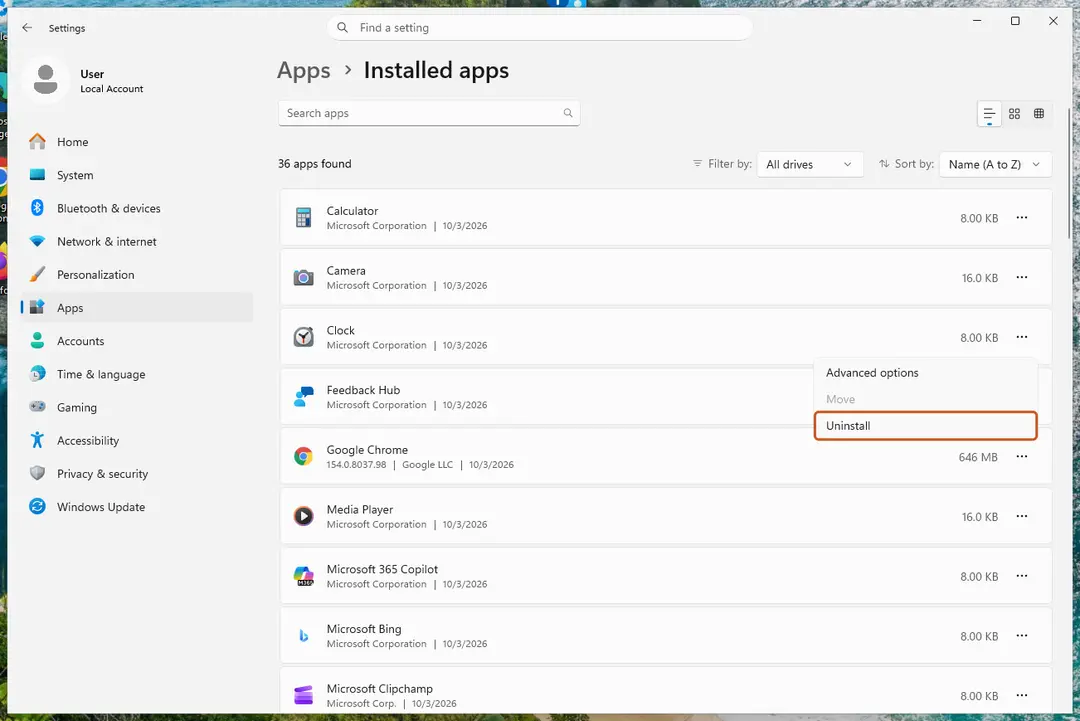
Settings, Apps, Installed apps: the ... menu. Screenshot: Windows 11 26H2 Or uninstall from Control Panel
Some programs can only be removed here. Type Control Panel in the search box on the taskbar and open it, then select Programs > Programs and Features. Right-click the program and select Uninstall or Uninstall/Change, then follow the program's own uninstaller.
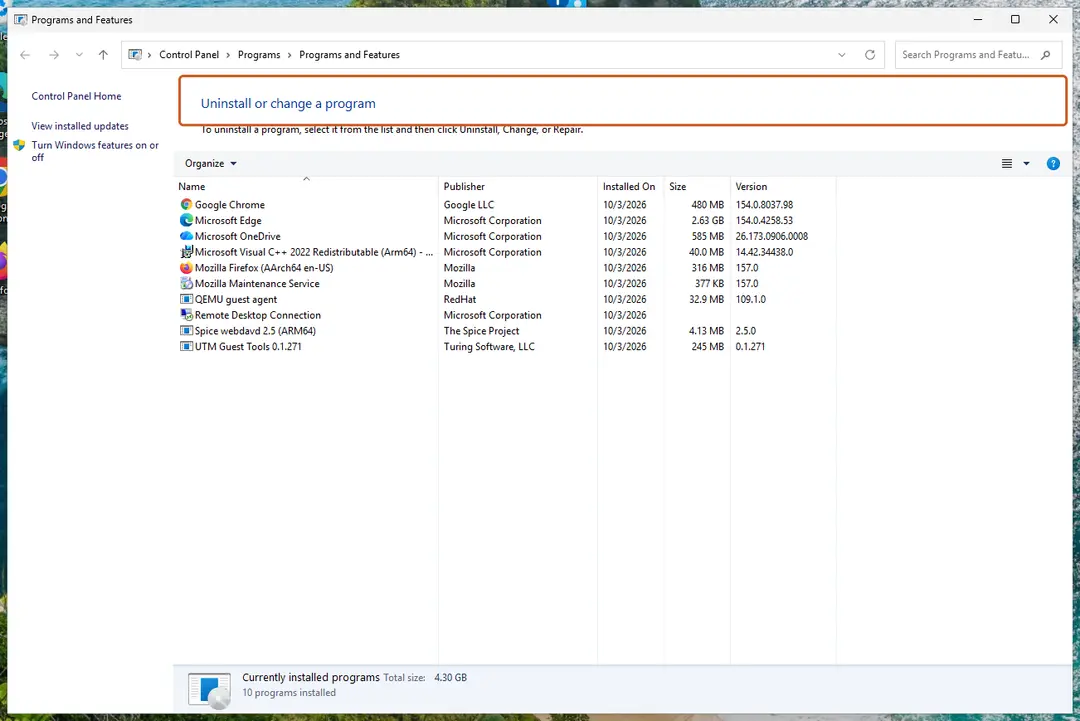
Control Panel, Programs and Features. Screenshot: Windows 11 26H2 Restart if the uninstaller asks
Some programs finish removing their files only after a restart.
Windows 10
Steps written for Windows 10 22H2.
Microsoft ended support for Windows 10 on October 14, 2025. Uninstalling works the same way as before.
Uninstall from the Start menu
Open Start, find the app in the list, right-click it and select Uninstall.
Or uninstall in Settings
Select Start > Settings > Apps > Apps & features. Select the app, then Uninstall, and confirm.
Or uninstall from Control Panel
Type Control Panel in the search box on the taskbar and open it, then select Programs > Programs and Features. Right-click the program and select Uninstall or Uninstall/Change.
Restart if the uninstaller asks
Some programs finish removing their files only after a restart.
Uninstall from the command line (winget)
Windows Package Manager can remove programs too, including many that were not installed with it. Open Terminal or Command Prompt and list what is installed:
winget list
Copy the program's ID from the list and uninstall it exactly by that ID:
winget uninstall --id <ID> --exact
If a program will not uninstall
- Close it completely. Open Task Manager (Ctrl + Shift + Esc), select the program's process and select End task, then try again.
- Use the other place. If Settings fails, try Control Panel, and the other way round.
- Run Microsoft's troubleshooter. The Program Install and Uninstall troubleshooter repairs problems that block programs from being removed. Download it from Microsoft Support, run it and follow its steps.
- Use the vendor's removal tool. Antivirus suites and some drivers ship their own removal tool on the vendor's support site.
If the unwanted thing is a browser extension, or a program that changed your browser's start page or search engine, follow Remove a browser extension On 2-Spyware and Reset a browser and fix a hijacked search engine On 2-Spyware.
Apps that have no Uninstall option
Some apps are part of Windows and cannot be uninstalled from Start or Settings. If neither Start, Settings nor Control Panel offers Uninstall for an app, it is usually one of them.
Used in 1 guide
Sources
- Microsoft Support: Uninstall or remove apps and programs in Windows (read Oct 3, 2026)
- Microsoft Support: Fix problems that block programs from being installed or removed (read Oct 3, 2026)
- Microsoft Learn: winget uninstall command (read Oct 3, 2026)