
How to back up the registry in Windows 11 and 10
Export the registry key you are about to change to a .reg file. If the change causes a problem, importing the file puts the old values back.
- Time
- 2 minutes
- Level
- Easy
- You need
- An administrator account.
Windows 11 and 10
Steps written for Windows 11 and Windows 10 (the steps are the same).
Open Registry Editor
Press Windows key + R, type the command below and select OK. Select Yes when Windows asks for permission.
regeditSelect the key
In the left pane, go to the key your guide will change, or paste its path into the address bar under the menu and press Enter.
Export it
Select File > Export.
Save the backup
Under Export range, keep Selected branch to save only that key, or choose All for the whole registry. Pick a folder, type a file name and select Save.
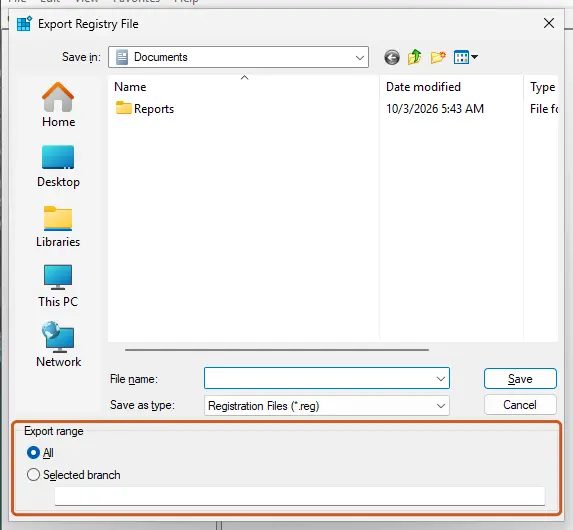
Export range decides whether one key or the whole registry is saved. Screenshot: Windows 11 26H2 Restore it when needed
In Registry Editor, select File > Import, choose the .reg file and select Open. You can also double-click the file and confirm.
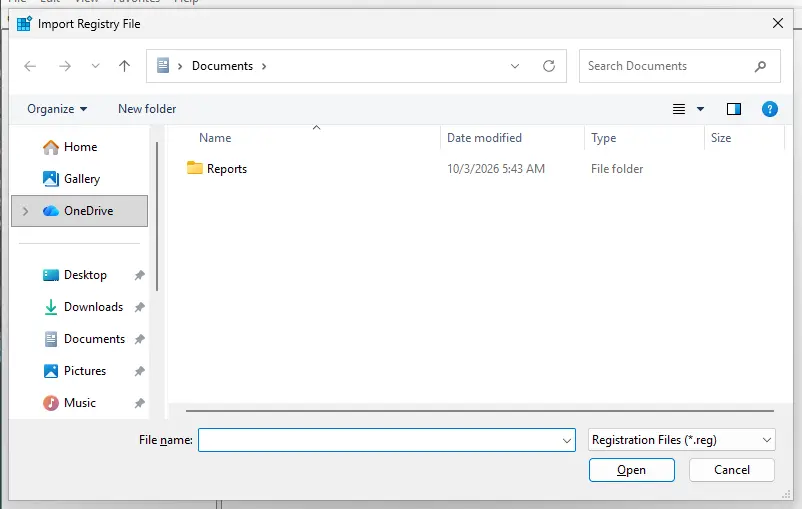
Import writes the saved values back into the registry. Screenshot: Windows 11 26H2
What an import does not undo
Importing a .reg file writes back the keys and values it contains. It does not delete keys or values that were added after the backup, so remove those by hand if your change created new ones. For a complete way back, also create a restore point before larger changes: Undo recent changes with System Restore.
Back up a key with a command
In Terminal opened as administrator (replace the key path and file name):
reg export "HKCU\Software\Example" "%USERPROFILE%\Desktop\example-backup.reg"
To restore it:
reg import "%USERPROFILE%\Desktop\example-backup.reg"
Used in 2 guides
Sources
- Microsoft Support: How to back up and restore the registry in Windows (read Oct 3, 2026)
- Microsoft Learn: reg export (read Oct 3, 2026)
- Microsoft Learn: reg import (read Oct 3, 2026)