
Open the Local Group Policy Editor (gpedit.msc)
The Local Group Policy Editor changes Windows settings that the Settings app does not show. It is part of the Pro, Enterprise and Education editions.
- Time
- A few minutes
- Level
- Medium
- You need
- An administrator account and Windows 11 or 10 Pro, Enterprise or Education.
Before you start
- Check your edition: open Settings > System > About and look at Edition under Windows specifications. On a Home edition, read Windows Home below this guide instead.
- Write down each setting before you change it, so you can set it back.
Windows 11 and 10
Steps written for Windows 11 and Windows 10, Pro, Enterprise and Education (the steps are the same).
Open the Run box
Press Windows key + R.
Start the editor
Type the command below and select OK. Select Yes if Windows asks for permission.
gpedit.msc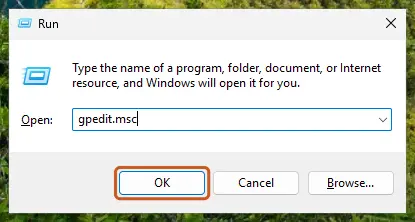
Type gpedit.msc in the Run box and select OK. Screenshot: Windows 11 26H2 Go to the folder the guide names
In the left pane, expand Computer Configuration (settings for the whole PC) or User Configuration (settings for users), then open Administrative Templates and the folders your guide lists.
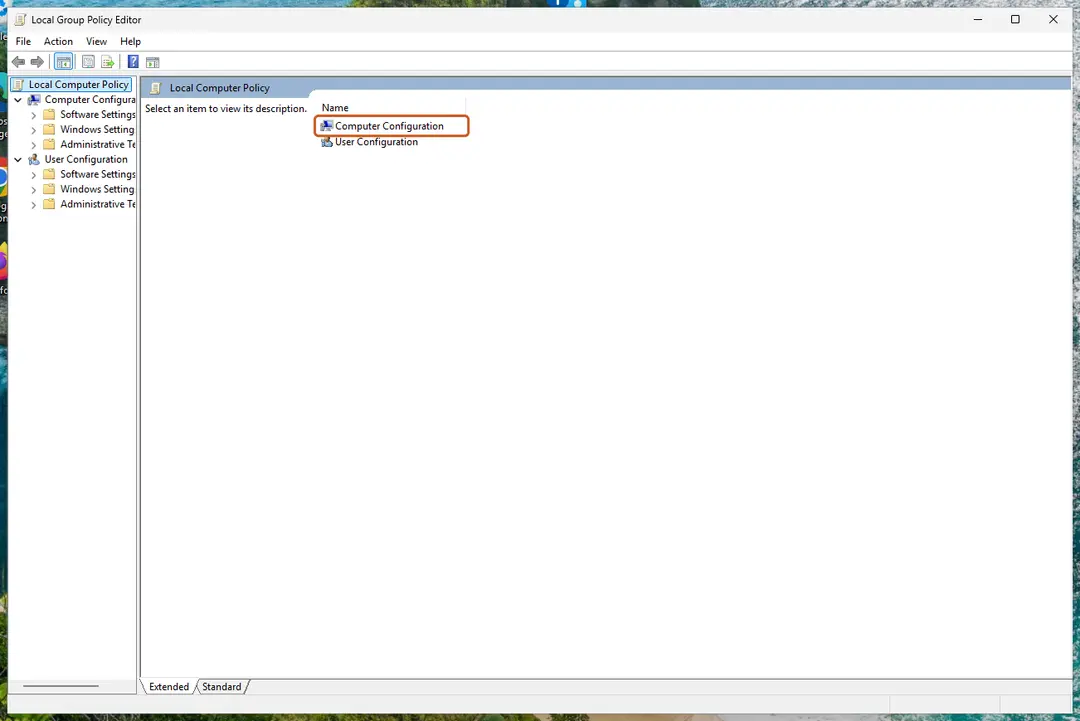
The two main branches of the Local Group Policy Editor. Screenshot: Windows 11 26H2 Open the policy
In the right pane, double-click the policy name.
Change the setting
Select Enabled, Disabled or Not Configured as the guide says, fill in any values under Options, and select OK.
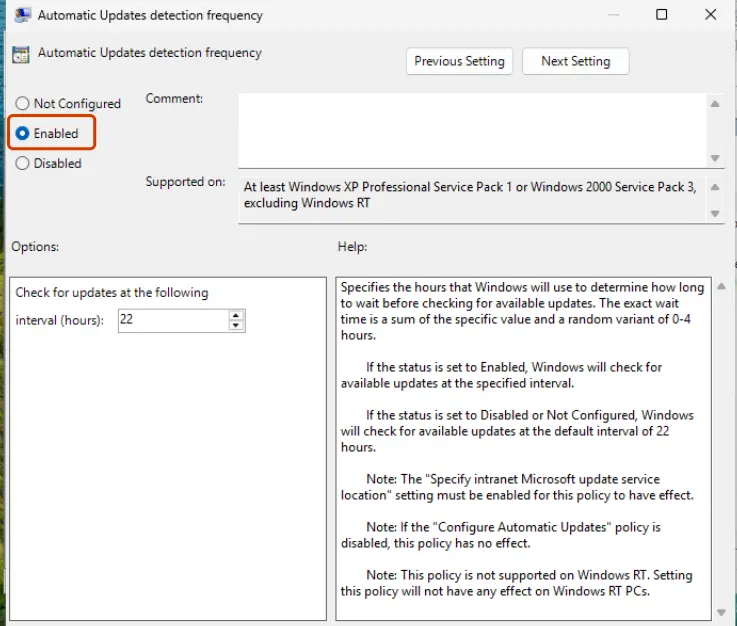
Choose Enabled, Disabled or Not Configured; the Help box explains what each does. Screenshot: Windows 11 26H2 Apply the change
Restart the PC, or open Terminal as administrator and run the command below to apply the change now.
gpupdate /force
Undo a change
Open the same policy and select Not Configured. Windows then uses its default behaviour again. Run gpupdate /force or restart.
See every policy you have changed
Open Computer Configuration (or User Configuration) > Administrative Templates > All Settings, then select the State column header. Enabled and Disabled policies are listed together.
Windows Home
Windows 11 Home and Windows 10 Home do not include the Local Group Policy Editor, so gpedit.msc reports that Windows cannot find it. Most policies have a registry value that does the same thing; when your guide gives one, back up the registry first: Back up the registry before editing it. Scripts that add gpedit to Home install packages Microsoft does not support for that edition, so we do not recommend them.
Used in 2 guides
Sources
- Microsoft Learn: Open the Local Group Policy Editor (read Oct 3, 2026)
- Microsoft Learn: gpupdate command reference (read Oct 3, 2026)