
Reset the Microsoft Store when it is not working (wsreset)
When Microsoft Store does not open, stays blank or will not download, first clear its cache with wsreset. If that does not help, repair the Store app, and reset it as the last step.
- Time
- A few minutes
- Level
- Easy
- You need
- Nothing. Resetting signs you out of the Store, so have your Microsoft account password ready.
Before you start
- Check that the date, time and region of the PC are right: a wrong clock stops the Store from connecting.
- Install pending updates in Settings > Windows Update.
Windows 11
Steps written for Windows 11 26H2 (build 26300).
Clear the Store cache
Press Windows + R, type wsreset.exe and select OK. A blank Command Prompt window opens; after a short while it closes and Microsoft Store opens by itself.

After wsreset, the Store opens and loads again. Screenshot: Windows 11 26H2 Open System components
If the problem stays, select Start > Settings > System > System components. Next to Microsoft Store, select the three dots and Advanced options. If Microsoft Store is not listed there, look for it in Settings > Apps > Installed apps.
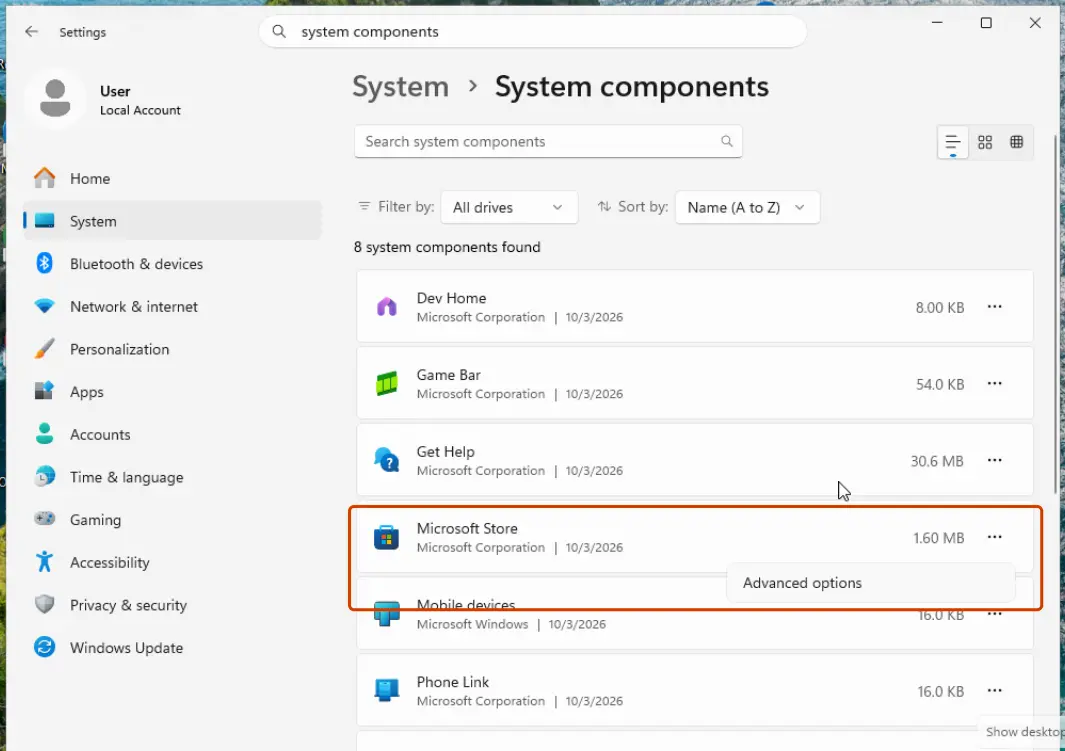
Microsoft Store is listed under System components. Screenshot: Windows 11 26H2 Repair first
Scroll to Reset and select Repair. Repair keeps the app's data. Open the Store and check whether it works.
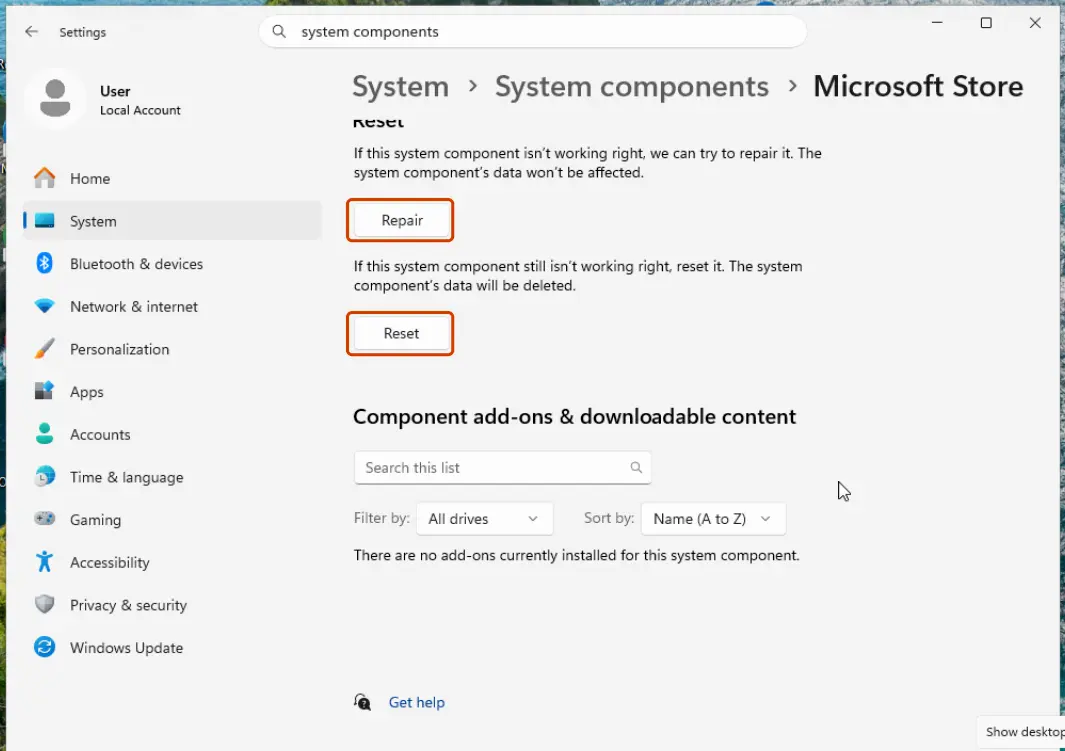
Repair keeps the app's data; Reset deletes it. Screenshot: Windows 11 26H2 Reset if Repair did not help
Select Reset and confirm. This deletes the Store app's data on this PC; your purchases stay in your Microsoft account. Open the Store and sign in again.
Windows 10
Steps written for Windows 10 22H2.
Microsoft ended support for Windows 10 on October 14, 2025. The Store can still be reset the same way as before.
Clear the Store cache
Press Windows + R, type wsreset.exe and select OK. A blank Command Prompt window opens; after a short while it closes and Microsoft Store opens by itself.
Open the Store's advanced options
Select Start > Settings > Apps > Apps & features. Select Microsoft Store, then Advanced options.
Repair first
Select Repair, then open the Store and check whether it works.
Reset if Repair did not help
Select Reset and confirm. Open the Store and sign in again.
If the Store still does not work
- Restart the PC after the reset.
- Repair system files: Run DISM and SFC to repair Windows system files.
- If the Store app is missing altogether, Microsoft offers it for download at apps.microsoft.com.
- If only one app from the Store misbehaves, repair or reset that app in the same way, or reinstall it from Library in the Store.
What a reset removes
The Store's settings and sign-in on this PC. Apps you installed from the Store stay installed, and everything you bought stays in your Microsoft account.
Used in 1 guide
Sources
- Microsoft Support: Microsoft Store doesn't open (read Oct 3, 2026)
- Microsoft Support: Fix problems with apps from Microsoft Store (read Oct 3, 2026)