
Run DISM and SFC to repair Windows system files
Two built-in tools: DISM repairs the store of Windows components, then System File Checker (SFC) uses it to replace damaged or missing system files. Your personal files, apps and settings are not touched.
- Time
- Several minutes for each scan
- Level
- Easy
- You need
- An administrator account. An internet connection for DISM, unless you use Windows installation media as the source.
Before you start
- Save your work and close other programs: SFC can ask for a restart to finish replacing files.
- On a laptop, connect the charger. Do not let the PC sleep while the scans run.
Windows 11
Steps written for Windows 11 24H2 and 25H2.
Open an elevated command window
Right-click Start and select Terminal (Admin), or type cmd in the search box, right-click Command Prompt and select Run as administrator. Select Yes when Windows asks for permission.
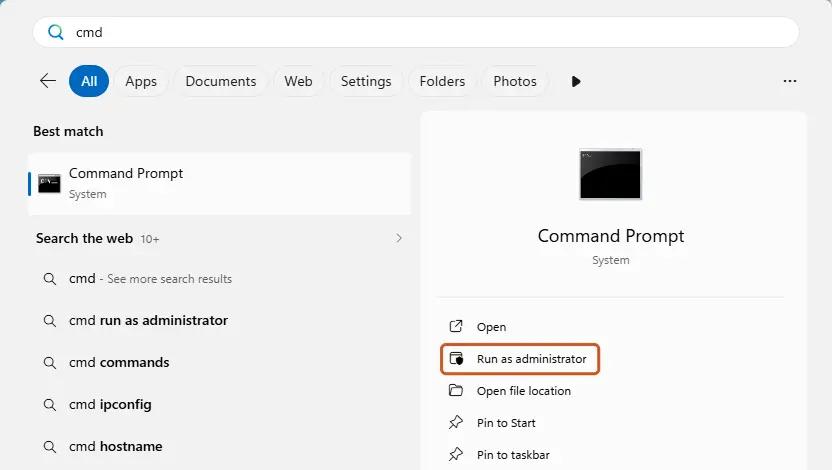
Search for cmd and choose Run as administrator. Screenshot: Windows 11 26H2 Run DISM first
Type the command below and press Enter. DISM downloads clean copies of damaged components from Windows Update, so it can take several minutes. Wait until it says The operation completed successfully.
DISM.exe /Online /Cleanup-Image /RestoreHealth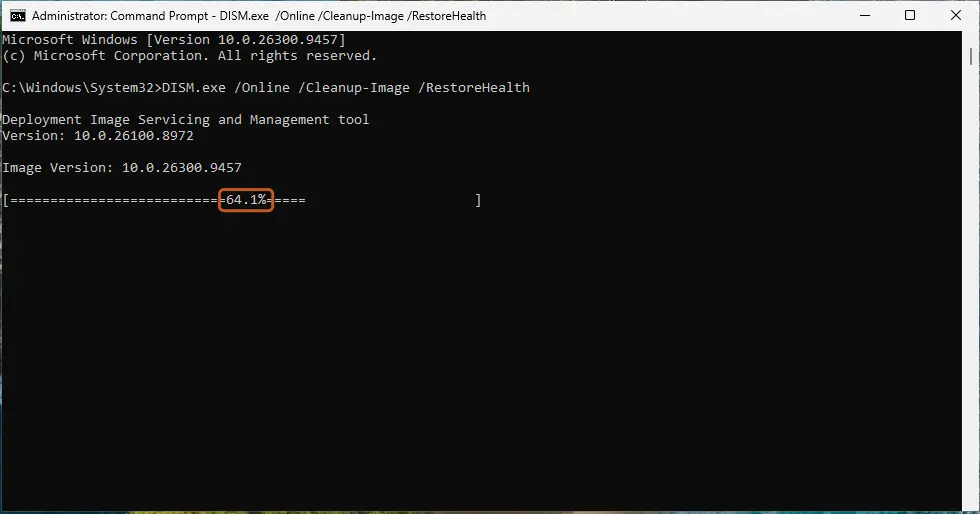
DISM /RestoreHealth running. Screenshot: Windows 11 26H2 Run System File Checker
In the same window, type the command below and press Enter. Do not close the window until the verification reaches 100%.
sfc /scannow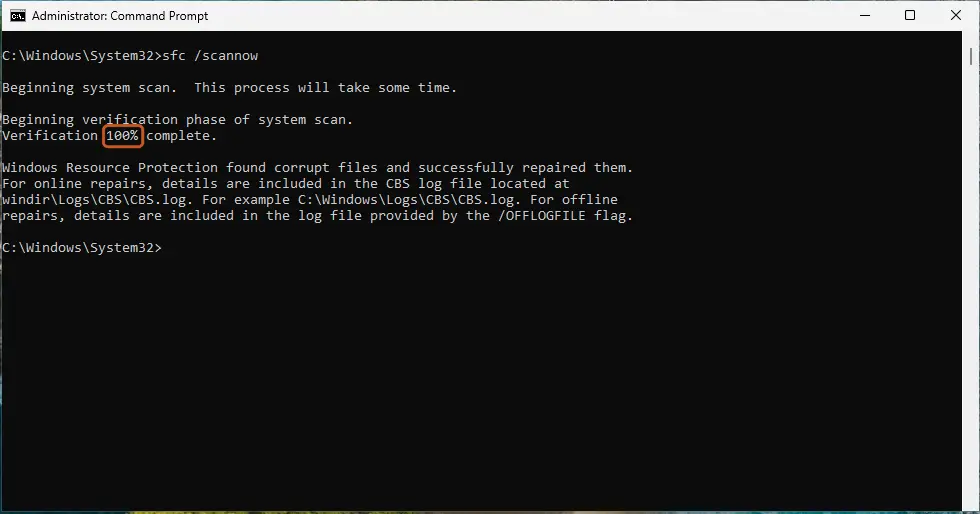
sfc /scannow at 100%. Screenshot: Windows 11 26H2 Read the result and restart
Compare the last message with the table below this guide, then restart the PC so that repaired files are loaded.
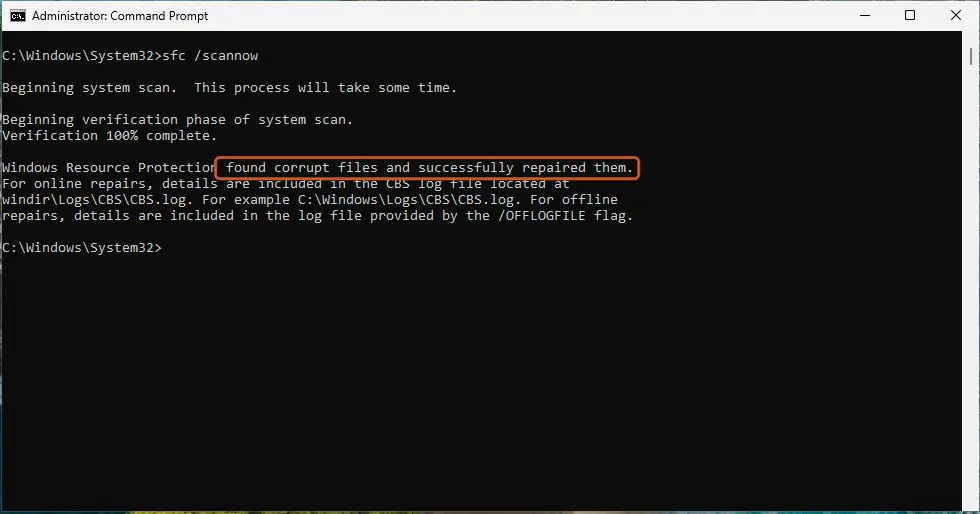
The result line tells you what SFC did. Screenshot: Windows 11 26H2
Windows 10
Steps written for Windows 10 22H2.
Microsoft ended support for Windows 10 on October 14, 2025. The repair tools below still work the same way.
Open Command Prompt as administrator
Type cmd in the search box on the taskbar, right-click Command Prompt and select Run as administrator. Select Yes when Windows asks for permission.
Run DISM first
Type the command below and press Enter. Wait until it says The operation completed successfully.
DISM.exe /Online /Cleanup-Image /RestoreHealthRun System File Checker
Type the command below and press Enter. Do not close the window until the verification reaches 100%.
sfc /scannowRead the result and restart
Compare the last message with the table below this guide, then restart the PC.
Windows will not start
Steps written for Windows 11 and Windows 10, from the Windows Recovery Environment.
When Windows does not start normally, run SFC from the recovery environment against the installed copy of Windows (an offline scan).
Open the recovery environment
If Windows still reaches the sign-in screen, hold Shift and select Power > Restart. From a working desktop you can also use Settings > System > Recovery > Advanced startup > Restart now.
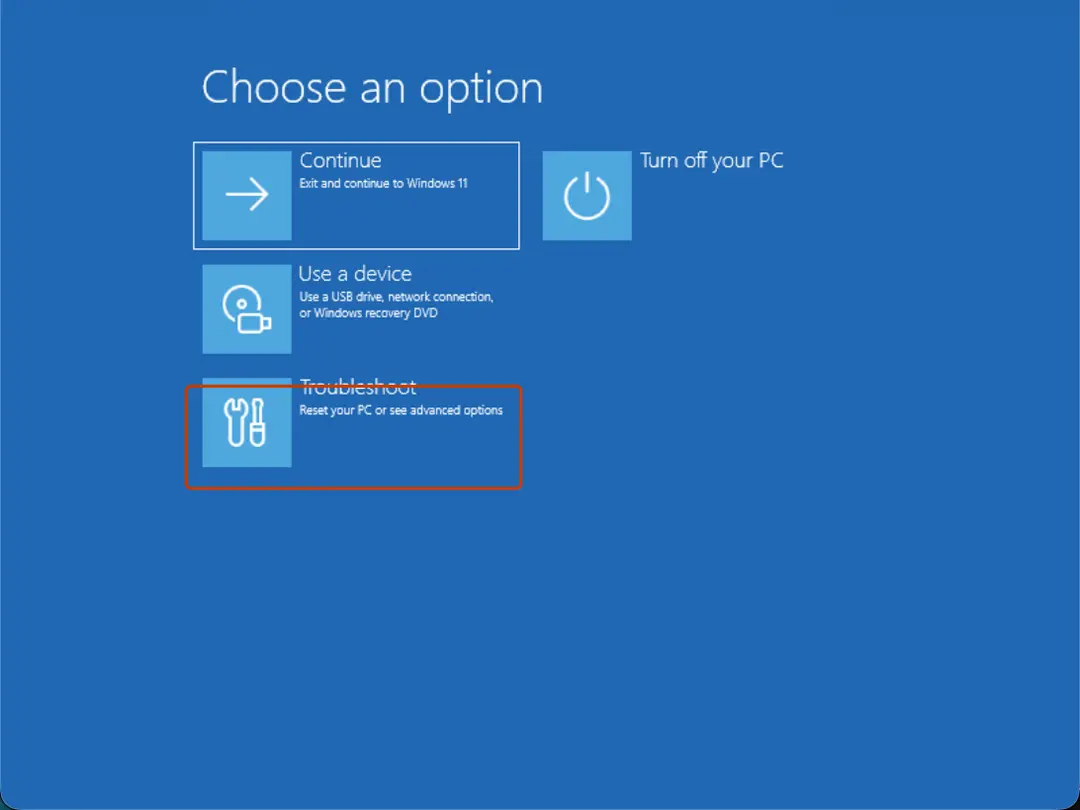
Choose an option: Troubleshoot. Screenshot: Windows 11 26H2 Open Command Prompt
Select Troubleshoot > Advanced options > Command Prompt.
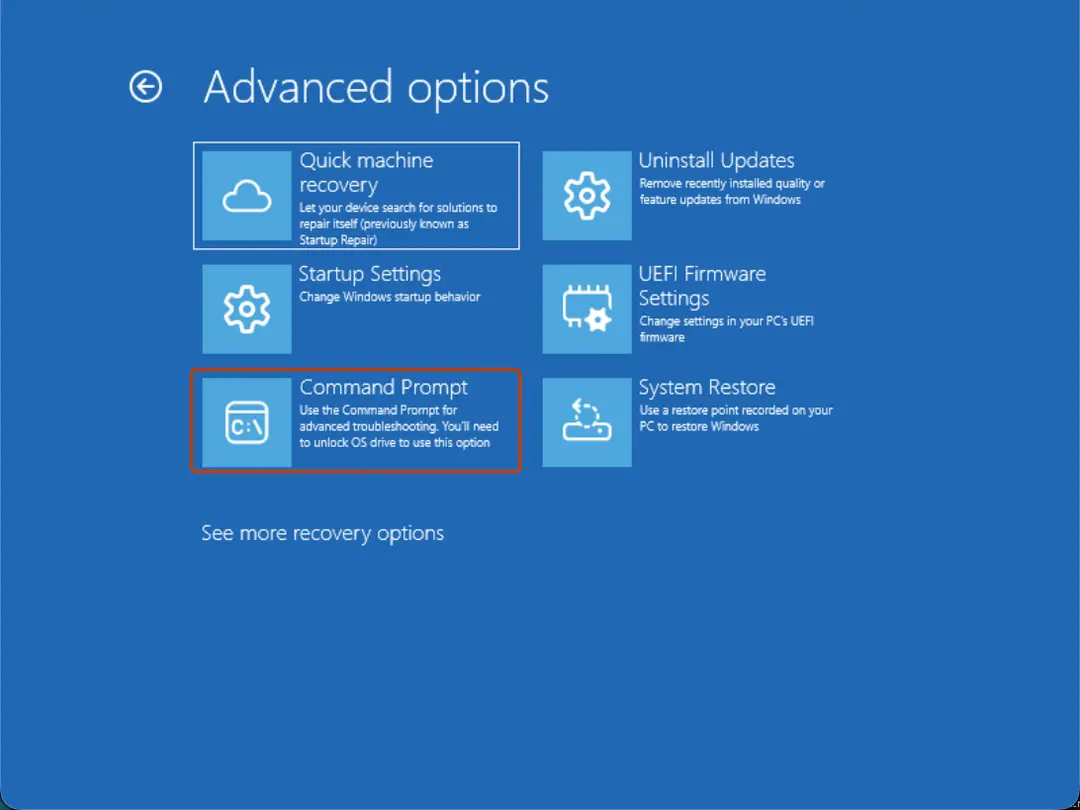
Advanced options: Command Prompt. Screenshot: Windows 11 26H2 Find the drive letter of Windows
In the recovery environment the drive letters are often different from the ones you know. Try the commands below one by one: the right letter is the one that lists the Windows folder's contents (System32, WinSxS and so on).
dir C:\Windows
dir D:\Windows
dir E:\Windows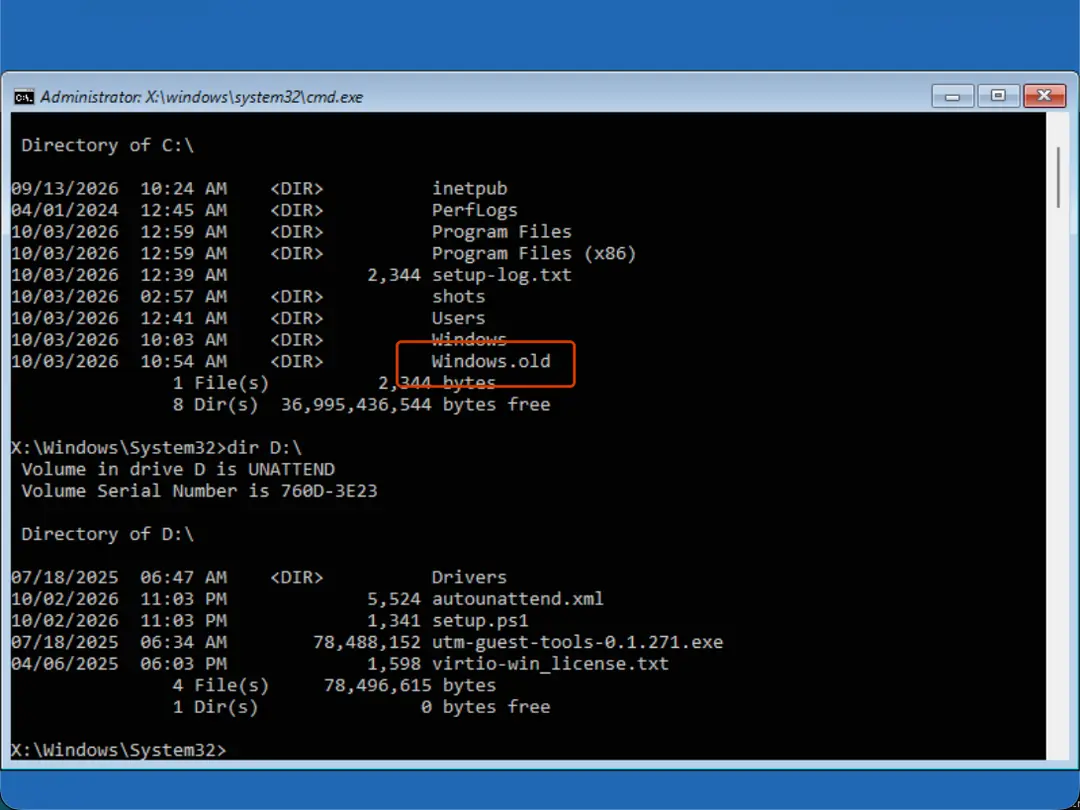
dir shows which letter holds the Windows folder. Screenshot: Windows 11 26H2 Run the offline scan
Run SFC against that drive. Replace D: with the letter you found in both places.
sfc /scannow /offbootdir=D:\ /offwindir=D:\Windows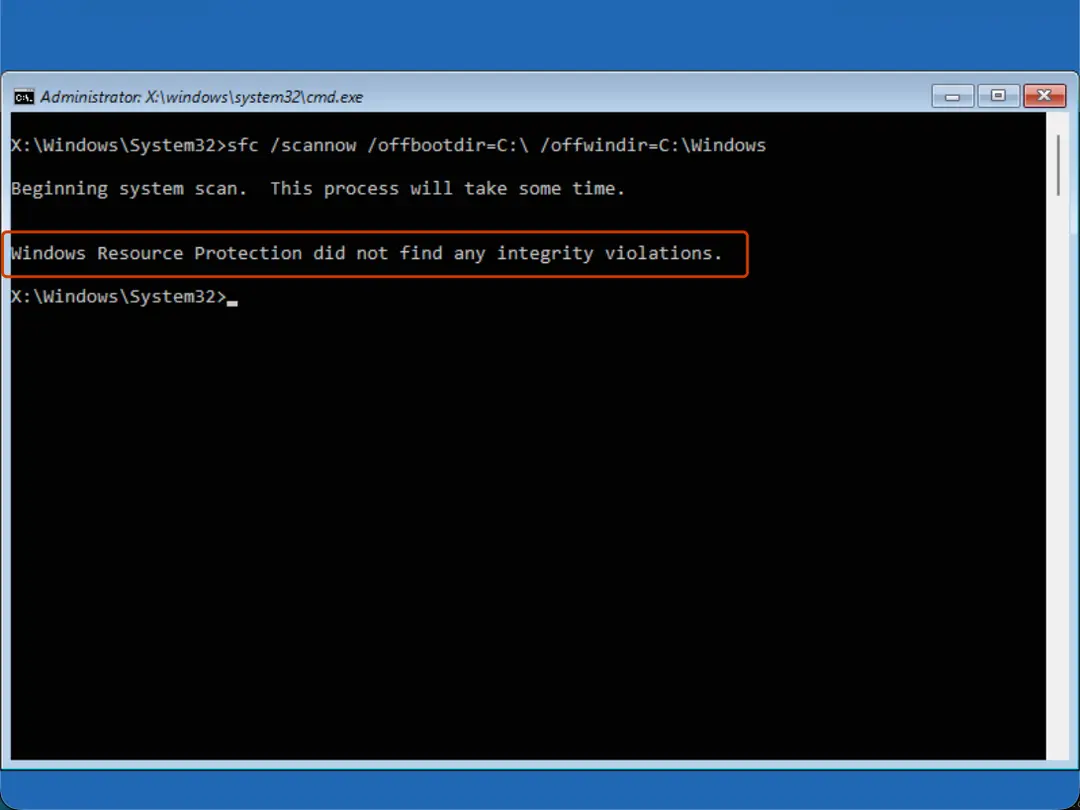
Offline SFC result. Screenshot: Windows 11 26H2 Restart
Close Command Prompt and select Continue to start Windows.
What the SFC result means
| Message | What to do |
|---|---|
| Windows Resource Protection did not find any integrity violations. | System files are fine. The problem has another cause: go back to your guide's next method. |
| Windows Resource Protection found corrupt files and successfully repaired them. | Restart the PC and check whether the problem is gone. |
| Windows Resource Protection found corrupt files but was unable to fix some of them. | Run DISM again (it may need a repair source, see below), restart, and run sfc /scannow once more. To see which files failed, use the log command below. |
| Windows Resource Protection could not perform the requested operation. | Run the scan from Safe Mode, or offline from the recovery environment (the Windows will not start tab). |
If DISM cannot find the source files
DISM normally gets clean files from Windows Update. If it reports that the source files could not be found, give it a Windows installation image of the same version and language as the installed system:
- Download the Windows ISO from Microsoft, then right-click it and select Mount. Note the drive letter, for example F:.
- List the editions in the image and note the index of yours (Home, Pro …):
DISM /Get-WimInfo /WimFile:F:\sources\install.wim - Run the repair with that image as the only source (replace 1 with your index):
DISM /Online /Cleanup-Image /RestoreHealth /Source:wim:F:\sources\install.wim:1 /LimitAccess
See which files SFC could not repair
SFC writes its details to the CBS log. This command copies only the SFC lines to a text file on your desktop:
findstr /c:"[SR]" %windir%\Logs\CBS\CBS.log >"%userprofile%\Desktop\sfcdetails.txt"
The file contains every SFC run on this PC; check the date and time of the latest one.
If the problem stays
When DISM and SFC report no errors but the problem continues, the cause is usually not damaged system files. Continue with the next method in the guide that sent you here. As a last step, Windows can reinstall its current version while keeping your files and apps: see Microsoft: Fix issues by reinstalling the current version of Windows.
Used in 2 guides
Sources
- Microsoft Support: Use the System File Checker tool to repair missing or corrupted system files (read Oct 3, 2026)
- Microsoft Learn: Repair a Windows image (DISM) (read Oct 3, 2026)
- Microsoft Learn: Configure a Windows repair source (read Oct 3, 2026)
- Microsoft Learn: sfc command reference (read Oct 3, 2026)
- Microsoft Support: Windows Recovery Environment (read Oct 3, 2026)