
Flush DNS and reset network settings in Windows
Start with the commands, which only clear cached addresses and reset the network stack. A full network reset reinstalls every network adapter and is the last step. Your files are not touched.
- Time
- 5 minutes plus a restart
- Level
- Easy
- You need
- An administrator account.
Before you start
- Write down your Wi-Fi password and any VPN settings: a full network reset removes saved networks and adapters.
- If only one website does not open, flushing the DNS cache (step 2) is often enough.
Windows 11
Steps written for Windows 11 24H2 and later.
Open an elevated command window
Right-click Start and select Terminal (Admin), or type cmd in the search box, right-click Command Prompt and select Run as administrator. Select Yes when Windows asks for permission.
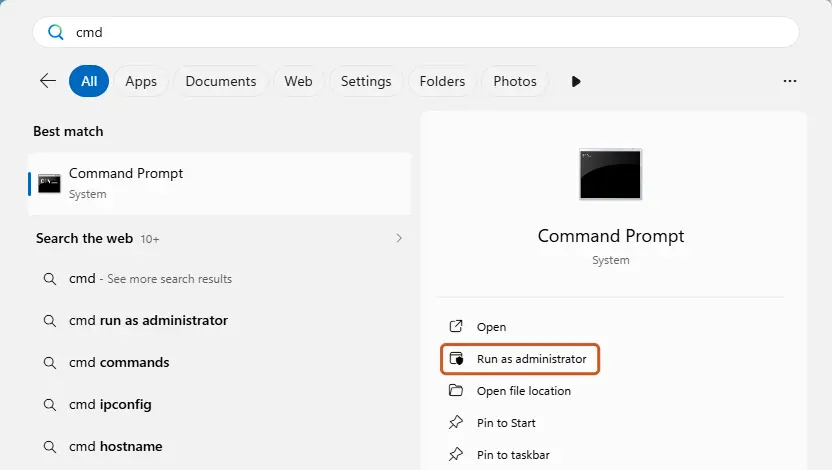
Search for cmd and choose Run as administrator. Screenshot: Windows 11 26H2 Flush the DNS cache
Type the command below and press Enter. Windows forgets the website addresses it looked up earlier and asks for them again.
ipconfig /flushdnsReset Winsock
Type the command below and press Enter. It returns the Windows sockets catalog to its default state.
netsh winsock reset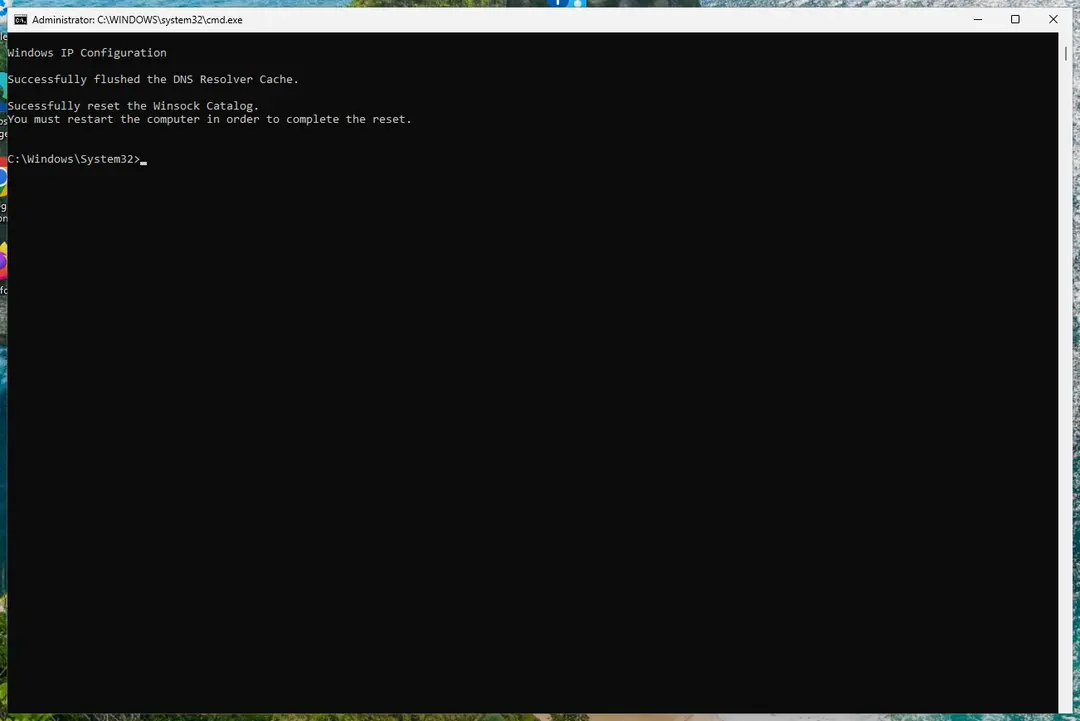
Both commands report success; the Winsock reset asks for a restart. Screenshot: Windows 11 26H2 Reset TCP/IP
Type the command below and press Enter. If you entered an IP address or DNS server by hand, note it first: you may need to enter it again.
netsh int ip resetGet a new IP address
Run these two commands one after the other. The connection drops for a moment between them.
ipconfig /release ipconfig /renewRestart the PC
Restart Windows so the Winsock and TCP/IP resets take effect, then test the connection. If it still does not work, continue with the network reset below.
Open Network reset
Open Settings > Network & internet > Advanced network settings and select Network reset.
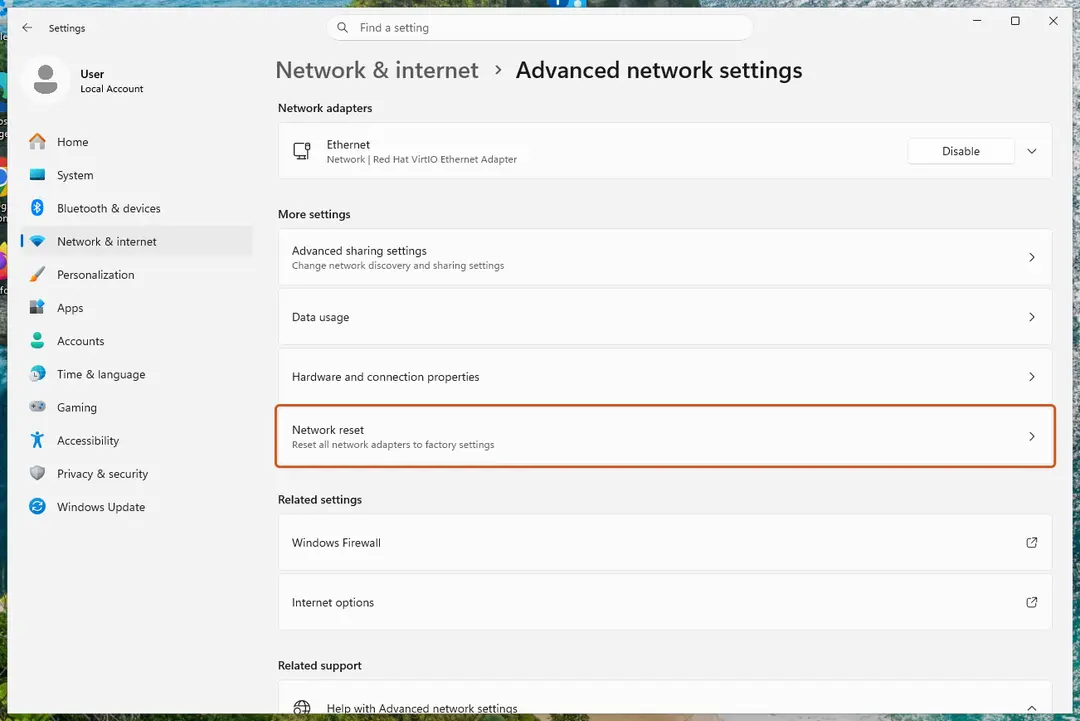
Network reset is under More settings in Advanced network settings. Screenshot: Windows 11 26H2 Reset now
Select Reset now, then Yes to confirm. Windows removes and reinstalls all network adapters and restarts the PC.
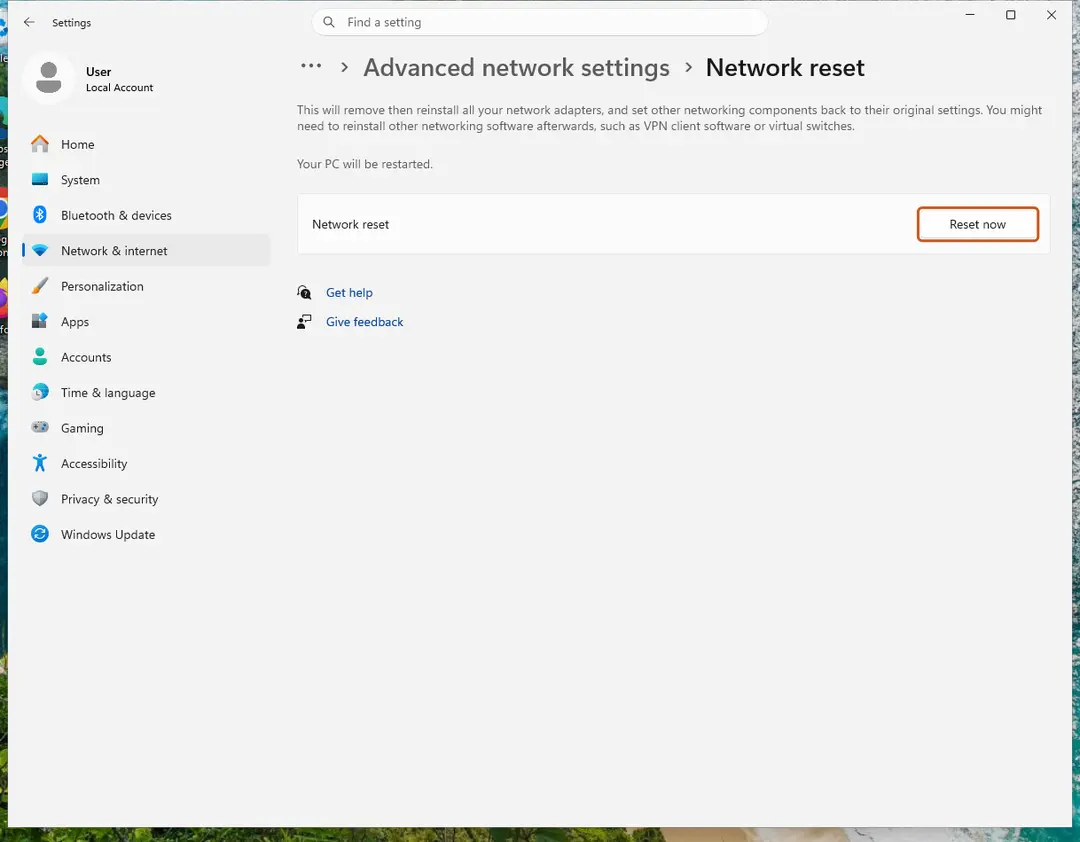
Network reset warns that VPN software or virtual switches may need to be reinstalled. Screenshot: Windows 11 26H2 Reconnect
After the restart, connect to your Wi-Fi network again (you will need its password) and reinstall or reconfigure VPN software if it stopped working.
Windows 10
Steps written for Windows 10 22H2.
The commands are the same as on Windows 11; only the place of Network reset in Settings differs.
Open an elevated command window
Type cmd in the search box on the taskbar, right-click Command Prompt and select Run as administrator. Select Yes when Windows asks for permission.
Flush the DNS cache
Type the command below and press Enter. Windows forgets the website addresses it looked up earlier and asks for them again.
ipconfig /flushdnsReset Winsock
Type the command below and press Enter. It returns the Windows sockets catalog to its default state.
netsh winsock resetReset TCP/IP
Type the command below and press Enter. If you entered an IP address or DNS server by hand, note it first: you may need to enter it again.
netsh int ip resetGet a new IP address
Run these two commands one after the other. The connection drops for a moment between them.
ipconfig /release ipconfig /renewRestart the PC
Restart Windows so the Winsock and TCP/IP resets take effect, then test the connection. If it still does not work, continue with the network reset below.
Open Network reset
Open Settings > Network & Internet > Status and select Network reset.
Reset now
Select Reset now, then Yes to confirm. Windows removes and reinstalls all network adapters and restarts the PC.
Reconnect
After the restart, connect to your Wi-Fi network again and reinstall or reconfigure VPN software if it stopped working.
What each step changes
| Step | What it does | Restart |
|---|---|---|
ipconfig /flushdns | Clears the list of website addresses Windows has looked up. Fixes sites that moved or open the wrong page. | No |
netsh winsock reset | Resets the Windows sockets catalog that programs use to connect. Helps after VPN, proxy or security software left it broken. | Yes |
netsh int ip reset | Returns TCP/IP settings to their defaults. | Yes |
ipconfig /release, /renew | Gives up the current IP address and asks the router for a new one. | No |
| Network reset | Removes and reinstalls all network adapters and sets networking components back to their original settings. Saved Wi-Fi networks are lost. | Yes, automatic |
Browsers keep their own DNS cache
Chrome, Edge and Firefox can still use an old address after ipconfig /flushdns. Clear the browser's own cache too, or simply close and reopen the browser:
- Chrome: open
chrome://net-internals/#dnsand select Clear host cache. - Edge: open
edge://net-internals/#dnsand select Clear host cache. - Firefox: open
about:networking#dnsand select Clear DNS Cache.
If the connection still does not work
Restart the modem and router, and check whether other devices on the same network can connect. If only this PC fails, update or reinstall the network adapter driver: see Update, roll back or reinstall a driver. If a program you installed blocks the network, start Windows in Safe Mode with Networking to test without it: see Start Windows or a Mac in Safe Mode.