
Boot in Safe Mode: Windows 11 and Windows 10
Safe Mode starts the system with a minimal set of drivers and programs. If a problem does not happen there, something that normally loads at startup is causing it.
- Time
- 2 to 5 minutes
- Level
- Easy
- You need
- On Windows with device encryption or BitLocker, you may be asked for the BitLocker recovery key.
Before you start
- Save your work: every method restarts the PC.
- If your drive is encrypted, have the BitLocker recovery key ready (it is usually stored in your Microsoft account).
Windows 11 and 10
Steps written for Windows 11 24H2 and later; Windows 10 22H2.
Use this when Windows still starts. The recovery screens are the same on Windows 11 and Windows 10.
Restart from Settings…
Open Settings > System > Recovery. Next to Advanced startup, select Restart now and confirm. On Windows 10 the path is Settings > Update & Security > Recovery.
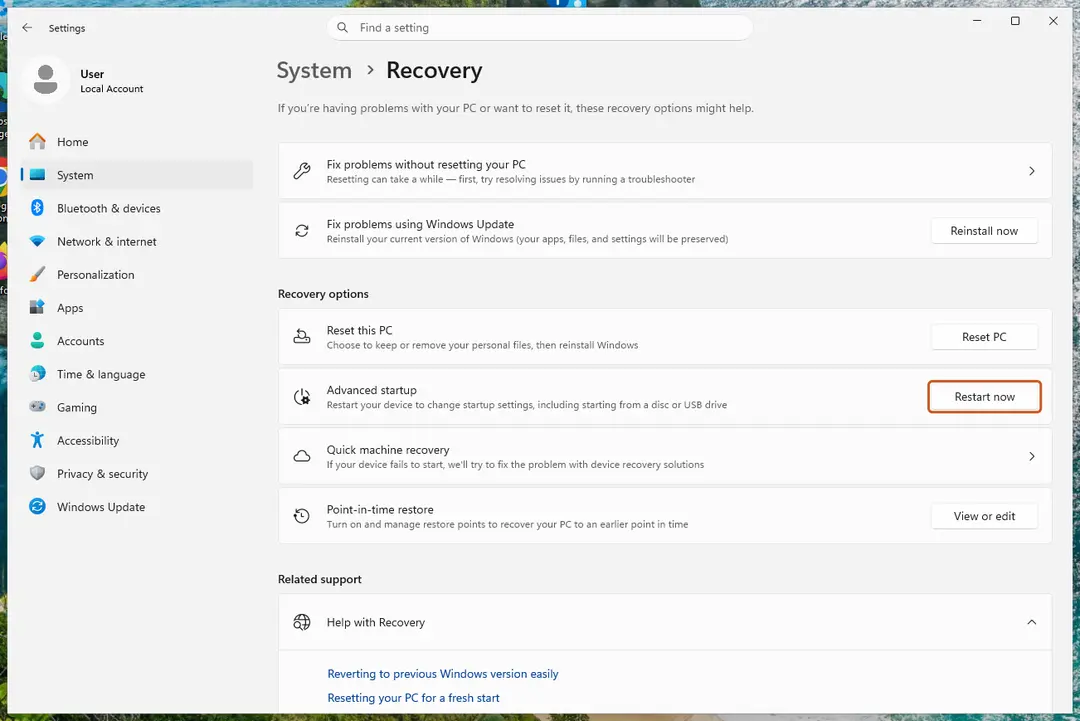
Advanced startup restarts the PC into the recovery screens. Screenshot: Windows 11 26H2 …or hold Shift and select Restart
Instead of Settings you can select Start > Power, hold Shift and select Restart. This also works from the power button on the sign-in screen.
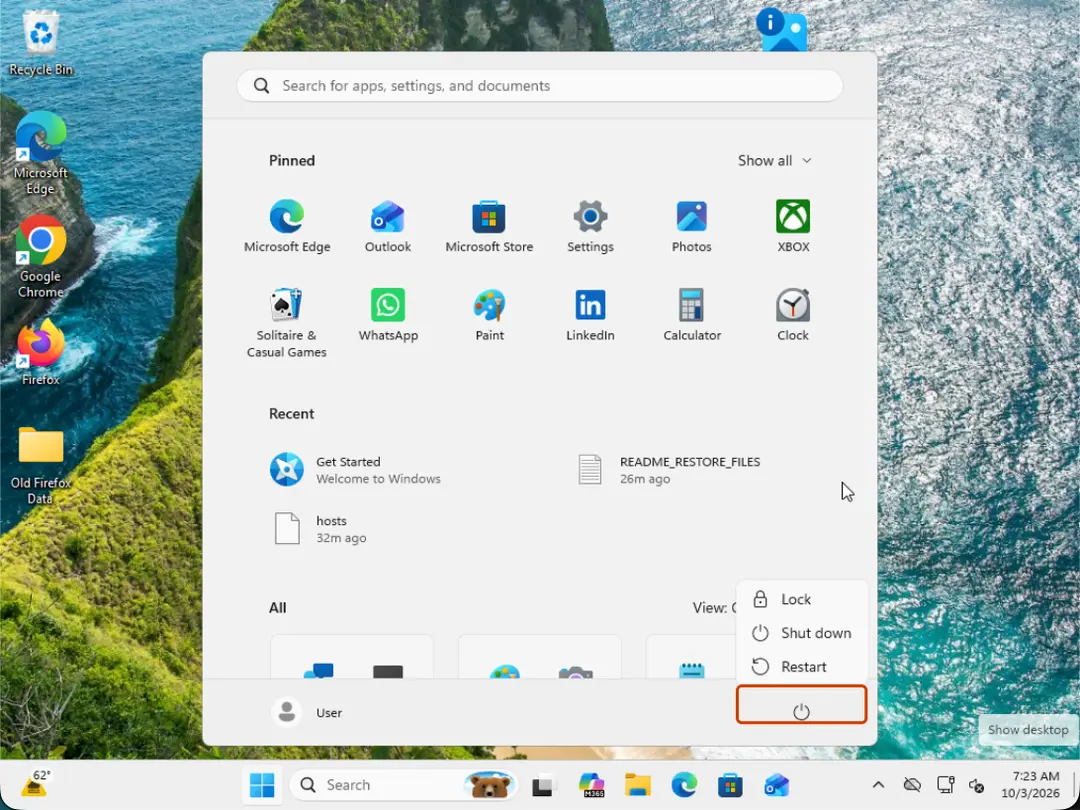
Hold Shift while you select Restart. Screenshot: Windows 11 26H2 Select Troubleshoot
On the blue Choose an option screen, select Troubleshoot.
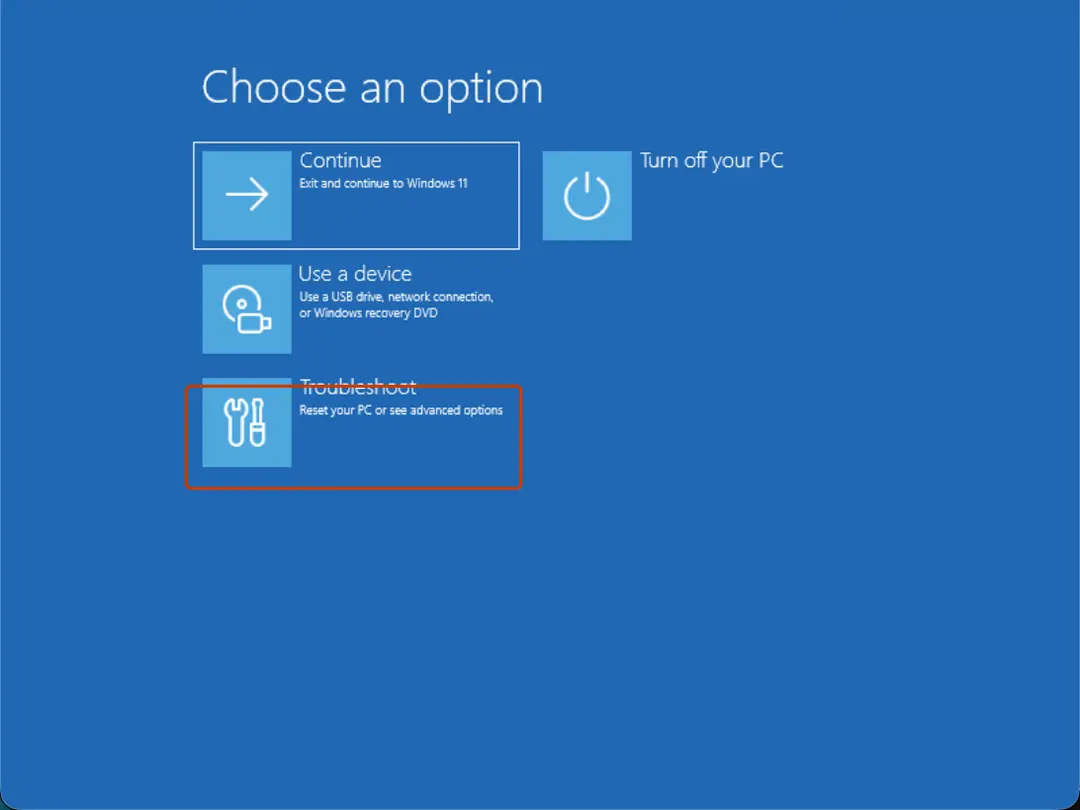
Choose an option: select Troubleshoot. Screenshot: Windows 11 26H2 Open Startup Settings
Select Advanced options > Startup Settings.
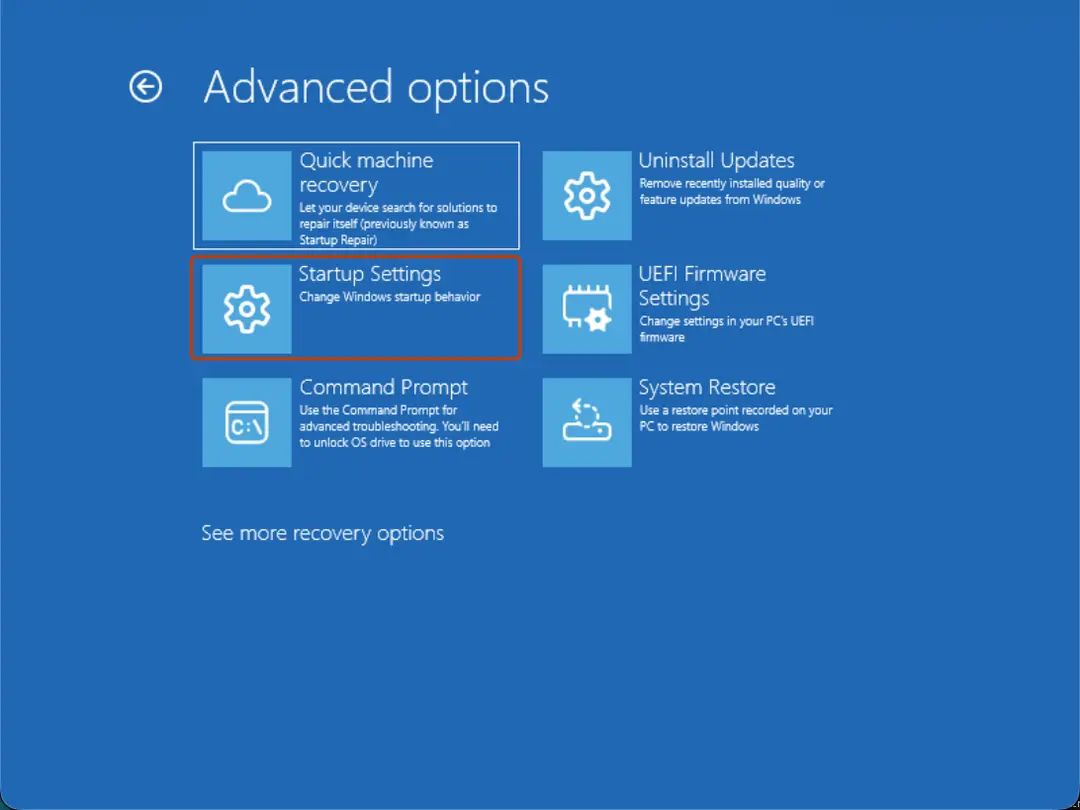
Advanced options: select Startup Settings. On 26H2 the first tile is Quick machine recovery, previously Startup Repair. Screenshot: Windows 11 26H2 Restart
On the Startup Settings page, select Restart. The PC restarts and shows a numbered list.
Choose Safe Mode
Press 4 or F4 for Enable Safe Mode. Press 5 or F5 for Enable Safe Mode with Networking if you need the internet, for example to download a scanner or a driver.
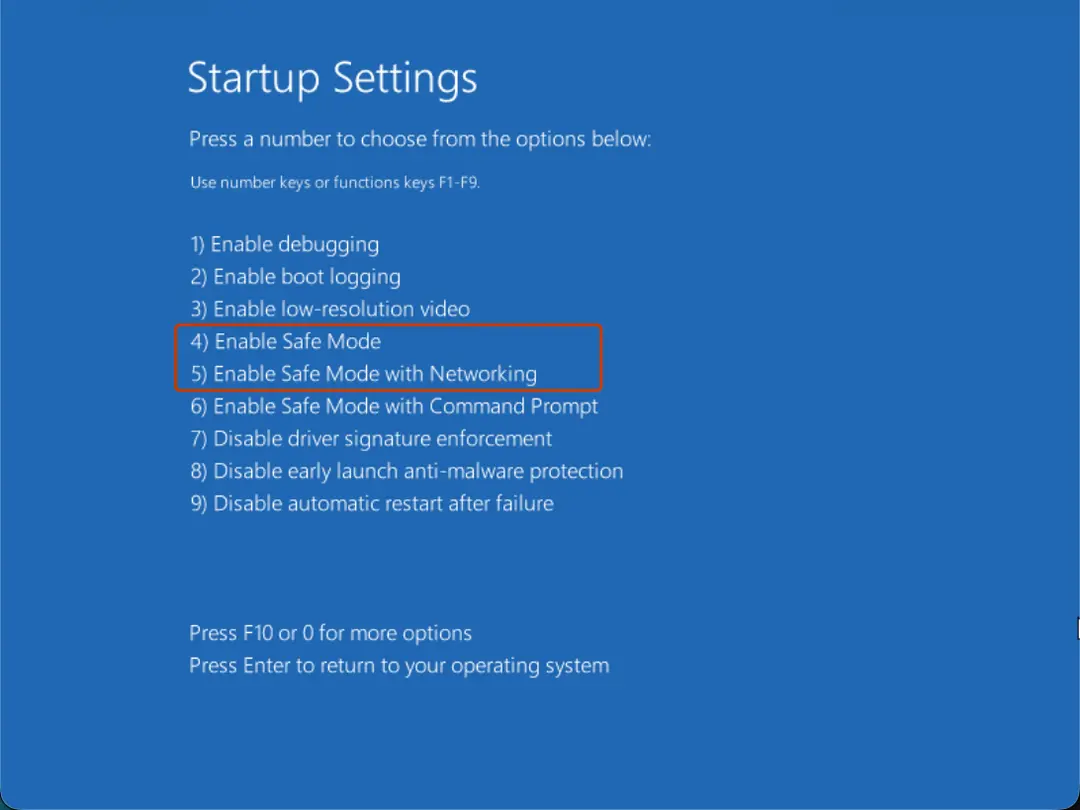
Press 4 for Safe Mode or 5 for Safe Mode with Networking. Screenshot: Windows 11 26H2 Leave Safe Mode
When you are done, restart the PC normally. Windows starts in normal mode again.
If it keeps starting in Safe Mode
Press Windows key + R, type
msconfigand press Enter. On the Boot tab, clear Safe boot, select OK and restart.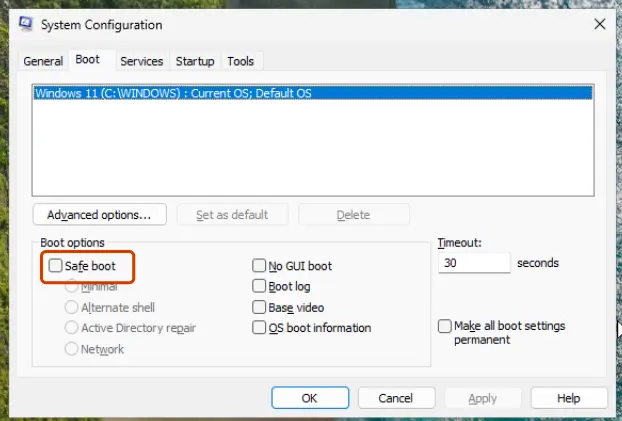
Clear Safe boot so the PC starts normally again. Screenshot: Windows 11 26H2
Windows will not start
Steps written for Windows 11 and Windows 10, from the Windows Recovery Environment.
If Windows fails to start several times in a row it opens the recovery environment on its own. If it does not, force it as below.
Force the recovery screens
Turn on the PC. As soon as the maker's logo appears, hold the power button until the PC turns off. Do this twice. On the third start Windows should open the recovery environment. If you see a screen with Advanced options, select it.
Select Troubleshoot
On the Choose an option screen, select Troubleshoot.
Choose an option: select Troubleshoot. Screenshot: Windows 11 26H2 Open Startup Settings
Select Advanced options > Startup Settings.
Advanced options: select Startup Settings. On 26H2 the first tile is Quick machine recovery, previously Startup Repair. Screenshot: Windows 11 26H2 Restart
On the Startup Settings page, select Restart. The PC restarts and shows a numbered list.
Choose Safe Mode
Press 4 or F4 for Enable Safe Mode. Press 5 or F5 for Enable Safe Mode with Networking if you need the internet, for example to download a scanner or a driver.
Press 4 for Safe Mode or 5 for Safe Mode with Networking. Screenshot: Windows 11 26H2
Which Safe Mode to choose on Windows
| Key | Option | Use it to |
|---|---|---|
| 4 / F4 | Enable Safe Mode | Test whether the problem goes away, uninstall a program or driver, run a malware scan. |
| 5 / F5 | Enable Safe Mode with Networking | The same, with internet access to download a tool or driver. |
| 6 / F6 | Enable Safe Mode with Command Prompt | Work with commands only, for example when the desktop does not load. |
| Enter | Start Windows normally. |
If the recovery screens never appear
Start the PC from a Windows installation USB drive (made with Microsoft's media creation tool on another PC). Select your language, then Repair your computer instead of installing. You reach the same Choose an option screen. If Windows itself is damaged, try the repair tools there: see Run Startup Repair and Run DISM and SFC to repair Windows system files.
Used in guides
Sources
- Microsoft Support: Windows startup settings (Safe Mode) (read Oct 3, 2026)
- Microsoft Support: Windows recovery environment (read Oct 3, 2026)