
Open services.msc to check and restart Windows services
Services are background programs such as Windows Update or Print Spooler. When a feature stops working, restarting its service or setting it back to its usual startup type often fixes it.
- Time
- 2 minutes
- Level
- Easy
- You need
- An administrator account to start, stop or change a service.
Before you start
- Know the name of the service your guide mentions, for example Windows Update or Print Spooler.
- Change only the services your guide names. Disabling services you do not know can stop Windows features from working.
Windows 11 and 10
Steps written for Windows 11 and Windows 10 (the steps are the same).
Open Services
Press Windows+R, type the command below and press Enter. You can also type Services in the search box on the taskbar and open the app.
services.mscFind the service
The list is sorted by Name. Click any row and type the first letter of the service to jump to it. Check the Status column (Running or empty) and the Startup Type column.
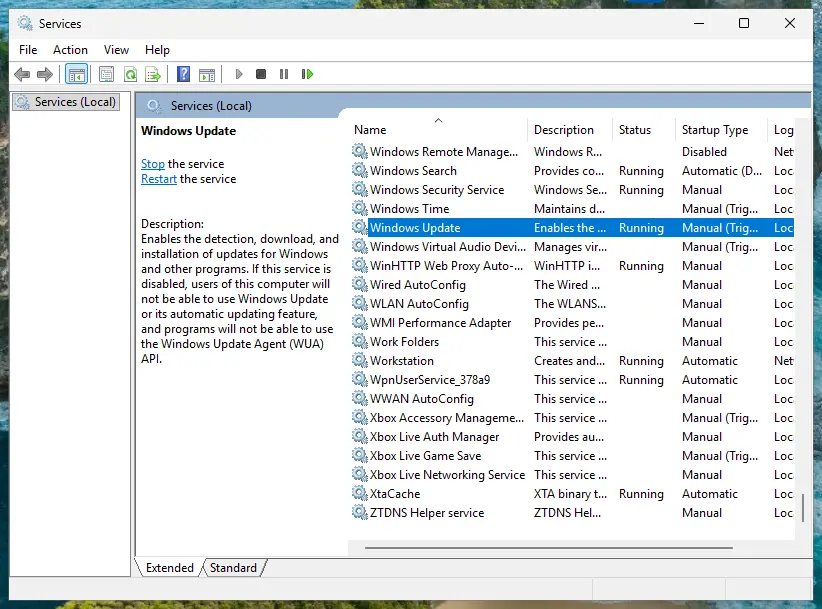
Status and Startup Type of each service are shown in the list. Screenshot: Windows 11 26H2 Restart the service
Right-click the service and select Restart. If the service is not running, select Start instead. Wait until the progress window closes.
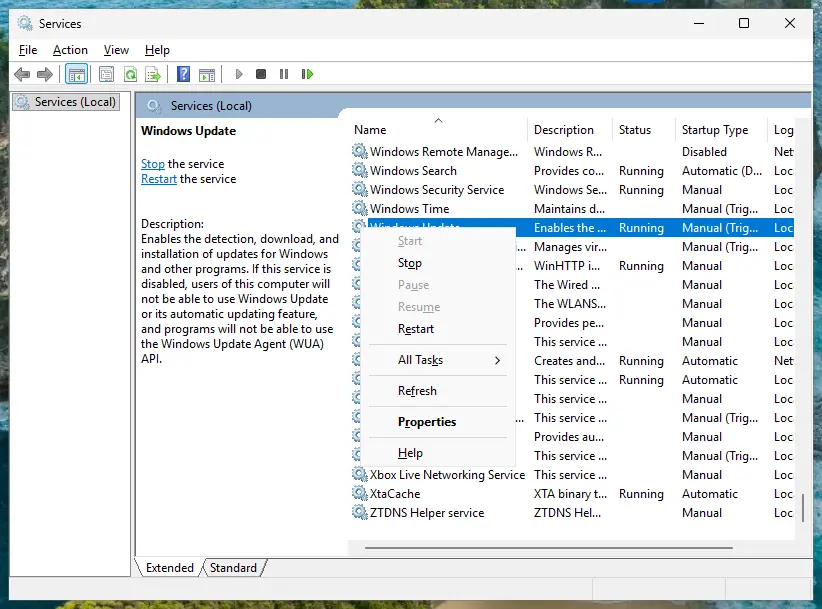
Right-click a service to start, stop or restart it. Screenshot: Windows 11 26H2 Open its properties to change the startup type
Only if your guide says so: double-click the service. The General tab shows the Service name (used in commands), the Startup type and the Service status.
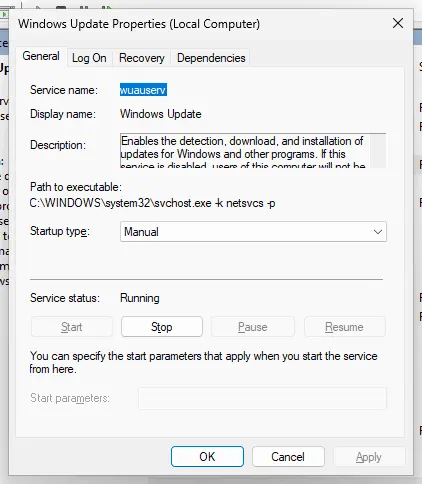
Properties show the service name, startup type and status. Screenshot: Windows 11 26H2 Set the startup type and apply
Choose the type from the Startup type list (Automatic, Automatic (Delayed Start), Manual or Disabled), select Apply, then Start if the service should run now, and OK.
What the startup types mean
| Startup type | Meaning |
|---|---|
| Automatic | Starts with Windows. |
| Automatic (Delayed Start) | Starts shortly after Windows has started. |
| Manual | Starts when Windows or an app needs it. Manual (Trigger Start) means a specific event starts it. Many services are Manual and show an empty Status most of the time; that is normal. |
| Disabled | Cannot start at all, even when needed. |
The same in PowerShell
Right-click Start, select Terminal (Admin) and use the service name from the Properties window (for example wuauserv for Windows Update):
Get-Service -Name wuauserv shows the status.Restart-Service -Name wuauserv restarts it.Set-Service -Name wuauserv -StartupType Manual changes the startup type.
If the service will not start or stop
- Access is denied or the buttons are greyed out: some services are protected by Windows, for example the Microsoft Defender services. They cannot be changed here.
- An error about a dependency service: open the service's Dependencies tab and make sure the services it depends on are not Disabled.
- The service starts and stops again immediately: the program behind it is damaged. Run Run DISM and SFC to repair Windows system files.
Used in 1 guide
Sources
- Microsoft Learn: Restart-Service (PowerShell) (read Oct 3, 2026)