
Restore an earlier version of a file or folder
Windows can bring back an earlier copy of a file or a whole folder if File History saved one. Files in OneDrive have their own version history.
- Time
- A few minutes
- Level
- Easy
- You need
- File History must have been turned on before the file was lost, or the file must be in OneDrive.
Before you start
- If the file was only deleted, look in the Recycle Bin first: right-click the file there and select Restore.
- Do not save new files to the same drive until you have your file back.
Windows 11 and 10
Steps written for Windows 11 and Windows 10 (the steps are the same).
Open the folder that held the file
Open File Explorer and go to the folder where the file was. If the file was directly on a drive, for example C:\, use the drive itself.
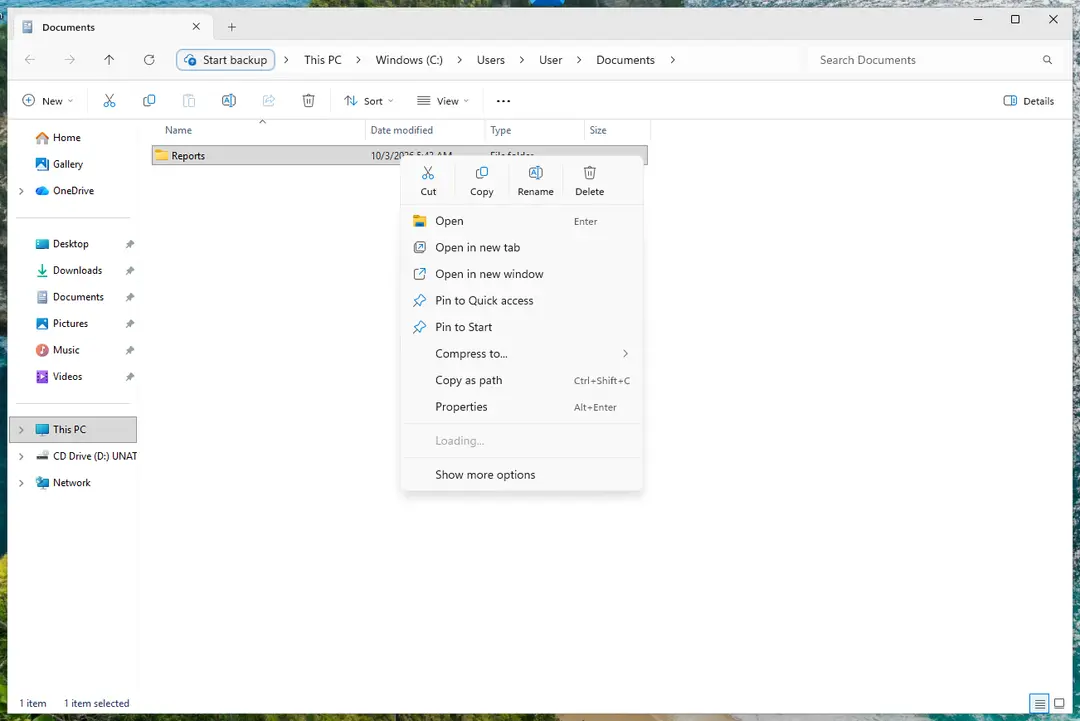
Right-click the folder: Restore previous versions. Screenshot: Windows 11 26H2 Open its previous versions
Right-click the folder (not the missing file) and select Restore previous versions. You can also select Properties and open the Previous Versions tab. For a file that still exists, right-click the file itself.
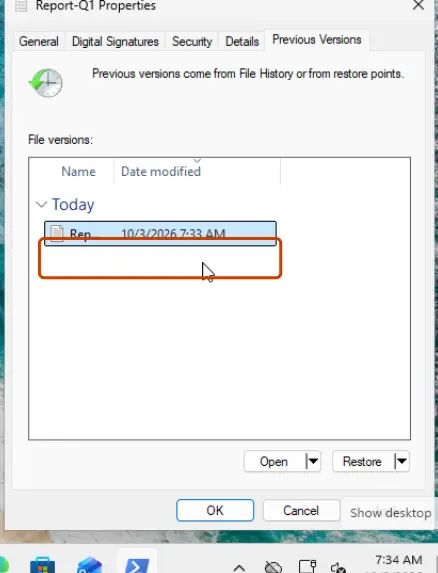
The Previous Versions tab lists the saved copies. Screenshot: Windows 11 26H2 Pick the right date
The list shows the saved versions with their dates. Choose a version from before the file was deleted or changed. If the file is in a library, open it from its real location instead of the library.
Check before you restore
Expand Open and select Open in File History to look inside the saved version first.
Restore to a safe place
Expand Restore and select Restore to…, then choose another folder. Plain Restore replaces the current version on your PC, and that cannot be undone.
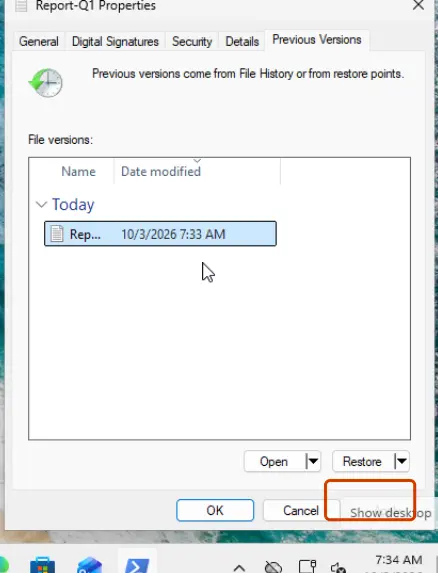
Restore, or the arrow next to it for Restore to. Screenshot: Windows 11 26H2
Files in OneDrive
Steps written for Files stored in OneDrive, on Windows 11 and Windows 10 or on the web.
OneDrive keeps earlier versions of each file. Microsoft states that file version history is kept for 30 days.
Find the file
Open your OneDrive folder in File Explorer (the OneDrive app must be installed and signed in), or open onedrive.com in a browser.
Open Version history
Right-click the file and select Version history. You can restore one file at a time.
Restore the version
Select the three dots (…) next to the version you want and select Restore.
If the list of previous versions is empty
Windows shows only copies that something saved before the file was lost. An empty list means File History was off (or saved to a drive that is not connected) and no other backup covered that folder. Connect the backup drive if you used one, then look again.
If ransomware encrypted your files, do not restore anything yet: see Ransomware: first steps, finding a decryptor and recovering files On 2-Spyware.
Turn on File History for next time
- Connect an external drive, or have a network location ready.
- Open Control Panel > System and Security > Save backup copies of your files with File History.
- Select Turn on. Use Select drive if the drive you want is not chosen.
File History saves your libraries (Documents, Pictures, Videos, Music) and the Desktop. To include another folder, add it to a library.
Used in 2 guides
Sources
- Microsoft Support: Backup and restore with File History (read Oct 3, 2026)
- Microsoft Support: Restore a previous version of a file stored in OneDrive (read Oct 3, 2026)