
Back up your files on Windows 11 and Windows 10
Windows Backup copies your Desktop, Documents, Pictures and other folders to OneDrive and remembers your apps and settings. File History (Windows 10) and a manual copy put files on an external drive. Set one up before you need it.
- Time
- 10 minutes to set up; the first backup can take longer
- Level
- Easy
- You need
- A Microsoft account for Windows Backup (OneDrive), or an external drive for File History or a manual copy.
Before you start
- A free Microsoft account includes 5 GB of OneDrive storage. If your folders are larger, buy more storage or back up to an external drive instead.
- Use a drive that you keep disconnected when you are not backing up, so a fault or ransomware on the PC cannot reach the copy.
Windows 11
Steps written for Windows 11 (screenshots: 26H2).
Windows Backup backs up folders to OneDrive. File History (backup to an external drive) was not present in the Windows 11 26H2 build we tested; for a local copy, see Back up to an external drive below.
Sign in with a Microsoft account
Folder backup needs one. If you use a local account, select Start > Settings > Accounts > Your info and select Sign in with a Microsoft account instead.
Open Windows Backup
Select Start, type backup and select Windows Backup.
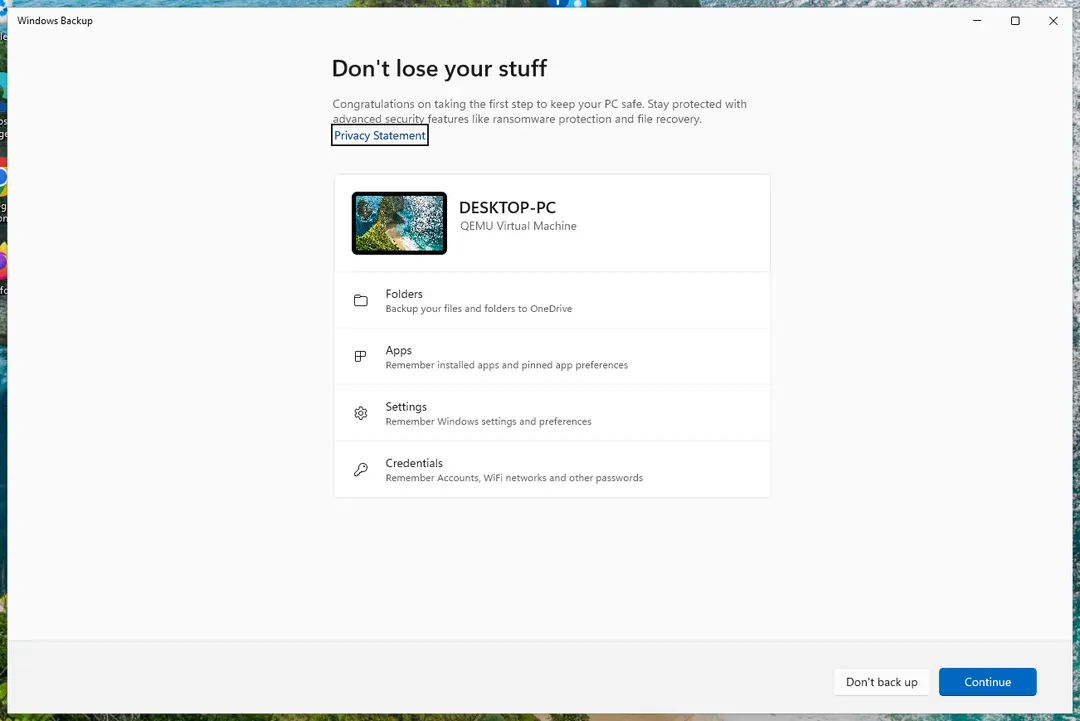
Windows Backup: Folders go to OneDrive; Apps, Settings and Credentials are remembered. Screenshot: Windows 11 26H2 Choose the folders
Expand Folders and turn on the folders you want to back up: Desktop, Documents, Pictures, Videos and Music.
Choose apps and settings
Expand Apps, Settings and Credentials and turn on what you want Windows to remember. Items that are already backed up show as backed up.
Start the backup
Select Back up (on the first-run screen, Continue).
Check the backup status
Select Start > Settings > Accounts > Windows backup. The top of the page shows the state of OneDrive, the app list and preferences; OneDrive folder syncing changes which folders are backed up.
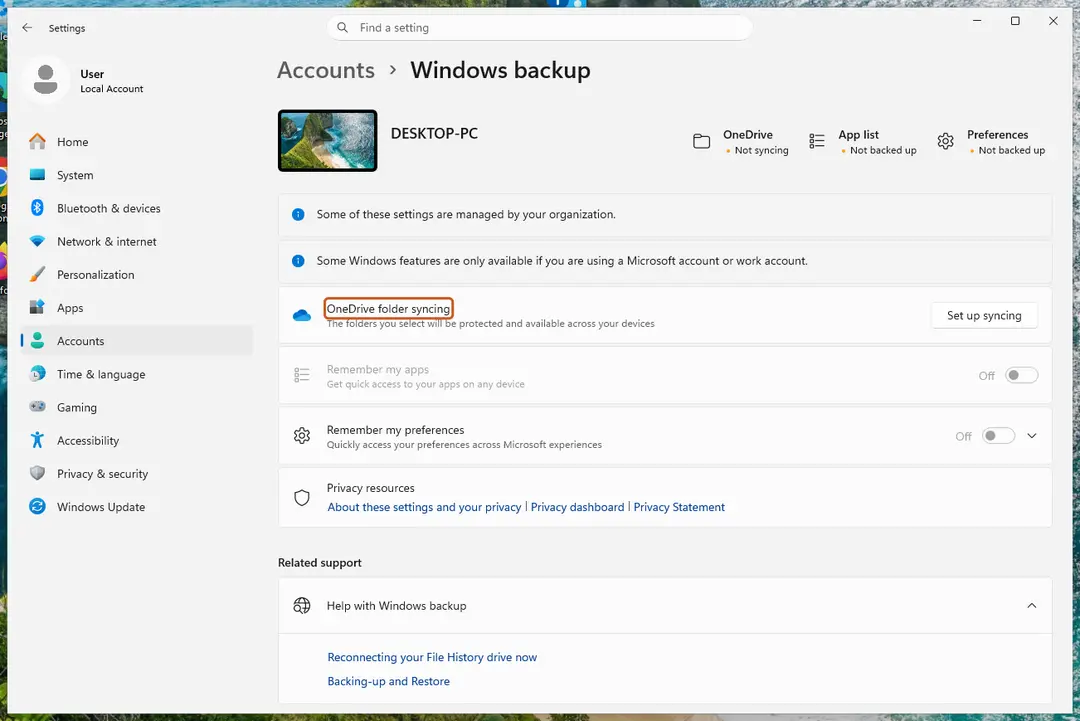
Settings, Accounts, Windows backup: status at the top, OneDrive folder syncing below. Screenshot: Windows 11 26H2
Windows 10
Steps written for Windows 10 22H2.
Microsoft ended support for Windows 10 on October 14, 2025. File History below copies your files to an external drive. Windows Backup (to OneDrive) is also available on Windows 10.
Connect an external drive
Use a USB drive or external disk with enough free space, or a network location.
Open File History
Open Control Panel and, under System and Security, select Save backup copies of your files with File History.
Choose the backup drive
Select Select drive, choose the external drive or network location and select OK.
Turn on File History
Select Turn on. File History backs up your Documents, Pictures, Videos and Desktop folders and keeps earlier versions of the files.
Back up to an external drive (Windows 11)
Windows Backup only copies to OneDrive. Some Windows 11 builds still include File History in Control Panel (System and Security > Save backup copies of your files with File History); if yours does, follow the Windows 10 steps. If it does not, copy your folders to the drive yourself:
- Connect the drive and note its letter in File Explorer (for example E:).
- Open Terminal or Command Prompt and copy a folder with all its subfolders, for example Documents:
robocopy "%USERPROFILE%\Documents" "E:\Backup\Documents" /E - Repeat for Desktop, Pictures and other folders you need. Running the same command again copies only new and changed files.
OneDrive backup is a synced copy
Folders backed up with Windows Backup stay in sync with OneDrive: a file you delete or change on the PC is deleted or changed in OneDrive too. OneDrive keeps deleted files in its own recycle bin and keeps earlier versions of files for a while, but for important files keep a second copy on an external drive as well.
Getting files back
- A file you deleted: Recover deleted files (Recycle Bin, backups, OneDrive).
- An earlier version of a file from File History: Restore an earlier version of a file or folder.
- Files in OneDrive: Restore deleted or older files in OneDrive.
Used in 3 guides
Sources
- Microsoft Support: Back up and restore with Windows Backup (read Oct 3, 2026)
- Microsoft Support: Backup and restore with File History (read Oct 3, 2026)
- Microsoft Support: Back up your folders with OneDrive (read Oct 3, 2026)
- Microsoft Learn: robocopy command reference (read Oct 3, 2026)