
Run chkdsk to check a disk for errors
Check Disk (chkdsk) looks for file system errors and bad sectors on a drive and, when you ask it to, fixes them. Without parameters it only reports; with /f it repairs.
- Time
- Under a minute for a scan of a small SSD; hours for /r on a large hard disk
- Level
- Easy
- You need
- An administrator account.
Before you start
- Save your work and close open programs: fixing the Windows drive needs a restart.
- If the disk makes clicking noises or files keep disappearing, back up your important files first: Back up your files (Windows Backup, File History, Time Machine).
Windows 11 and 10
Steps written for Windows 11 and Windows 10 (the steps are the same).
Open Command Prompt as administrator
Type cmd in the search box on the taskbar, right-click Command Prompt and select Run as administrator. Select Yes when Windows asks for permission.
Scan the drive without changing anything
Type the command below and press Enter. Replace C: with another drive letter to check that drive. This scan only reports; it does not fix anything.
chkdsk C: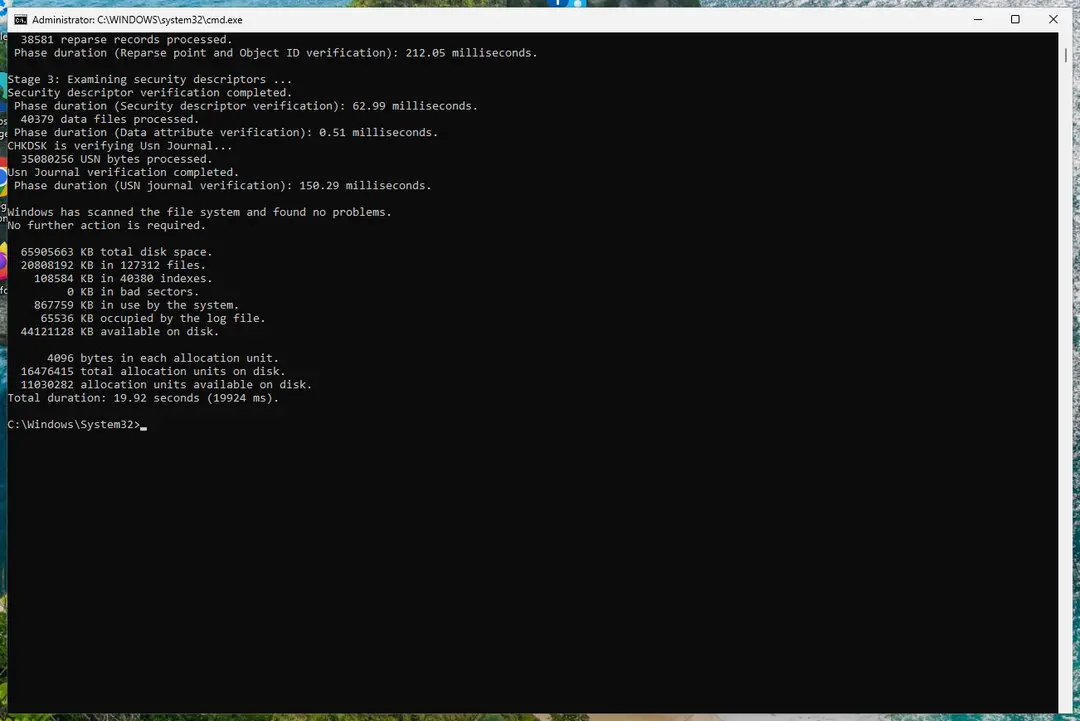
A clean result: no problems found and 0 KB in bad sectors. Screenshot: Windows 11 26H2 If errors were found, run the repair
Run chkdsk with
/fto fix file system errors. On the Windows drive (C:) chkdsk cannot lock the drive while Windows is running, so it offers to check it at the next restart.chkdsk C: /f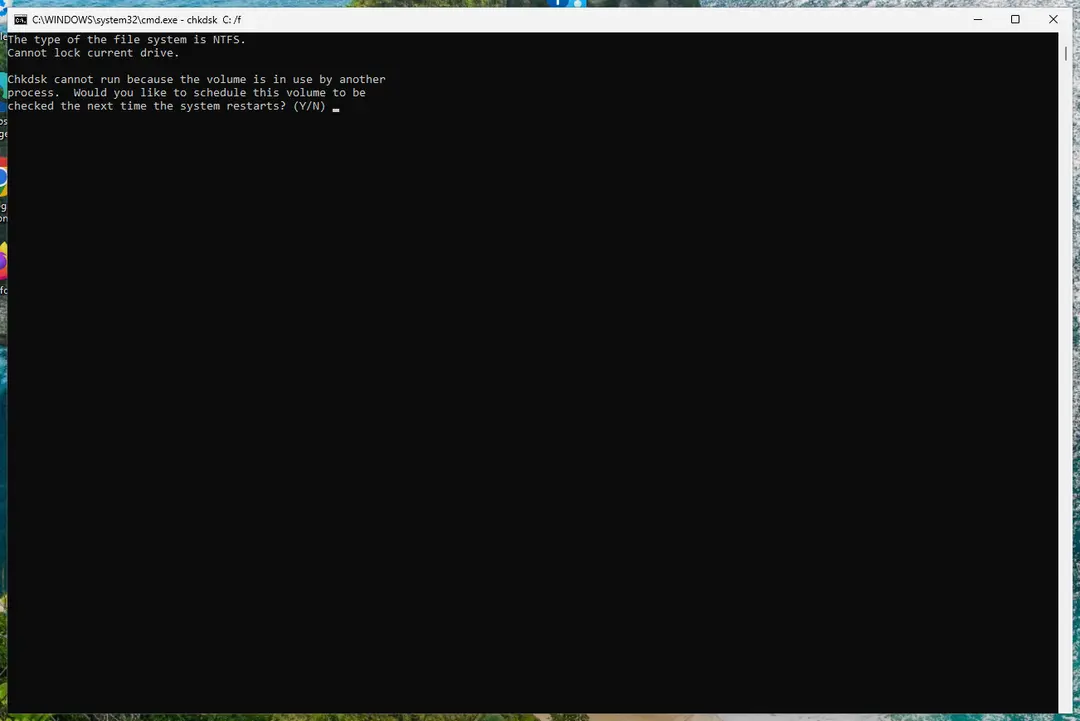
On the system drive chkdsk /f asks to run at the next restart. Screenshot: Windows 11 26H2 Schedule the check and restart
Type Y and press Enter, then restart the PC. chkdsk runs before Windows starts. Do not turn the PC off while it runs.
Read the result after the restart
The report of a check made at startup is not shown on the desktop. Open PowerShell and run the command below to see it, or open Event Viewer (
eventvwr.msc) > Windows Logs > Application and filter by the sources Chkdsk and Wininit.Get-WinEvent -FilterHashtable @{LogName='Application'} | Where-Object { $_.ProviderName -match 'wininit' } | Select-Object -First 1 | Format-List TimeCreated, Message
From File Explorer
Steps written for Windows 11 and Windows 10, without commands.
The same check without typing commands. Windows decides whether a repair is needed and offers it.
Open the drive's properties
Open File Explorer, select This PC, right-click the drive (for example Windows (C:)) and select Properties.
Start the check
Open the Tools tab and, under Error checking, select Check. Select Yes if Windows asks for permission.
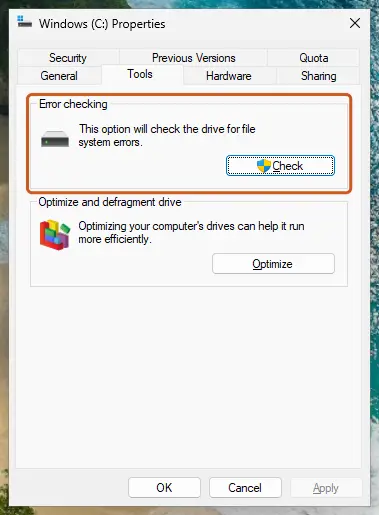
Tools tab: Error checking > Check. Screenshot: Windows 11 26H2 Scan the drive
If Windows says it found no errors on the drive, you can still choose to scan it from the same window. Wait for the scan to finish.
Repair if offered
If errors are found, follow the offer to repair the drive. For the Windows drive the repair runs at the next restart.
/f, /r or /scan: which one
| Command | What it does |
|---|---|
chkdsk C: | Reports only. Nothing is changed. On a drive in use it can report errors that are not real. |
chkdsk C: /scan | NTFS only. Scans while Windows keeps running; problems it cannot fix online are queued for repair. |
chkdsk C: /f | Fixes file system errors. Needs to lock the drive, so the Windows drive is done at restart. |
chkdsk C: /r | Everything /f does, plus a read of every sector to find bad ones and recover readable data. Much slower, especially on large hard disks. |
Microsoft notes that running /r often on an SSD adds unnecessary wear; an occasional check is not a concern.
What the result means
- Found no problems: the file system is fine. The cause of your problem is elsewhere: continue with your guide, for example Run DISM and SFC to repair Windows system files.
- Errors found and fixed: restart and check whether the problem is gone.
- Bad sectors (more than 0 KB in bad sectors): the disk itself is wearing out. Copy your files off it and plan to replace it.
- Could not check or fix: run
chkdsk C: /fand let it run at restart, or run it from the recovery environment's Command Prompt.
If Windows will not start
Open the recovery environment (see the Windows will not start tab of Run DISM and SFC to repair Windows system files), select Troubleshoot > Advanced options > Command Prompt, find the letter of the Windows drive with dir C:\Windows, dir D:\Windows and so on, then run chkdsk D: /f with that letter.
Interrupting chkdsk is not recommended, but Microsoft says it should not leave the drive in a worse state than before; running it again continues the repair.
Used in 1 guide
Sources
- Microsoft Learn: chkdsk command reference (read Oct 3, 2026)