
Free up disk space and delete temporary files
Windows can find and delete temporary files, old update files and the Recycle Bin for you. Start with Cleanup recommendations, turn on Storage Sense so it happens automatically, and use Disk Cleanup for system files.
- Time
- 5 to 15 minutes
- Level
- Easy
- You need
- An administrator account to clean up system files.
Before you start
- Check what uses the space first: Settings > System > Storage shows it by category.
- Some cleanup options can empty the Recycle Bin and your Downloads folder. Look at what is checked before you confirm.
Windows 11
Steps written for Windows 11 (screenshots: 26H2).
Open Storage settings
Select Start > Settings > System > Storage. The top of the page shows how full the drive is and what uses the space.
Open Cleanup recommendations
Under Storage management, select Cleanup recommendations.
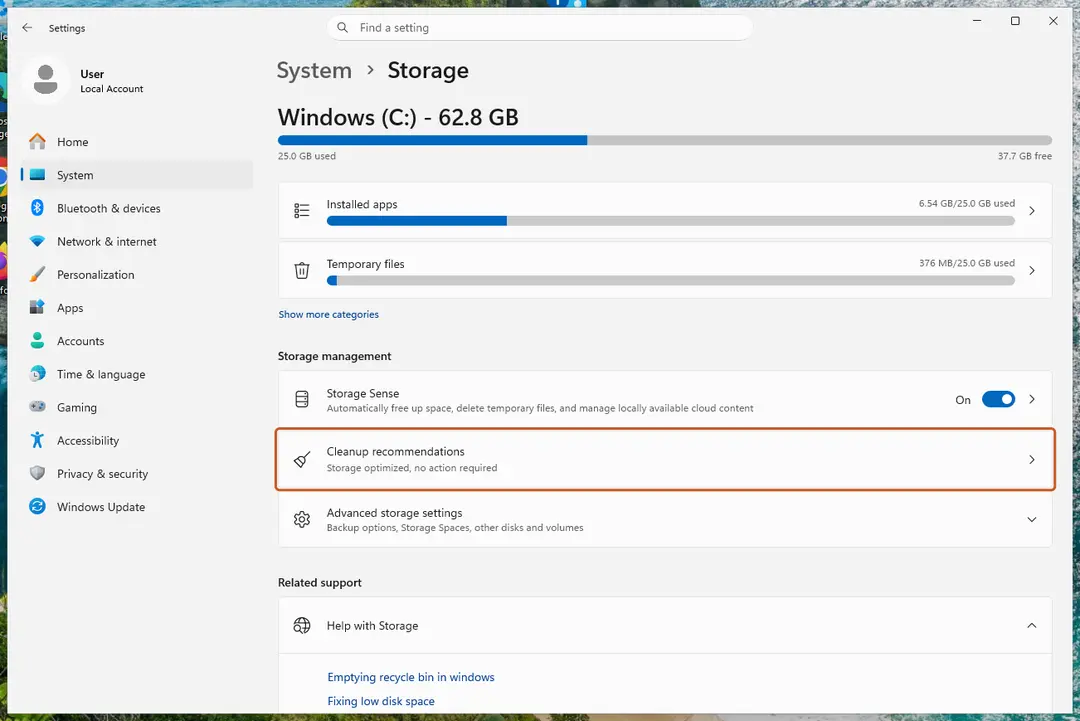
Settings, System, Storage: Cleanup recommendations is under Storage management. Screenshot: Windows 11 26H2 Clean up what Windows suggests
Open each group (Temporary files, Large or unused files, Files synced to the cloud, Unused apps), check the items you do not need and select Clean up in that group.
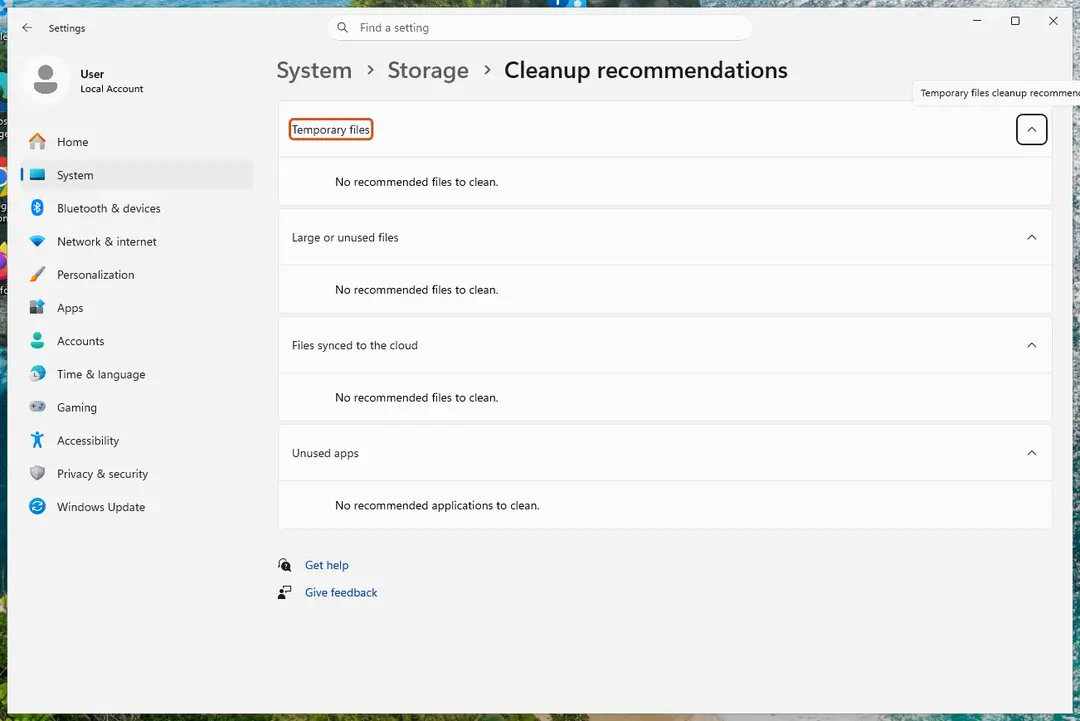
Cleanup recommendations groups the suggestions; on our test PC there was nothing to clean yet. Screenshot: Windows 11 26H2 Delete more temporary files
Go back to Storage and select Temporary files. Windows lists the types it can remove with their size. Check the ones you do not need and remove them. Leave Downloads unchecked unless you have checked that folder.
Turn on Storage Sense
Back on Storage, turn the Storage Sense switch on. Windows then deletes temporary files on its own when the drive runs low.
Choose what Storage Sense cleans
Select Storage Sense to open its page. Check the box for cleaning temporary files, then choose when it runs and how long files may stay in the Recycle Bin and Downloads before they are deleted.
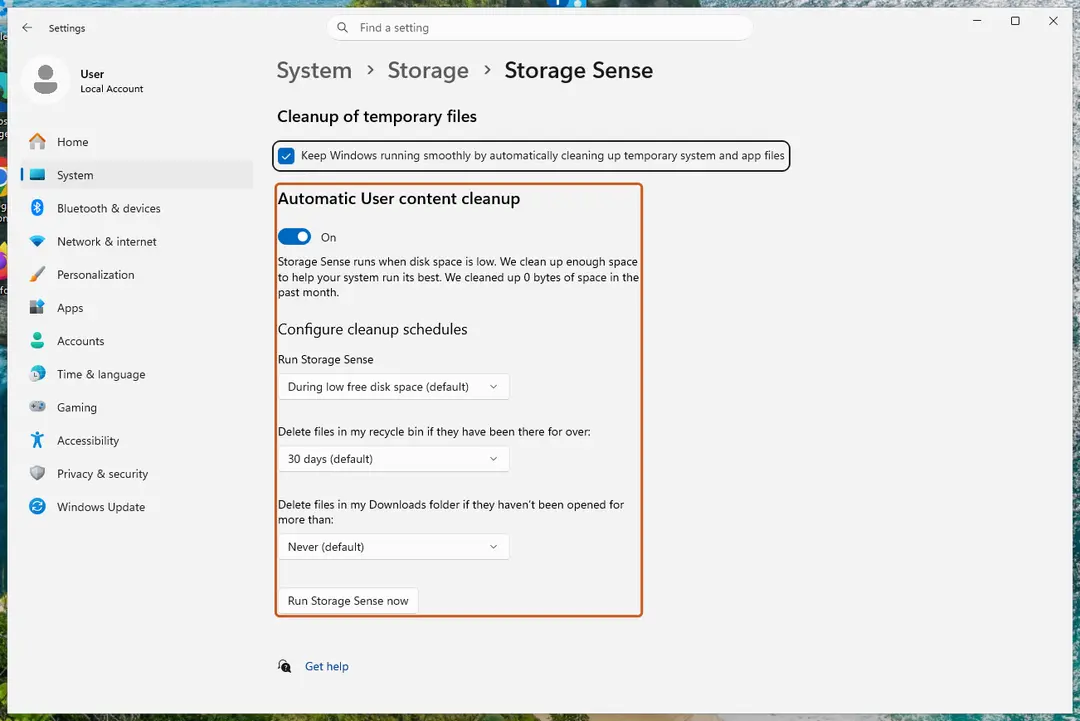
Storage Sense: schedules for the Recycle Bin and Downloads, and Run Storage Sense now. Screenshot: Windows 11 26H2 Run it now
Select Run Storage Sense now at the bottom of the page.
Clean up system files with Disk Cleanup
Type disk cleanup in the search box on the taskbar and open Disk Cleanup. Choose drive C: and select OK, then select Clean up system files and choose C: again.
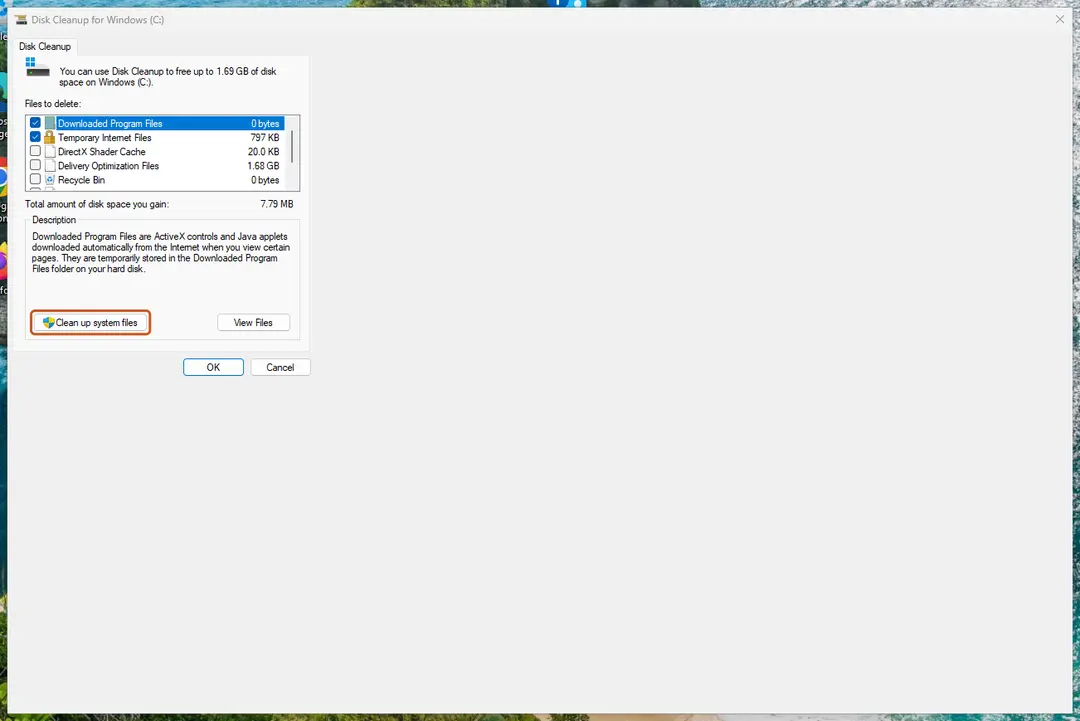
Disk Cleanup: Clean up system files adds Windows Update and other system files to the list. Screenshot: Windows 11 26H2 Delete the files
Check the types of files you want to remove (select a name to see what it is), select OK, then Delete files.
Windows 10
Steps written for Windows 10 22H2.
Microsoft ended support for Windows 10 on October 14, 2025. Storage Sense and Disk Cleanup still work.
Open Storage settings
Select Start > Settings > System > Storage.
Turn on Storage Sense
Turn the Storage Sense switch on. Open its settings on the same page to choose what it deletes and to run it now.
Open Disk Cleanup
Type disk cleanup in the search box on the taskbar, select it, choose drive C: and select OK.
Add system files
Select Clean up system files, choose C: and select OK.
Delete the files
Check the types of files you want to remove, select OK, then Delete files.
Empty the Temp folder by hand (Windows)
- Press Windows + R, type the line below and press Enter:
%temp% - Press Ctrl + A to select everything, then press Delete.
- If Windows says a file is in use, select Skip. Those files belong to programs that are running.
- Empty the Recycle Bin.
Windows.old and the previous version of Windows
For a few days after a Windows upgrade, Cleanup recommendations and Disk Cleanup offer to delete the previous version of Windows (the Windows.old folder). It is large, but once deleted you cannot go back to the earlier version. Delete it only when the new version works well.
If the drive is still full
- Uninstall programs you no longer use: Uninstall a program or app in Windows.
- Move photos, videos and other large files to an external drive, or keep them in OneDrive with Files On-Demand turned on so they stay online until you open them.
- Choose another drive for new files: Settings > System > Storage > Advanced storage settings > Where new content is saved.
- If the space fills up again quickly for no clear reason, scan the PC for malware.
Used in 2 guides
Sources
- Microsoft Support: Free up drive space in Windows (read Oct 3, 2026)
- Microsoft Support: Manage drive space with Storage Sense (read Oct 3, 2026)