
Reset this PC and reinstall Windows without losing files
Three ways to reinstall Windows while keeping your personal files. The first two also keep your apps; Reset this PC keeps files only.
- Time
- 30 minutes to 2 hours
- Level
- Intermediate
- You need
- An administrator account, a power supply for laptops, and an internet connection for Windows Update and Cloud download.
Before you start
- Back up your important files anyway: see Back up your files (Windows Backup, File History, Time Machine).
- Make a list of the programs you use and keep their installers or licence keys: Reset this PC removes installed apps.
- Have the BitLocker recovery key ready if your drive is encrypted.
Windows 11
Steps written for Windows 11 22H2 and later.
Try Fix problems using Windows Update first: it keeps everything. Reset this PC is the next step.
Open Recovery in Settings
Open Settings > System > Recovery. Next to Fix problems using Windows Update, select Reinstall now. This keeps your apps, files and settings.
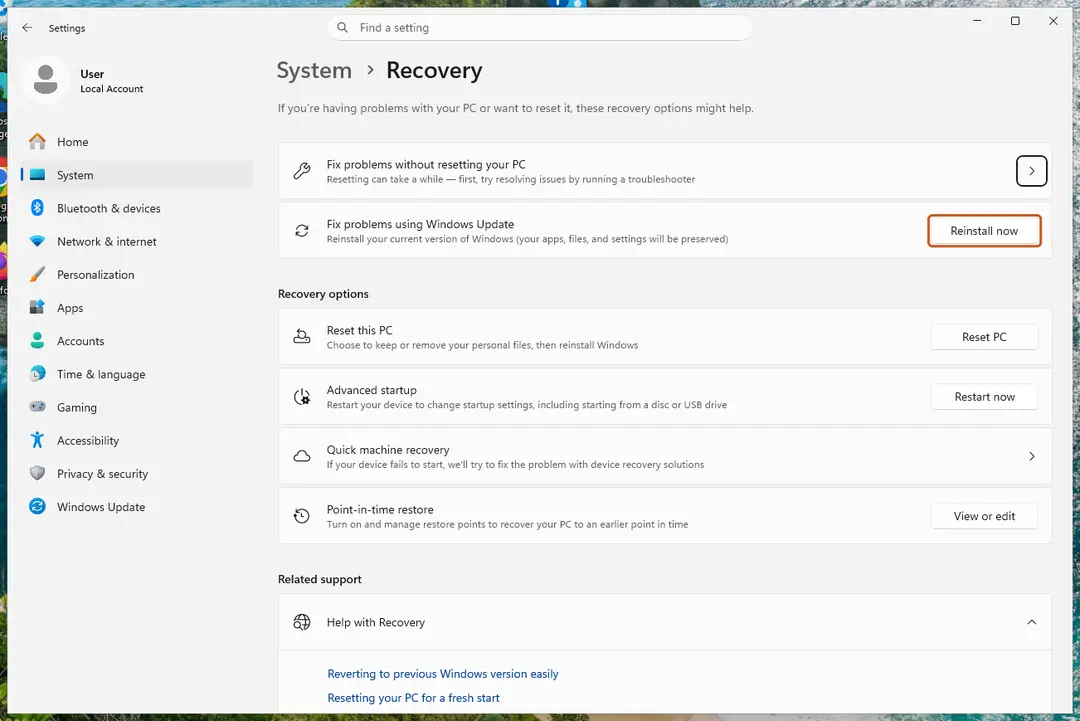
Fix problems using Windows Update reinstalls the current version and keeps apps, files and settings. Screenshot: Windows 11 26H2 Start the reinstall
Choose whether the PC may restart on its own 15 minutes after the installation, then select OK.
Wait and restart
Windows Update downloads and installs a repair copy of your current Windows version. Keep the PC plugged in and online, and restart it when asked.
If that did not help: Reset PC
Back in Settings > System > Recovery, next to Reset this PC, select Reset PC. This keeps your personal files but removes installed apps and settings.
Choose Keep my files
Select Keep my files. Do not select Remove everything.
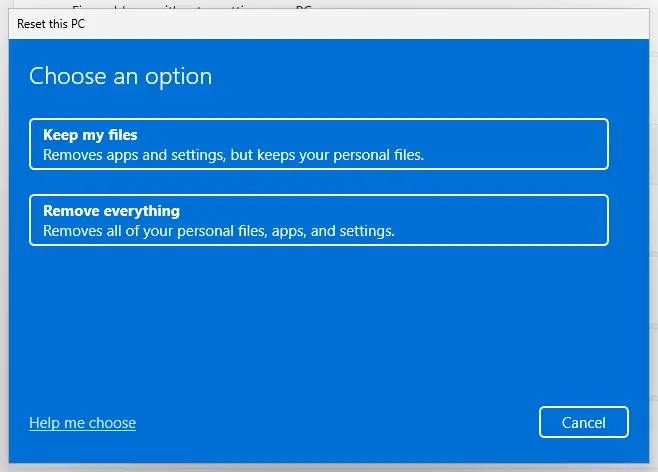
Keep my files removes apps and settings but keeps personal files. Screenshot: Windows 11 26H2 Choose where Windows comes from
Select Cloud download to download a fresh copy of Windows, or Local reinstall to use the files already on the PC (faster, but may not include the latest updates).
Reset
Review the summary and select Reset. The PC restarts several times.
Windows 10
Steps written for Windows 10 22H2.
Windows 10 has no Fix problems using Windows Update option. To keep your apps, use the repair install from installation media below; Reset this PC keeps your files only.
Open Reset this PC
Open Settings > Update & Security > Recovery. Under Reset this PC, select Get started.
Choose Keep my files
Select Keep my files. Do not select Remove everything.
Choose where Windows comes from
Select Cloud download or Local reinstall.
Reset
Review the summary and select Reset. The PC restarts several times. Your personal files stay; installed apps and settings are removed.
What each method keeps
| Method | Personal files | Apps | Settings |
|---|---|---|---|
| Fix problems using Windows Update (Windows 11) | Kept | Kept | Kept |
| Repair install from installation media, Keep personal files and apps | Kept | Kept | Kept |
| Reset this PC, Keep my files | Kept | Removed | Removed |
| Reset this PC, Remove everything | Removed | Removed | Removed |
Repair install from installation media (keeps apps)
This reinstalls Windows over itself from inside Windows. It works on Windows 11 and Windows 10.
- Download the ISO of the same Windows version, edition and language from Microsoft's software download page.
- Right-click the ISO and select Mount.
- Open the new drive, run setup.exe and select Yes when Windows asks for permission.
- When setup is ready, select Change what to keep, choose Keep personal files and apps and select Next.
- Select Install.
Start setup.exe from the running Windows. Starting the PC from the USB drive or DVD starts a clean installation instead. If Keep personal files and apps is not offered, the media usually does not match the installed version, edition or language.
If Windows will not start
Open the recovery environment (see Start Windows or a Mac in Safe Mode, tab Windows will not start) and select Troubleshoot > Reset this PC > Keep my files.
Used in 1 guide
Sources
- Microsoft Support: Fix issues by reinstalling the current version of Windows (read Oct 3, 2026)
- Microsoft Support: Reset your PC (read Oct 3, 2026)
- Microsoft Support: Reinstall Windows with the installation media (read Oct 3, 2026)