
Reset Windows Update components and clear the update cache
Windows keeps downloaded updates and their database in two folders. When updates fail or stay stuck, stopping the update services and renaming those folders makes Windows download everything again from a clean start.
- Time
- A few minutes, plus a restart
- Level
- Intermediate
- You need
- An administrator account and an internet connection.
Before you start
- Close Settings and any window that shows Windows Update.
- Try Run the Windows Update troubleshooter first if you have not yet: it is quicker and changes less.
Windows 11 and 10
Steps written for Windows 11 and Windows 10 (the steps are the same).
Open Command Prompt as administrator
Type cmd in the search box, right-click Command Prompt and select Run as administrator. Select Yes when Windows asks for permission.
Stop the update services
Type the commands below and press Enter after each one. If Windows says that other services depend on Cryptographic Services, it stops them too. A message that a service is not started is fine.
net stop wuauserv
net stop bits
net stop cryptsvc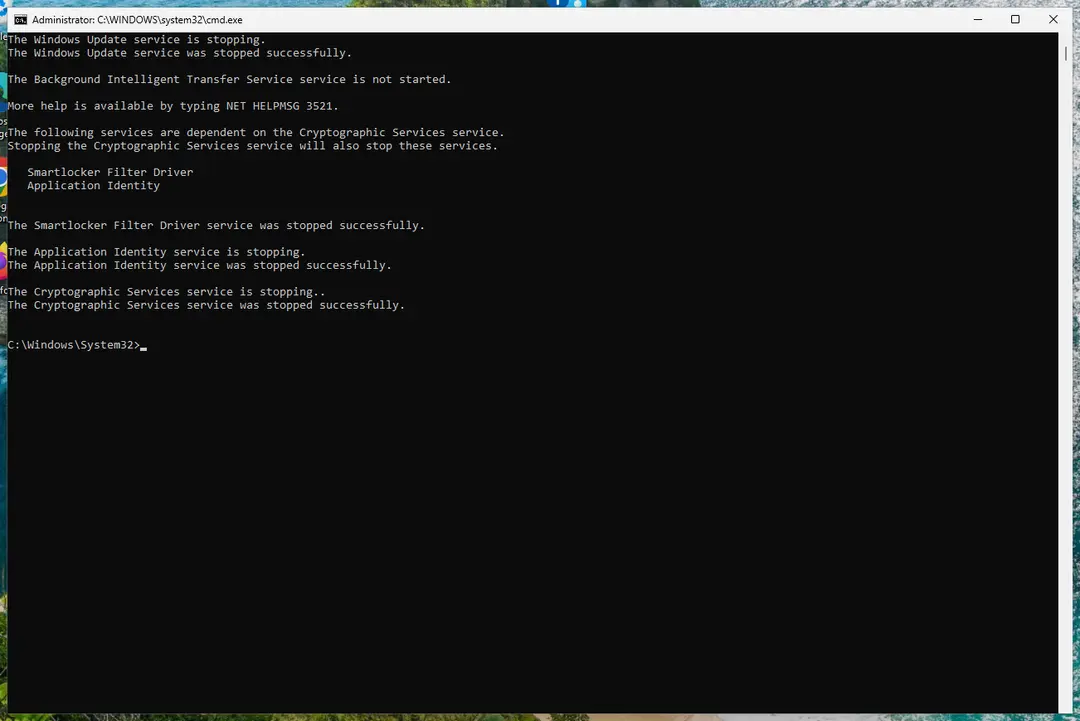
The update services are stopped. Screenshot: Windows 11 26H2 Delete the download queue files
This clears the list of downloads that the Background Intelligent Transfer Service keeps. If Windows says it cannot find the files, continue.
del "%ALLUSERSPROFILE%\Application Data\Microsoft\Network\Downloader\qmgr*.dat"Rename the update cache folders
Renaming keeps a copy in case you need it; Windows creates new, empty folders when the services start again. If you get Access is denied, a service is still running: repeat the previous step.
ren %systemroot%\SoftwareDistribution SoftwareDistribution.old
ren %systemroot%\System32\catroot2 catroot2.old
Both folders now end in .old. Screenshot: Windows 11 26H2 Start the services again
Type the commands below and press Enter after each one. The requested service has already been started is fine: Windows started it on its own.
net start cryptsvc
net start bits
net start wuauserv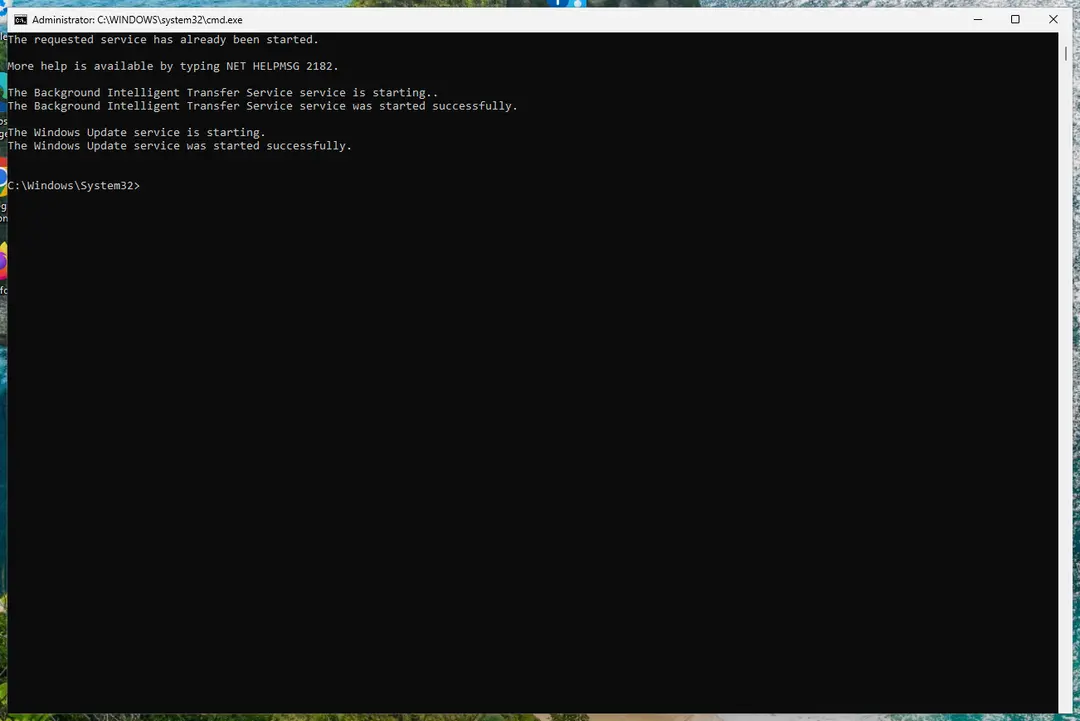
BITS and Windows Update are running again. Screenshot: Windows 11 26H2 Restart and check for updates
Restart the PC. Then select Start > Settings > Windows Update > Check for updates. The first check can take longer than usual because everything is downloaded again.
Remove the old folders later
When updates install normally again, you can delete the renamed folders to free space. Open Command Prompt as administrator and run:
rd /s /q %systemroot%\SoftwareDistribution.oldrd /s /q %systemroot%\System32\catroot2.old
If updates still fail
- Repair system files with Run DISM and SFC to repair Windows system files, then try the update again.
- Install the failing update by hand: Install an update from the Microsoft Update Catalog.
- Microsoft's article for IT staff also resets the security settings of the BITS and Windows Update services and registers their files again. Those commands overwrite service permissions, so use them only when everything else failed: Microsoft Learn: Reset Windows Update components manually.