
Microsoft Update Catalog: install a Windows update manually
When Windows Update keeps failing on one update, you can download that update from Microsoft's own catalog and install it yourself.
- Time
- 10 to 30 minutes
- Level
- Intermediate
- You need
- An administrator account, the KB number of the update, and an internet connection.
Before you start
- Use only catalog.update.microsoft.com. Do not download updates from other websites.
- Back up important files first. Updates rarely cause data loss, but a failed install can leave Windows unable to start.
Windows 11 and 10
Steps written for Windows 11 24H2 and later; Windows 10 22H2.
The steps are the same on Windows 10, which has no checkpoint updates. Since October 14, 2025, Windows 10 receives security updates only through the Extended Security Updates (ESU) program.
Check your Windows version
Press Windows key + R, type
winverand press Enter. Note the version (for example 25H2) and the OS build.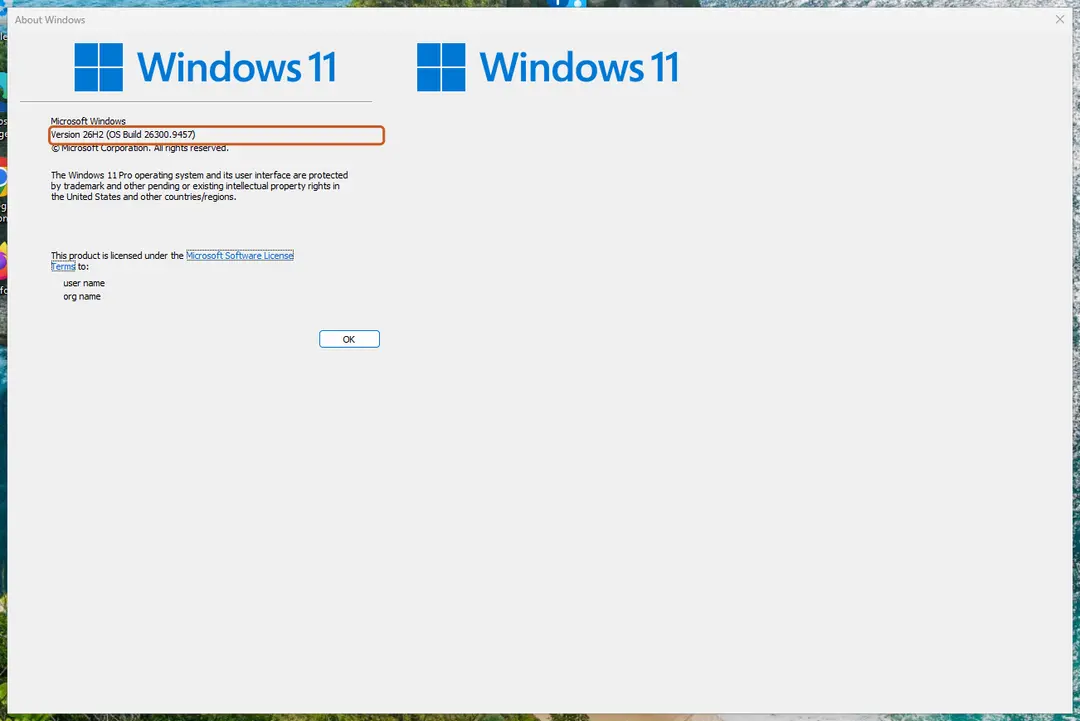
winver shows the version and OS build. Screenshot: Windows 11 26H2 Find the KB number
Open Settings > Windows Update. A failed or pending update is listed with its KB number; earlier ones are under Update history.
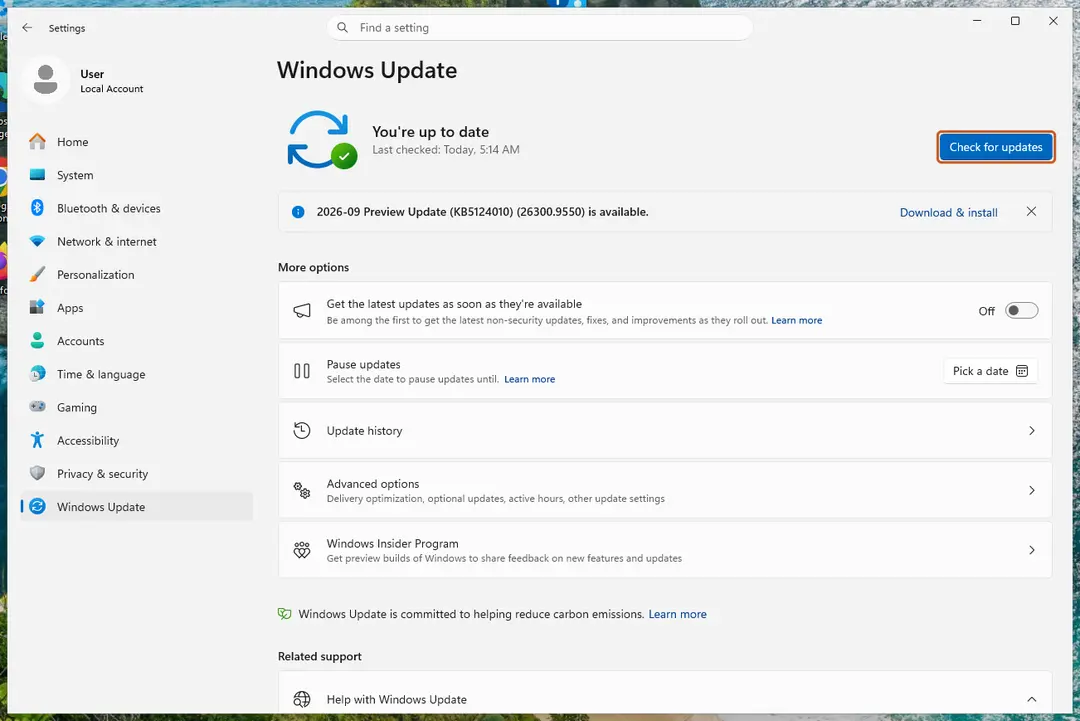
Windows Update names every update with its KB number. Screenshot: Windows 11 26H2 Check the processor type
Open Settings > System > About and look at System type: an x64-based PC needs the x64 file, an ARM-based PC (for example Snapdragon) needs the arm64 file.
Search the catalog
Open the Microsoft Update Catalog at catalog.update.microsoft.com in your browser, type the KB number (for example KB5124010) in the search box and press Enter.
Pick the right row
Find the row whose title names your Windows version and your processor type (x64-based or arm64-based) and select Download on that row.
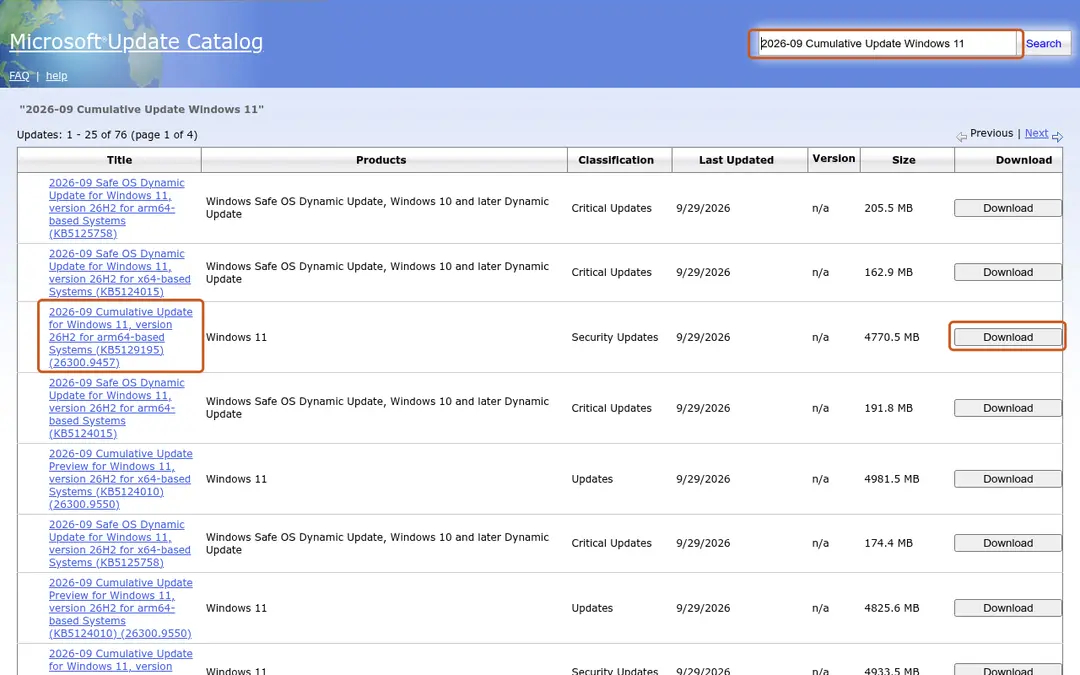
Each update is listed once per architecture: choose the row for your version (here 26H2) and processor type, then Download. Screenshot: Microsoft Update Catalog, 2026-10-03 Download every file listed
A window lists one or more .msu links. Download all of them into one empty folder, for example C:\packages. On Windows 11 24H2 and later the list can include earlier checkpoint updates that the new one needs.
Install a single file
If there is only one file, double-click it and confirm the installation in the Windows Update Standalone Installer.
Install several files with DISM
If there are several files, open an elevated Terminal or Command Prompt and run DISM with the newest file. DISM finds the other files in the same folder and installs them in the right order.
DISM /Online /Add-Package /PackagePath:C:\packages\<newest-file>.msuRestart
Restart the PC when the installation finishes, then run
winveragain: the OS build should have changed.
If the installer says the update is not applicable
The usual reasons are:
- The file is for another Windows version or processor type. Compare the row title with
winverand System type. - The update, or a newer one, is already installed. Check Settings > Windows Update > Update history.
- An earlier checkpoint update is missing. Download every file the catalog lists and install them with DISM as shown above.
If the manual installation fails too
Repair the system files with Run DISM and SFC to repair Windows system files, then reset the update components with Reset Windows Update components and try again. If nothing helps, reinstall Windows over itself while keeping your files and apps: see Reinstall Windows without losing files.
Remove an update that causes problems
Open Settings > Windows Update > Update history > Uninstall updates and select Uninstall next to the update. If Windows will not start, use Uninstall Updates in the recovery environment (Troubleshoot > Advanced options).