
How to restart Windows Explorer (File Explorer)
Windows Explorer draws the taskbar, the Start button, the desktop and File Explorer windows. When any of them freezes, restarting this one process often fixes it without restarting the PC.
- Time
- Under a minute
- Level
- Easy
- You need
- Nothing.
Before you start
- Open File Explorer windows close during the restart. Programs and documents stay open.
Windows 11
Steps written for Windows 11 26H2 (build 26300).
Open Task Manager
Press Ctrl + Shift + Esc. The Processes page opens.
Select Windows Explorer
Find Windows Explorer in the list and select it. If it is not under Apps, look under Windows processes further down.
Restart it
Select Restart task at the top of the window. The taskbar disappears for a moment and comes back. If you do not see Restart task, right-click Windows Explorer and select Restart.
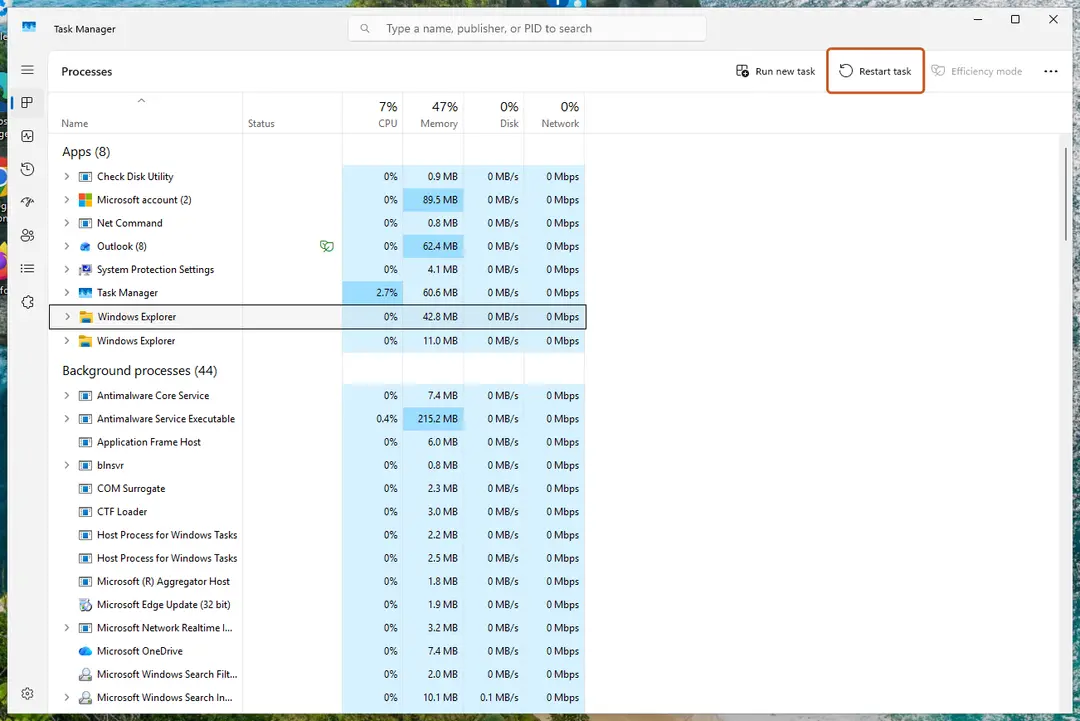
Select Windows Explorer, then Restart task. Screenshot: Windows 11 26H2
Windows 10
Steps written for Windows 10 22H2.
Microsoft ended support for Windows 10 on October 14, 2025.
Open Task Manager
Press Ctrl + Shift + Esc. If Task Manager opens small, select More details.
Select Windows Explorer
On the Processes tab, select Windows Explorer.
Restart it
Select Restart in the lower-right corner, or right-click Windows Explorer and select Restart.
Restart it with a command
Open Command Prompt and run these two commands. The first one ends the process, the second starts it again:
taskkill /f /im explorer.exestart explorer.exe
If the taskbar does not come back
- Press Ctrl + Shift + Esc to open Task Manager.
- Select Run new task (on Windows 10: File > Run new task).
- Type
explorer.exeand select OK.
If that fails too, press Ctrl + Alt + Delete and restart the PC from the power button in the lower-right corner.
If Explorer freezes again and again
Repeated freezes usually come from damaged system files, an add-on that plugs into File Explorer, or a failing drive. Repair system files with Run DISM and SFC to repair Windows system files, uninstall shell add-ons you no longer need (Uninstall a program or app in Windows), and check the drive with Check a disk for errors (chkdsk).
Used in guides
Sources
- Microsoft Q&A: Restarting explorer.exe from Task Manager (read Oct 3, 2026)