
Force quit a frozen app on Windows
When an app stops responding, end it with Task Manager. Anything you have not saved in that app is lost; your other apps and files are not affected.
- Time
- Under a minute
- Level
- Easy
Before you start
- Wait a little first: an app that is busy with a large file or a slow network can recover on its own.
- Force quitting loses unsaved work in that app only. Save what you can in your other apps.
Windows 11 and 10
Steps written for Windows 11 and Windows 10 (the steps are the same).
Try to close it normally
Select the app's window and press Alt + F4, or select Close (the X). If Windows offers to close the app or wait for it, choose to close it.
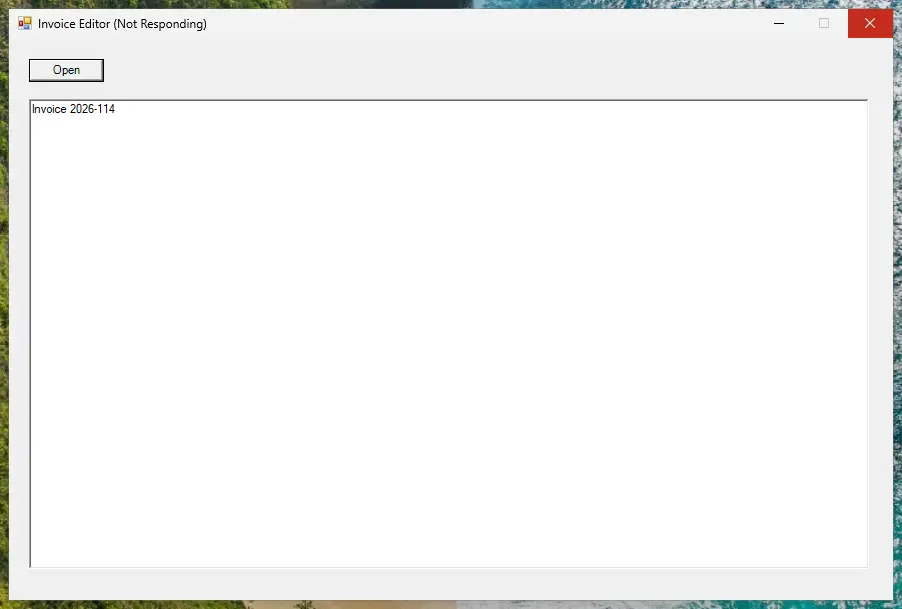
A frozen app shows Not Responding in its title bar. Screenshot: Windows 11 26H2 Open Task Manager
Press Ctrl + Shift + Esc. Task Manager opens on the Processes page. On Windows 10, if you see only a short list of apps, select More details.
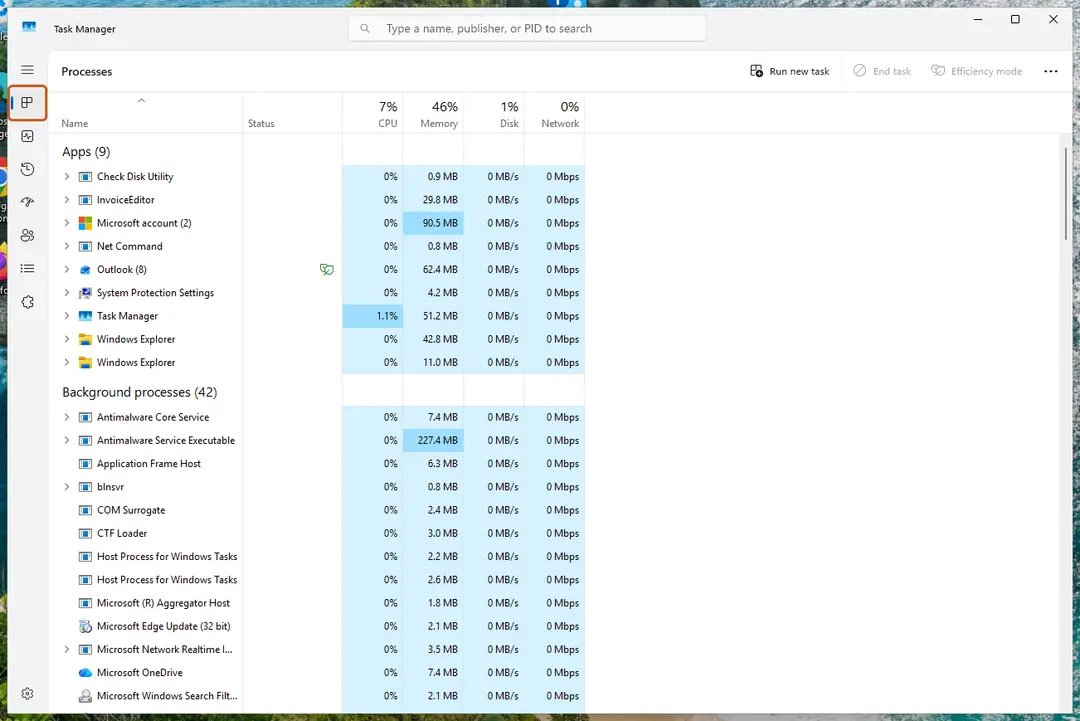
Task Manager opens on the Processes page, with your open apps listed under Apps. Screenshot: Windows 11 26H2 End the frozen app
Under Apps, select the app that is not responding, then select End task at the top. You can also right-click the app and select End task.
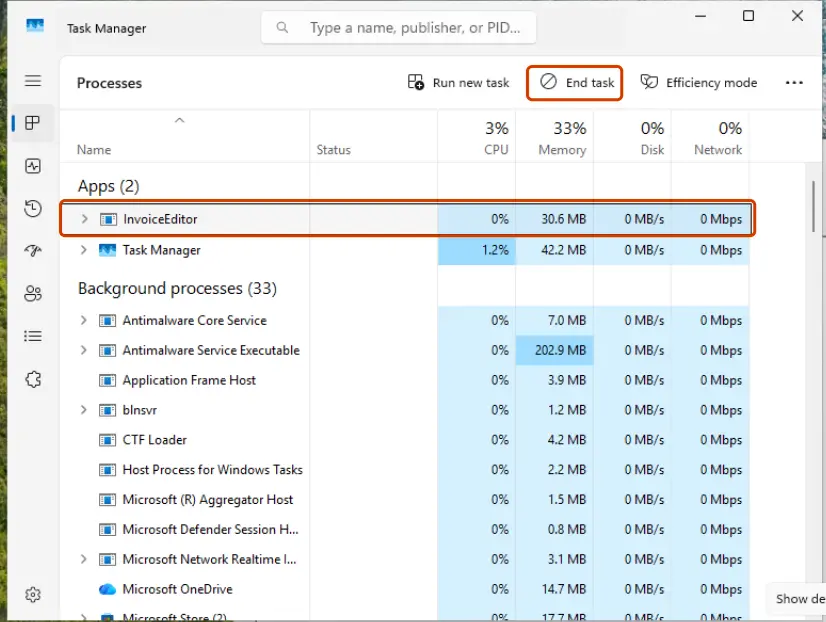
Select the frozen app, then End task. Screenshot: Windows 11 26H2 Open the app again
Start the app as usual. Many apps offer to recover the document you were working on.
End an app from the command line (Windows)
If Task Manager will not open or the app does not end, open Terminal or Command Prompt and end every app that Windows marks as not responding:
taskkill /f /fi "status eq not responding"
Or end one program by its file name (run tasklist to see the names):
taskkill /im <name>.exe /f
An app that runs as administrator can only be ended from a command window opened as administrator.
End a task from the taskbar (Windows 11)
Windows 11 can add End task to the menu you get when you right-click an app on the taskbar. The switch is in Settings > System, on the page with settings for developers. It is off by default.
If the whole PC is frozen
- Press Ctrl + Alt + Delete and select Task Manager. This screen often still works when the desktop does not.
- If only the taskbar, Start or the desktop are stuck, follow Restart File Explorer.
- If nothing responds, press and hold the power button until the PC turns off, then start it again. Unsaved work in all apps is lost.
If the same app keeps freezing
- Install the app's updates and Windows updates.
- Repair Windows system files: Run DISM and SFC to repair Windows system files.
- Remove the app and install a fresh copy: Uninstall a program or app in Windows.
- Start Windows with only the basic drivers to see whether other software is the cause: Start Windows or a Mac in Safe Mode.
Used in guides
Sources
- Microsoft Learn: taskkill command reference (read Oct 3, 2026)